Multizone | All our technotes
If we've published it, you can find it here.

As of 2026, many users continue to leverage virtual machines (VMs) to run Windows 11, whether for legacy applications, testing, or development. However, Windows installations often come with preloaded applications—commonly referred to as 'bloatware'—that can clutter your system and consume valuable resources. This article provides a comprehensive guide to effectively removing unnecessary applications from your Windows VM, helping to optimize performance and create a more streamlined user experience.
While Windows 11 has made strides in user experience and performance, the presence of bloatware can still hinder the efficiency of your VM. Removing these unwanted applications is crucial, especially if you are running resource-intensive software. Thankfully, Windows 11 offers robust command-line tools, along with an improved graphical interface, to help you eliminate this bloatware effectively.
TL;DR — Open a command prompt with elevated permissions, run PowerShell, and utilize the dism (Deployment Image Servicing and Management) tool to identify and uninstall any unnecessary apps.
{ToC}
Step-by-step instructions
- Open a command prompt with administrator permissions
- Run PowerShell
- Get a list of installed apps
- Remove the apps you don't want
- Reboot and enjoy a cleaner Windows environment
- More about DISM (Deployment Image Servicing and Management)
1. Open a command prompt with administrator permissions
- Click the 'Start' menu.
- Search for 'Command Prompt', right-click it, and select 'Run as administrator.'
2. Run PowerShell
- Click into the Command Prompt window.
- Type powershell and press 'Enter'.
3. Get a list of installed apps
Windows 11 features a command-line tool that simplifies application management. Use the following command to generate a list of provisioned apps:
dism /Online /Get-ProvisionedAppxPackages | select-string Packagename
The output will display a list of installed packages, which may include a variety of applications that you might not need.
4. Remove the apps you don't want
Identify any applications that are unnecessary for your workflow. For example, if gaming features are not of interest, you may want to remove Xbox-related applications. To uninstall an app, use the command below, replacing Packagename with the actual name of the app:
dism /Online /Remove-ProvisionedAppxPackage /Packagename:
Upon completion, you should see a confirmation message indicating the successful removal:
PS C:\WINDOWS\system32> dism /Online /Remove-ProvisionedAppxPackage /Packagename:Microsoft.XboxApp_48.48.7001.0_neutral_~_8wekyb3d8bbwe

Deployment Image Servicing and Management tool
Version: 11.0.22621.1

Image Version: 11.0.22621.1

The operation completed successfully.
5. Reboot and enjoy a cleaner Windows environment
What's changed in 2026?
In 2026, Windows 11 has continued to evolve, focusing on enhancing user experience and performance. Microsoft has introduced a more intuitive app management interface within the Settings menu, allowing users to easily manage installed applications without needing command-line tools. This interface offers centralized access to application settings, making it more user-friendly.
Additionally, Microsoft has expanded its efforts to reduce bloatware on new installations, with more streamlined setups that include fewer unnecessary applications. For power users and those managing VMs, however, command-line tools like DISM still provide essential functionality for precise control over application management.
About DISM - Deployment Image Servicing and Management
The Deployment Image Servicing and Management (DISM) tool remains a vital component of Windows, enabling users to manage Windows images before deployment. It allows for the installation, uninstallation, configuration, and updating of Windows features, packages, and drivers. While traditionally used for offline images, many DISM commands are also effective on a running operating system like Windows 11.
For more detailed information, refer to Microsoft's official documentation: DISM - Deployment Image Servicing and Management.
Note: While the command-line experience has remained consistent, it continues to be a powerful tool for those familiar with it, enabling effective management of Windows installations.
- Details
Link your Android or iPhone to Windows 10?
As if they had never had any phone business aspirations themselves, Microsoft proclaim that you can link your Android or iPhone to Windows 10 using their 'Your phone' app. Lets try it out in what you might, if you know me, call a 'busman's holiday'*.
In summary, avoid until you can get to Windows 11. 'link' is doing a lot of work in the heading!
The stated functionality is completely different between the two mobile device operating systems.
- Android — manage and respond to recent notifications, see your most recent photos, make and take calls and reply to text messages.
- iOS — send a webpage from your iPhone to your PC.

That is quite a feature gap which is explained opaquely by the very first screen of the app which has a notice saying that to experience full functionality you must be running Android 7.0 or later.
Having now tried pretty hard with Windows 10 Pro x64 version 1909 build 18363.1256 and Android 8.1, 9, 10 and 11 and iOS 12, and iOS 14 I can confidently say this app does not work for me.
The iOS single feature is hardly worth having anyway and forces you to install the Microsoft Edge browser for iOS in what you might be tempted to think is a classic example of a 'bait and switch'. The Android app requires very very invasive permissions given what it needs to accomplish and it needs to be able to run in the background and wants to have you disable certain android system settings like battery management.
A hurdle is that 'Your Phone' on Windows 10 requires very specific WiFi interoperability on your private network. Unless theres an update that improves this I cannot see how end users will be able to adopt this app as it just doesn't function well enough for example in your office, to be relied on.
TL:DR — A basic and clunky app. Really an Edge Browser bait and switch app for iPhone. Could be much more. Handoff for Edge it is not.
- Details

A: My opinion in July 2021 was that you should buy a MacBook Pro (13-inch, M1, 2020) with 16GB memory and 2TB SSD, Model Identifier: MacBookPro17,1. This is still a great computer but was discontinued in 2022 with the arrival of the 2021 14-inch MacBook Pro and 16-inch MacBook Pro. Equipped with Apple's ARM-based systems on a chip the M1 Pro and M1 Max these models reintroduced function keys in place of the Touch Bar, a Liquid Retina XDR display with a notch, an HDMI 2.0 port, a SDXC reader and MagSafe charging. This machine is a monster. It corrects everything remaining that was wrong with Apples less ports and touch bar designs.
If, like me, you like your Mac to last; then now is the time to take the plunge. I'd recommend the top of the line brand new model, which you can keep for five or more years, secure in the knowledge that because it is a current generation Apple silicon equipped Mac, it will have enough oomph to still work fine at the end of its life. If funds are tight then you can choose a refurbished MacBook Pro (16-inch, 2021) with an M1 Max chip 64 GB and 1 TB, as I have done. You can justify the cost by amortising it over several years or buy it on a credit card.
- Details

In 2026, running an iOS app on an Apple silicon Mac is straightforward: open the App Store, search for your app, and install it directly. Most iPhone and iPad apps are available this way, and for the majority of users that is the whole story. The method below exists for edge cases where an app isn't listed in the Mac App Store — but treat it as a last resort, not a first step.
- Details
Read more: Q: How do you get an iOS app to run on an M1 based Mac?

Belkin has been producing cables and connectors for ever so it seemed a safe bet to try out their USB-C multimedia hub. This USB-C hub has 6 ports of different types, so first off I connected my USB-C charger to the pass-through charging capable USB-C connector which is rated up to 60-Watts. You can use this USB-C for a mouse or other USB-C peripheral too but the hub works best when powered as it can provide pass through power for the USB-C device and can charge devices using the USB-A ports. Once connected I plugged the hard wired 7cm short USB-C flylead into the USB-C port of my first device, a Google Chromebook. It works fine and seems just the right length and to be of very strong construction. But what about the rest of the ports?
First one on the front panel is an SD Card slot which supports full size SD cards and microSD cards using a microSD to SD adapter (these usually come with the microSD cards. Plug in an SD card and it is immediately detected in the files app on Chrome OS. Good start! I tried a variety of cards and all work fine, I was able to format a card too once I figured out how in Chrome OS!
Next to the CD Card slot are two USB 3.0 (USB A) ports. These are perfect for existing heritage peripherals assuming the world is slowly moving to USB-C. I tested them with an old mouse and keyboard to the Chromebook and they worked perfectly. In a slightly unfair test I plugged two Apple iPhones in and both charged via the power from the Chromebook charger. Impressive stuff! They also The documentation says they can be powered to a combined 3.0 Amp maximum and charge devices when USB-C power is connected.
Lastly theres an HDMI port. I plugged my Chromebook into my external 34in monitor, it recognised it and worked just perfectly. The HDMI port supports resolitions from 3840 x 2160 (UHD 4K) all the way down to 640 x 480 (VGA).
Theres more though! On the end of the Hub is Gigabit Ethernet. I've always preferred wired Ethernet perhaps in in an old fashioned way. And here it is. I plugged it in to my network. And if you're following along with the general direction of this review - it just worked. Wired Ethernet provides blazing fast and potentially more secure network access to corporate or private networks for a Chromebook.
If I had a criticism it would be lack of power status/charge LED. But then I can see one on the Chromebook or in the battery status of another device so that is a small issue and clearly by design.
By way of comparison, I've also extensively used an OWC USB Type-C 9 port dock which is a great device but more expensive and bulkier. It has more USB 3.1 both A and C ports as well as SD card, Gigabit Ethernet, audio and mini display port but it is mains powered only. The Belkin adapter is far better suited for a laptop bag when you are on the move to different locations.
Supported systems
Belkin say the USB-C Multimedia hub has been tested for compatibility with the following macOS, Chrome OS and Windows 10 devices:
- MacBook® with USB-C 3.1 Port
- MacBook Pro® 13” with Thunderbolt™ 3
- MacBook Pro 15” with Thunderbolt 3
- MacBook Pro 15” with Touch Bar™ and Thunderbolt 3
- HP Spectre x360 with USB-C 3.1
- Dell® XPS 13 with Thunderbolt 3/USB-C 3.1
- HP Pavilion x360 with USB-C 3.1
- ASUS® ZenBook Flip S with USB-C 3.1
- Lenovo® Yoga 910 with USB-C 3.1
- Microsoft® Surface® Book 2 with USB-C 3.1
- Dell Chromebook™ 3180 with USB-C 3.1
- ASUS Chromebook Flip C302 with USB-C
- Google Pixelbook™ with USB-C 3.1
Note: This is a product I purchased for myself and use daily.
- Details

macOS Mojave and VMware Fusion
It is easy to install macOS as a virtual machine in VMware Fusion on a Mac provided you create a bootable installer from which to install the Mac operating system. Using macOS in a virtual machine in VMware Fusion is expressly permitted by the macOS licence agreement provided you are running on Apple hardware and you obtain macOS Mojave legally from Apple.
It runs beautifully and is perfect for testing and development workloads. VMware Fusion is a software hypervisor developed by VMware for macOS systems.
TL:DR — Get VMware Fusion, Install VMware Fusion, download macOS Mojave from Apple, create a bootable USB of macOS Mojave and it can be installed in VMware Fusion just perfectly.
- Details
macOS Catalina and VMware Fusion
It is easy to install macOS Catalina as a virtual machine in VMware Fusion on a Mac provided you create a bootable installer from which to install the Mac operating system. Using macOS Catalina in a virtual machine in VMware Fusion is expressly permitted by the macOS licence agreement provided you are running on Apple hardware and you obtain macOS Catalina legally from Apple.
It runs beautifully and is perfect for testing and development workloads.
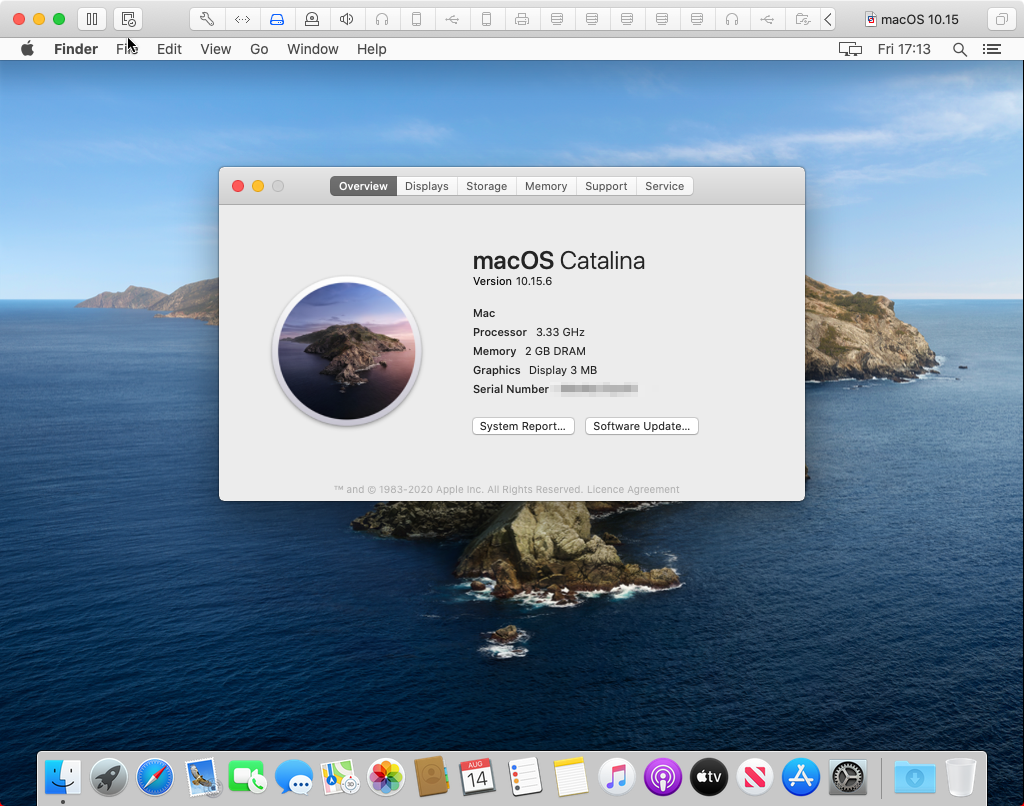
TL:DR — Get VMware Fusion, Install VMware Fusion, download macOS Catalina from Apple, create a bootable USB of macOS Catalina and it can be installed in VMware Fusion just perfectly.
- Details
Read more: Install macOS Catalina as a virtual machine in VMware Fusion