Multizone | All our technotes
If we've published it, you can find it here.

Introduction: Where the Online Safety Act Stands in 2026
The UK Online Safety Act has moved from legislative ambition to live enforcement. Ofcom is now actively scrutinising platforms, issuing compliance notices, and — in the most serious cases — pursuing fines and criminal referrals. For any business providing an online service accessible to UK users, the question is no longer whether to comply, but whether your current compliance posture is robust enough to withstand regulatory inspection.
The Act's reach is international. It applies to services with links to the UK whether the provider is headquartered in London, Dublin, Delaware, or anywhere else. Ofcom has made clear it will pursue non-UK operators where there is evidence of harm to UK users.
TL;DR – The phased compliance deadlines have now passed. If you have not yet completed your illegal content risk assessment, your children's access assessment, and — where applicable — your children's risk assessment, you are already exposed to enforcement action. Complete them immediately. The Act applies to any online service accessible in the UK, and Ofcom is no longer waiting.
{ToC}
Why the Online Safety Act Demands Attention Right Now
When the Act received Royal Assent in October 2023, many platforms took a wait-and-see approach. That window has closed. Ofcom's enforcement programme is operational: the Illegal Harms Codes of Practice came into force in March 2025, the Protection of Children Codes followed in July 2025, and Ofcom has since begun its first wave of formal compliance reviews targeting both large platforms and mid-tier services that assumed they were below the regulatory radar.
The regulator has been explicit that size is not a shield. Smaller platforms carrying high-risk content categories — particularly those involving children, financial fraud, or intimate image abuse — are being prioritised alongside the major players. Reputational damage, service restrictions, and personal liability for senior managers are all live consequences, not theoretical ones.
Who the Online Safety Act Applies To
The Act covers businesses both inside and outside the UK that provide services accessible to UK users. The level of obligation scales with the service type and the risks it poses, but very few interactive online services are entirely out of scope.
The regulations apply across a broad spectrum of online services:
User-to-user services
User-to-user services allow people to generate and share content that other users can see. They include:
- social media platforms
- video-sharing services
- private messaging apps
- online marketplaces
- dating apps
- review platforms
- file- and audio-sharing services
- discussion forums and community boards
- information-sharing platforms
- online gaming environments
Search services
A search service enables users to search more than one website or database for information or content. There are two main types:
- General search services allow users to search content from across the web.
- Vertical search services allow users to search for specific products or services offered by different providers — such as flights, financial products, or insurance.
Video-sharing platforms
Video-sharing platforms (VSPs) allow users to upload and share video content. Most VSPs — including large social platforms with video functionality — are now subject to the full suite of online safety duties. Some platforms established in the UK were already bound by earlier VSP regulations; they now operate under the consolidated Online Safety Act framework.
Services that meet the legal criteria for UK-regulated VSP status must notify Ofcom, which maintains a list of notified platforms.
Services with pornographic content
This category covers online services where the provider publishes or displays pornographic content, as well as services that allow users to upload and share such content. These services face the most immediate and stringent age assurance requirements under the Act.
Compliance Deadlines: Where Things Stand in 2026
All three major compliance phases have now passed. If your organisation has not acted on each milestone, you are in arrears and should treat remediation as urgent.
| Date | Milestone | Status / Action required |
| March 2025 | Illegal Harms Codes of Practice came into force |
Illegal content risk assessment — must be complete Children's access assessment — must be complete Pornographic content services — highly effective age assurance must be in place |
| April 2025 | First version of the Protection of Children Codes of Practice published | Children's risk assessment — must be complete |
| July 2025 | Protection of Children Codes of Practice came into force | Specific services required to disclose risk assessments to Ofcom — deadline passed |
| 2026 onwards | Active enforcement and compliance reviews | Ofcom conducting formal reviews; platforms must demonstrate ongoing compliance and up-to-date risk assessments |
Ofcom has confirmed it will treat the failure to complete risk assessments as a standalone compliance breach — separate from any harm that may have actually occurred on a platform. Incomplete documentation is itself an enforcement trigger.
Understanding the Core Requirements of the Online Safety Act
How the Act Categorises Harmful Content
The Act identifies and categorises harmful content into 17 kinds of priority illegal content and a broader category of other illegal content, including non-priority offences. Platforms must actively work to prevent, detect, and remove material falling under these definitions — not simply respond to it after the fact.
The 17 Priority Illegal Content Categories
- Terrorism: Content promoting, inciting, or glorifying terrorist activities.
- Harassment, stalking, threats, and abuse: Material involving targeted harassment, stalking, credible threats, or sustained abuse.
- Coercive and controlling behaviour: Content depicting or encouraging coercive control in intimate or family relationships.
- Hate offences: Material inciting hatred against individuals or groups based on protected characteristics.
- Intimate image abuse: The non-consensual sharing of private sexual images — now also addressed by the Criminal Justice Act 2024, which created new specific offences including the taking of such images without consent.
- Extreme pornography: Content depicting extreme sexual acts that are illegal under UK law.
- Child sexual exploitation and abuse (CSEA): Material involving the sexual exploitation or abuse of children, including AI-generated imagery which Ofcom has explicitly confirmed falls within scope.
- Sexual exploitation of adults: Content depicting or facilitating the sexual exploitation of adults.
- Unlawful immigration: Material facilitating or promoting illegal entry or stay.
- Human trafficking: Content related to the illegal trade of people for exploitation or commercial gain.
- Fraud and financial offences: Material promoting or facilitating fraudulent financial activity, including investment scams and authorised push payment fraud.
- Proceeds of crime: Content concerning the handling or laundering of illegally obtained money.
- Assisting or encouraging suicide or self-harm: Material that encourages or provides means for self-harm or suicide, a category Ofcom has flagged as particularly acute for platforms used by young people.
- Drugs and psychoactive substances: Content promoting the sale or use of controlled drugs and novel psychoactive substances.
- Weapons offences: Material promoting the illegal acquisition, possession, or use of knives, firearms, or other weapons.
- Foreign interference: Content involving foreign state or non-state actors interfering in UK democratic processes or public discourse.
- Animal welfare: Material depicting or promoting cruelty to animals.
It is worth noting that Ofcom's enforcement guidance published in late 2025 specifically highlighted fraud, CSEA, and suicide and self-harm content as areas where it found the most significant gaps in platform compliance during its initial review cycle. If your service has any exposure to these categories, they warrant priority attention.
Non-Priority Illegal Content
Beyond the 17 priority categories, all service providers must assess whether other forms of illegal content are likely to appear on their platform. Ofcom's Register of Risks identifies a range of non-priority illegal content, but the obligation extends further: if you have evidence or reasonable grounds to believe a particular type of illegal harm — even one not listed — is likely to occur on your service, it must be included in your risk assessment. The threshold is evidence-based, not exhaustive-list-based.
Your Risk Assessment Obligations
What a Compliant Risk Assessment Looks Like
A risk assessment under the Act is not a tick-box exercise. Ofcom expects documented, evidence-based analysis that demonstrates genuine engagement with the specific risks your service presents. A generic template submitted without service-specific evidence is unlikely to satisfy a compliance review.
Ofcom's Four-Step Methodology
- Identify risks: Map the specific ways in which illegal or harmful content could emerge on your platform, given its features, user base, and content types.
- Evaluate severity: Assess the likelihood and potential impact of each risk, considering both the probability of occurrence and the harm to users — particularly children and other vulnerable groups.
- Mitigate risks: Implement proportionate, documented safeguards. Ofcom's Codes of Practice set out recommended measures; departing from them requires you to demonstrate that your alternative approach is equally effective.
- Review and update: Risk assessments are living documents. They must be updated following significant platform changes, new regulatory guidance, or emerging threats identified through your own moderation data.
What Evidence to Use
Robust assessments draw on incident and moderation logs, user complaint data, law enforcement referrals, industry threat intelligence, and — where relevant — independent expert analysis. Platforms that have conducted user research on how their service is actually used by children tend to produce more credible assessments. Document everything: Ofcom may request your underlying evidence, not just your conclusions.
When to Conduct a Fresh Assessment
A new or substantially revised assessment is required whenever you make significant changes to your service's features or algorithms, when Ofcom publishes updated guidance or codes, or when your own data suggests a material shift in the risk landscape. Annual reviews are a minimum baseline; higher-risk services should review more frequently.
Your Legal Obligations in Practice
Conducting a Compliance Audit
A compliance audit maps your current policies, technical measures, and governance arrangements against the requirements of the Act and Ofcom's Codes of Practice. It should cover risk assessment documentation, content moderation workflows, reporting mechanisms, age assurance systems, transparency reporting, and staff training records. Gaps identified in an audit are far less costly to address proactively than during an Ofcom investigation.
Proactive Prevention vs. Reactive Moderation
The Act explicitly requires proactive measures for priority illegal content — waiting for users to report harmful material is not sufficient. For the highest-risk categories, platforms must deploy systems capable of detecting content before it reaches other users. The standard Ofcom applies is proportionality: larger platforms with greater resources face higher expectations, but no regulated service is excused from having some proactive capability.
Detecting, Removing, and Reporting Illegal Content
Platforms must have technically effective systems for identifying prohibited content, clear timelines for removal, and established channels for reporting to Ofcom and, where appropriate, law enforcement. The National Crime Agency and Internet Watch Foundation remain key referral bodies for CSEA content specifically. Platforms should have documented escalation procedures that staff can follow without ambiguity.
Age Assurance: The Raised Bar
Age verification requirements have become one of the most actively enforced areas of the Act. Ofcom's guidance makes clear that "highly effective age assurance" means more than a self-declaration checkbox. Technical measures — such as age estimation technology, credit card verification, or third-party identity checks — are expected for services likely to be accessed by children. Pornographic content services that have not implemented such measures by now are in direct breach. For other services, the children's access assessment determines whether age assurance is required and at what level.
Transparency Reporting
Platforms above certain thresholds must publish annual transparency reports covering their approach to illegal content, moderation volumes, appeals data, and age assurance measures. Ofcom has published a transparency reporting framework, and reports that fail to address its key metrics are treated as inadequate. Smaller services below the threshold are still expected to be able to produce compliance documentation on request.
User Safety Measures
Building Compliance Into Your Operations
Effective compliance is an operational discipline, not a one-off project. Automated content detection, human moderation, clear community standards, and accessible user reporting tools all need to work together. Ofcom has noted that platforms relying exclusively on automated moderation — without human review for edge cases and appeals — are likely to fall short of the standard required.
Staff Training
Everyone involved in content decisions, user safety, product development, and legal affairs needs a working understanding of the Act's requirements. Training should cover the priority illegal content categories, escalation procedures, how to handle user reports, and what triggers a mandatory referral to external authorities. Records of training completion should be maintained as part of your compliance documentation.
Algorithmic Accountability
AI-driven recommendation and moderation systems are under specific scrutiny. Ofcom expects platforms to be able to explain how their algorithms affect the distribution of potentially harmful content, and to demonstrate that automated systems are regularly audited for bias and effectiveness. As generative AI tools become more widely used to create content, platforms also need to consider how their moderation systems handle AI-generated material — including synthetic CSEA imagery, which is explicitly in scope.
Content Governance and Appeals
Community guidelines must be clear, consistently enforced, and accompanied by a meaningful appeals process. Users who have content removed or accounts actioned must have a route to challenge those decisions. Ofcom has indicated that platforms with no functional
- Details

Backing up data is essential, but keeping multiple drives in sync and verifying file integrity across copies remains genuinely tricky — even in 2026. macOS Sequoia and its successors ship with a solid set of command-line utilities that handle the heavy lifting, and the third-party ecosystem has matured around them. Chief among the graphical options is Carbon Copy Cloner, which you should simply go ahead and use. It has earned its reputation over many years as the most dependable drive-cloning tool on the Mac. That said, knowing the underlying Unix tools gives you flexibility, scriptability, and a deeper understanding of what your backups are actually doing.
TL;DR – The best macOS tools for syncing and comparing backup drives include rsync for file transfer, diff for directory comparison, shasum for integrity checks, and fswatch for real-time monitoring. Carbon Copy Cloner handles all of this graphically with a polished interface and SafetyNet protection. Automating verification with cron or launchd keeps backups trustworthy without manual effort.
{ToC}
Carbon Copy Cloner
Start here. Carbon Copy Cloner (CCC) is not a command-line tool, but it is the gold standard for drive cloning on macOS and the first thing you should reach for. It has been actively developed and maintained for well over two decades, consistently keeping pace with every major macOS change — APFS, Apple Silicon, Sequoia's volume structure, all of it. The developer, Mike Bombich, is genuinely responsive; when I raised what turned out to be a misunderstanding on my part about APFS snapshot behaviour, I got a clear and patient reply. That kind of support is rare.
CCC's SafetyNet feature is worth highlighting on its own: it preserves deleted or overwritten files in a hidden folder on the destination drive for a configurable period, giving you a safety margin if a sync goes wrong. The task-based interface makes scheduling incremental backups straightforward, and the built-in snapshot support integrates cleanly with APFS. If you are running Apple Silicon hardware — an M3, M4, or later Mac — CCC handles the nuances of bootable backups that rsync alone cannot replicate.

Carbon Copy Cloner is available at bombich.com. It is paid software with a free trial, and it is worth every penny given how much grief a failed backup costs.
Using rsync for Efficient File Synchronisation
rsync is one of the most reliable tools for copying and syncing files. It transfers only changed data, making it well suited to incremental backups of large drives. macOS ships with rsync built in, though the bundled version has historically lagged behind the upstream release. If you want the current version, install it via Homebrew — it is worth doing.
Basic Usage
% rsync -av /source/directory/ /destination/directory/-a (archive mode) preserves permissions, timestamps, symbolic links, and ownership.-v enables verbose output so you can track what is being transferred.
Incremental Backups
To copy only files that are newer on the source than the destination:
% rsync -av --update /source/directory/ /destination/directory/Always test a new rsync command with --dry-run (or -n) first. It shows exactly what would be transferred without touching anything:
% rsync -avn /source/ /destination/Excluding Files and Folders
On modern macOS, certain system directories and APFS metadata will cause errors if you try to sync them directly. Use --exclude to skip them cleanly:
% rsync -av --exclude='.Spotlight-V100' --exclude='.fseventsd' --exclude='.Trashes' /source/ /destination/This is particularly relevant when syncing between external drives formatted as APFS or HFS+, where macOS writes hidden metadata that does not need to travel with your backup.
Comparing Directories with diff
Checking Directory Differences
Use diff to compare the contents of two directories:
% diff -rq /dir1 /dir2-r compares directories recursively.-q reports only which files differ, without showing the actual content differences — useful when you just want to know whether two backup copies match.
Verifying Integrity with shasum
Generating and comparing checksums is the most reliable way to confirm that a copy is bit-for-bit identical to the source. Silent data corruption — sometimes called bitrot — is a real risk on drives that sit idle for extended periods, and checksums catch it where a simple directory comparison will not.
% shasum -a 256 file1 > file1.sha256
% shasum -c file1.sha256
For an entire directory, generate a manifest you can store alongside the backup:
% find /backup -type f -exec shasum -a 256 {} \; > /backup/checksums.sha256Run shasum -c /backup/checksums.sha256 periodically to confirm nothing has changed unexpectedly. If you are storing backups on drives that spend months in a drawer, running this check every few months is genuinely worthwhile.
Finding Differences with comm and uniq
Comparing Sorted File Lists
comm is useful for comparing two sorted lists — for example, the file inventories of two backup drives:
% comm -3 <(ls /drive1 | sort) <(ls /drive2 | sort)comm outputs three columns: lines only in the first input, lines only in the second, and lines in both. The -3 flag suppresses the shared entries, leaving only the differences.
Identifying Duplicates
To find duplicate entries in a sorted file list:
% uniq -d file_list.txtMonitoring Changes with fswatch
Real-Time File Monitoring
fswatch watches a directory and reports file-system events as they happen. It is not built into macOS but is available via Homebrew:
% brew install fswatch% fswatch -o /backup-driveThis is useful for confirming that a backup task is actively writing, or for triggering a script whenever a monitored directory changes. Piping fswatch output into a sync command gives you a lightweight continuous-backup workflow without a full daemon.
Automating Backup Verification
Scheduling with cron
cron is the classic Unix scheduler — old, ubiquitous, and perfectly functional for periodic backup checks. Add a job to verify your checksum manifest weekly:
0 3 * * 1 shasum -c /backup/checksums.sha256 >> /backup/logs/sha256.log 2>&1This runs every Monday at 3 am and appends results to a log file. Edit your crontab with crontab -e.
Using launchd as an Alternative
macOS has long preferred launchd over cron for scheduled tasks, and on modern macOS it is the more robust option — particularly for tasks that need to run even after a reboot or when the system wakes from sleep. You define a job as a property list file in ~/Library/LaunchAgents/ and load it with launchctl. It is more verbose to configure than a cron entry, but it integrates properly with macOS power management and logs to the unified logging system, which makes debugging easier. For anything running unattended on a machine you care about, launchd is the better long-term choice.
Summary
rsync, diff, and shasum are built into macOS. fswatch is available via Homebrew — see Installing wget with Homebrew on macOS for a guide to getting Homebrew set up if you have not already. Carbon Copy Cloner is available at bombich.com.
Together these tools give you a complete picture of your backup health: CCC for reliable, scheduled cloning with SafetyNet protection; rsync for scriptable incremental sync; shasum to catch silent corruption; and diff or comm to confirm two copies match. Automating the verification step is the part most people skip, and it is the part that matters most — a backup you have never tested is a backup you cannot trust. Run the checks, review the logs, and make sure you have at least one copy that is not Time Machine. Time Machine is excellent, but it should not be your only safety net.
- Details

VMware's shift to a free-for-personal-and-commercial-use model under Broadcom's ownership has settled into the new normal by 2026, and the practical benefits are now well understood. VMware Workstation Pro and VMware Fusion Pro are both available at no cost for individual use, meaning developers, IT professionals, and businesses can move virtual machines between macOS, Windows, and Linux without worrying about licensing fees. If anything, the bigger friction point today is navigating Broadcom's portal to actually download the software — but once you're past that, cross-platform VM migration is genuinely straightforward.
TL;DR — Moving virtual machines between Intel-based Mac computers, Windows PCs, and Linux desktops using VMware's free tools is easier than ever in 2026. Apple Silicon Macs are a different story — read on.
{ToC}
For professionals transitioning away from Intel-based Macs, or anyone consolidating their lab onto a single Windows or Linux workstation, the migration path from VMware Fusion to VMware Workstation Pro is well-trodden. This guide walks through the steps for a smooth move. If you're setting up the destination machine first, you may also want to read Installing VMware Workstation Pro for Ubuntu 24.04, which covers the Linux side of the install process.
The Apple Silicon caveat
Before diving in, one important boundary condition: this guide applies to Intel-based Macs. If your source machine is an Apple Silicon Mac (M1, M2, M3, or M4), the situation is more complicated. VMware Fusion on Apple Silicon runs ARM-based virtual machines, and those VMs are not directly portable to an x86-64 Windows or Linux workstation running VMware Workstation Pro. The CPU architectures are incompatible at the VM level, so a direct copy-and-import will not work. Your options in that scenario are to migrate the workload rather than the VM itself — reinstalling the guest OS on the destination and transferring data separately — or to use an intermediary tool to convert the disk image. For Intel-to-Intel or Intel-to-AMD migrations, however, the process described below works reliably.
It's also worth noting that Broadcom has continued to refine both products since the acquisition. VMware Workstation Pro 17.x and Fusion Pro 13.x are the current release lines as of 2026, and both support the latest guest operating systems including Windows 11 24H2 and recent Linux kernels. Hardware compatibility profiles have been extended accordingly, which matters when you're moving an older VM and want to take advantage of newer virtual hardware features on the destination host.
Preparing for the migration
A little preparation on the source machine saves a lot of troubleshooting on the destination. VMware maintains broad compatibility between Fusion and Workstation, but macOS-specific configuration in Fusion can occasionally cause confusion when the VM lands on Windows or Linux.
- Check the virtual machine's hardware compatibility level — VMware Fusion lets you set a hardware compatibility profile per VM. Open the VM's settings and confirm it's set to a version that Workstation Pro on the destination also supports. Aligning both to the same hardware version avoids upgrade prompts and potential driver churn after import.
- Update VMware Tools inside the guest — Do this before you export or copy anything. Current VMware Tools ensures the guest's drivers and services are in good shape, which reduces the chance of network, display, or storage issues appearing after the move.
- Shut down cleanly, don't suspend — A suspended VM carries a memory snapshot that can cause problems on a different host. Power off the guest fully before exporting or copying.
- Back up the VM — Migration issues are rare but not unheard of. A copy of the original
.vmwarevmbundle on a separate drive means you can always start over without losing work.
Exporting the virtual machine from VMware Fusion
There are two practical routes: exporting as an Open Virtualisation Format (OVF or OVA) file, or manually copying the raw VM files. Each has trade-offs.
Using OVF/OVA export
- Open VMware Fusion and select the VM you want to migrate.
- Go to File > Export to OVF.
- Choose a destination folder and wait for the export to complete. Larger disks take time — plan accordingly.
- Copy the resulting OVF file and its accompanying
.vmdkfiles (or the single.ovaarchive if Fusion produces one) to an external drive or a network share accessible from the destination PC.
OVF export is the cleanest method for cross-platform moves. The trade-off is that snapshots are not preserved — you get the current state of the VM only. If your snapshot tree matters, use the manual copy method instead, or flatten snapshots before exporting.
Manually copying VM files
For cases where you need to retain snapshots or want a more direct transfer:
- Locate the VM's
.vmwarevmbundle in macOS — by default this lives in~/Documents/Virtual Machines/. - Right-click the bundle and select Show Package Contents.
- Copy the
.vmdk(virtual disk) and.vmx(configuration) files — and any snapshot delta disks if present — to your external drive. If in doubt, copy everything inside the bundle.
This approach retains more of the VM's state but may require a small amount of manual reconfiguration once it's open in Workstation Pro on the other side.
Importing the virtual machine into VMware Workstation Pro
Once the files are on the destination PC, importing is quick.
Importing an OVF or OVA file
- Open VMware Workstation Pro and go to File > Open.
- Select the
.ovfor.ovafile. - Work through the import wizard. You'll be asked to name the VM and choose a storage location — the defaults are fine for most cases.
- Review the VM's hardware settings before powering it on. Pay particular attention to the network adapter type and the number of virtual CPUs, which occasionally get reset to conservative defaults during import.
Manually opening copied VM files
If you used the manual copy method:
- Open VMware Workstation Pro and click Open a Virtual Machine.
- Navigate to the copied
.vmxfile and select it. - When prompted, choose I Moved It rather than I Copied It. This preserves the VM's unique identifiers and avoids unnecessary MAC address regeneration.
- Review network and resource settings before first boot.
Post-migration steps
The VM will usually boot without drama, but a few things are worth checking before you declare the migration complete.
- Networking — Fusion and Workstation Pro use different virtual network stacks. If the guest had a static IP or specific network adapter configuration, you may need to reconfigure the virtual NIC type (VMXNET3 is the right choice for most modern guests) and update the guest's network settings to match the new host environment.
- VMware Tools update — Even if you updated Tools before export, Workstation Pro may prompt you to install a newer version. Accept it. The Tools package is host-specific and the version bundled with Workstation Pro on Windows or Linux will be better matched to that environment.
- Operating system and application reactivation — Windows in particular ties activation to hardware fingerprint. A VM that has moved to a new host may trigger a reactivation prompt. Have your licence keys to hand. Some enterprise software with node-locked licensing will need attention from a licence administrator.
- Performance tuning — Revisit CPU and RAM allocation based on what the new host machine actually has available. If the destination machine has NVMe storage, enabling SSD pass-through hints in the VM settings can noticeably improve disk performance inside the guest.
- Snapshot cleanup — If you carried snapshots across, this is a good moment to review and delete any that are no longer needed. Snapshot chains slow down disk I/O and consume space; a clean baseline snapshot taken post-migration is more useful than a chain inherited from the old machine.
Conclusion
With VMware Workstation Pro free for individual use and the tooling mature after several years under Broadcom's stewardship, moving virtual machines between macOS and Windows or Linux is about as painless as this kind of task gets. The main things to get right are the hardware compatibility level, a clean shutdown before export, and a few minutes of post-import housekeeping on networking and VMware Tools. Everything else largely takes care of itself.
For developers and IT professionals who routinely work across platforms, the ability to carry a fully configured VM from a Mac workstation to a Linux or Windows machine — and have it running within the hour — is a genuine productivity asset. The barrier in 2026 is no longer cost or complexity; it's just knowing the steps.
- Details

My Mac mini (2018) had a good run, but by early 2026 it's very clear that Intel Macs are firmly in Apple's rear-view mirror. The machine is still nominally supported — Apple hasn't officially dropped it yet — but the cracks are showing. It refused to install macOS Sequoia 15.3.2 no matter what I threw at it, and I tried pretty much everything. Is this Apple gently nudging Intel holdouts toward the exit? Possibly. For me it became the final push I needed to fully commit to Apple silicon and abandon my last foothold in x86 virtualisation on macOS. That's not a trivial decision when you still have working virtual machines you depend on — but as it turned out, the transition was far smoother than I feared.
TL;DR — macOS Sequoia 15.3.2 refused to install on my Mac Mini (2018) despite exhausting every standard troubleshooting route. I eventually erased the machine, reverted to macOS Sonoma, sold it, and moved on. If you're in the same boat, read on — the good news is that your Intel VMs don't have to die with the hardware.
{ToC}
Where things stand in 2026
When this saga started, macOS Sequoia 15.3.2 was the latest release. By 2026, Apple has pushed on further, and the gap between what Apple silicon Macs receive and what Intel machines can reliably run has widened noticeably. The Mac Mini (2018) remains on Apple's supported list for Sequoia — on paper — but real-world experience, including mine, suggests that "supported" is doing a lot of heavy lifting. Installation failures, degraded performance, and features silently withheld from Intel hardware are increasingly common complaints in the community. If you're still running a 2018 Mac Mini daily, this article should feel very familiar.
It's also worth noting that the Mac Mini itself has moved on dramatically. Apple's current Mac Mini lineup — powered by M4 and M4 Pro chips — is a generational leap in every measurable way. Prices have remained broadly similar to where they were at launch, making the value case for hanging onto ageing Intel hardware weaker than ever. The 2018 model was a fine machine in its time, but 2026 is not its time.
Understanding the macOS Sequoia 15.3.2 update
The macOS Sequoia 15.3.2 update shipped primarily to support the then-new MacBook Air M4 and the M3/M4 Mac Studio ranges, but it also carried a critical security patch for a serious Safari WebKit vulnerability — one that could allow maliciously crafted web content to escape its sandbox. That kind of flaw is not something you want sitting unpatched. The problem is that for some Intel Mac users, the cure proved harder to apply than the disease was to ignore.
Software Update: the first failure
Let's walk through what actually happened. Software Update offered the update, I accepted the licence agreement, the download appeared to proceed — and then:
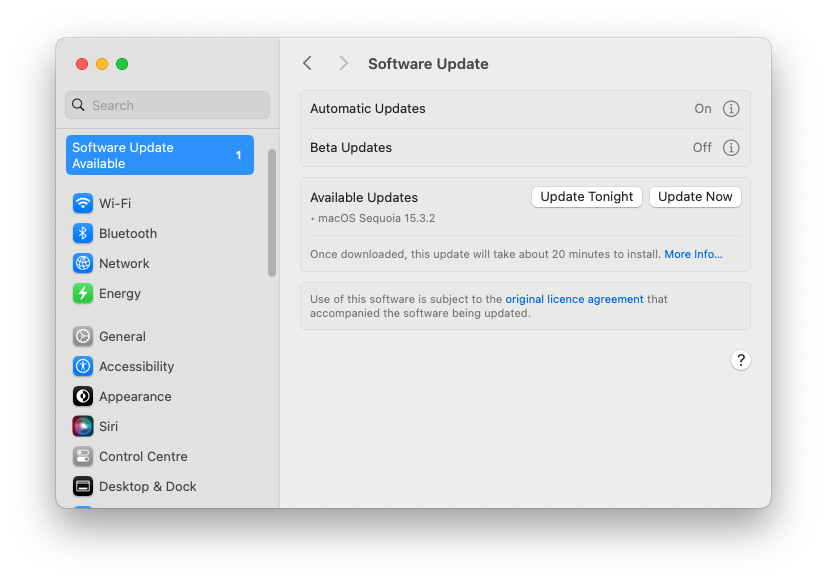
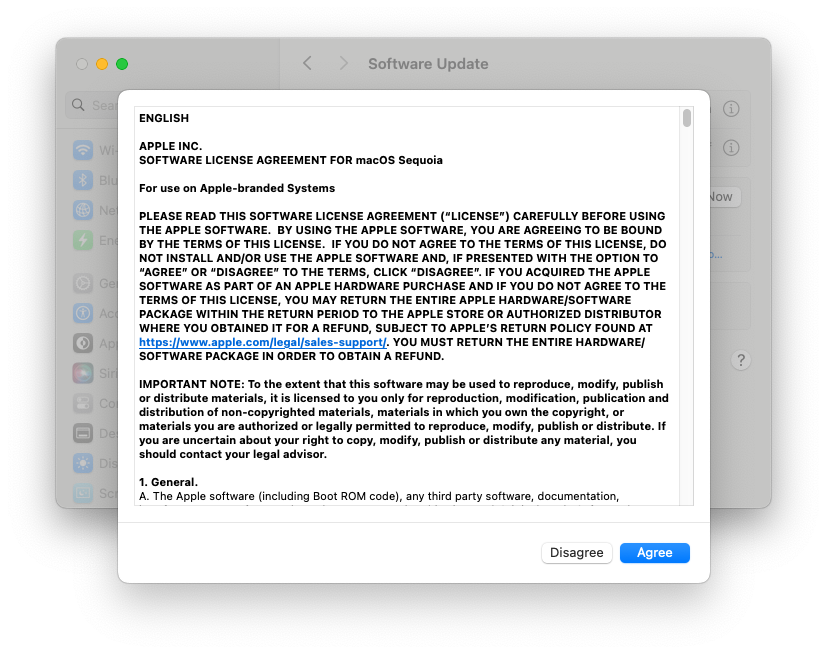
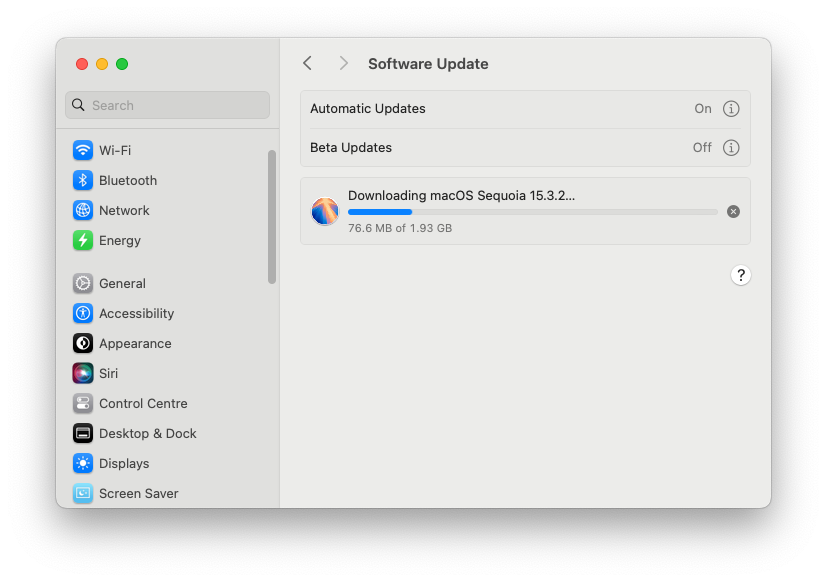
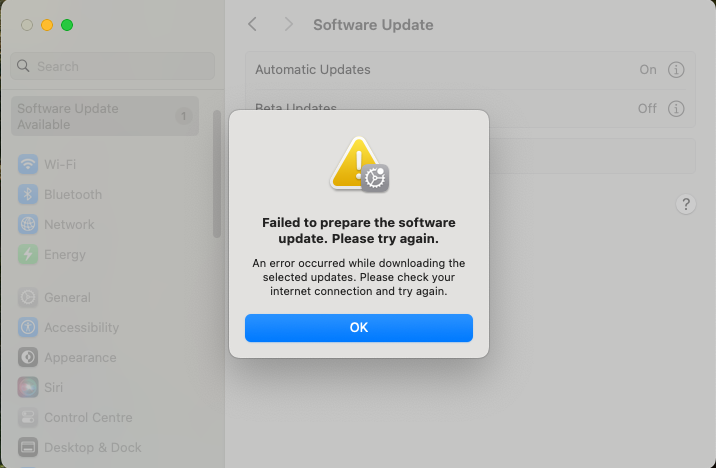
The error message: "Failed to prepare the software update. Please try again. An error occurred while downloading the selected updates. Please check your internet connection and try again." The internet connection was fine. The message is essentially useless — it could mean dozens of things, and Apple's error reporting here is characteristically unhelpful.
Downloading the macOS installer directly from Apple
Apple makes it reasonably straightforward to download a full macOS installer via the App Store. The How to download and install macOS support page lists direct links for each release:
The installer downloads to your Applications folder and opens automatically. You can also quit without installing to keep it there for later — useful if you want to create a bootable USB drive.
Installer is damaged
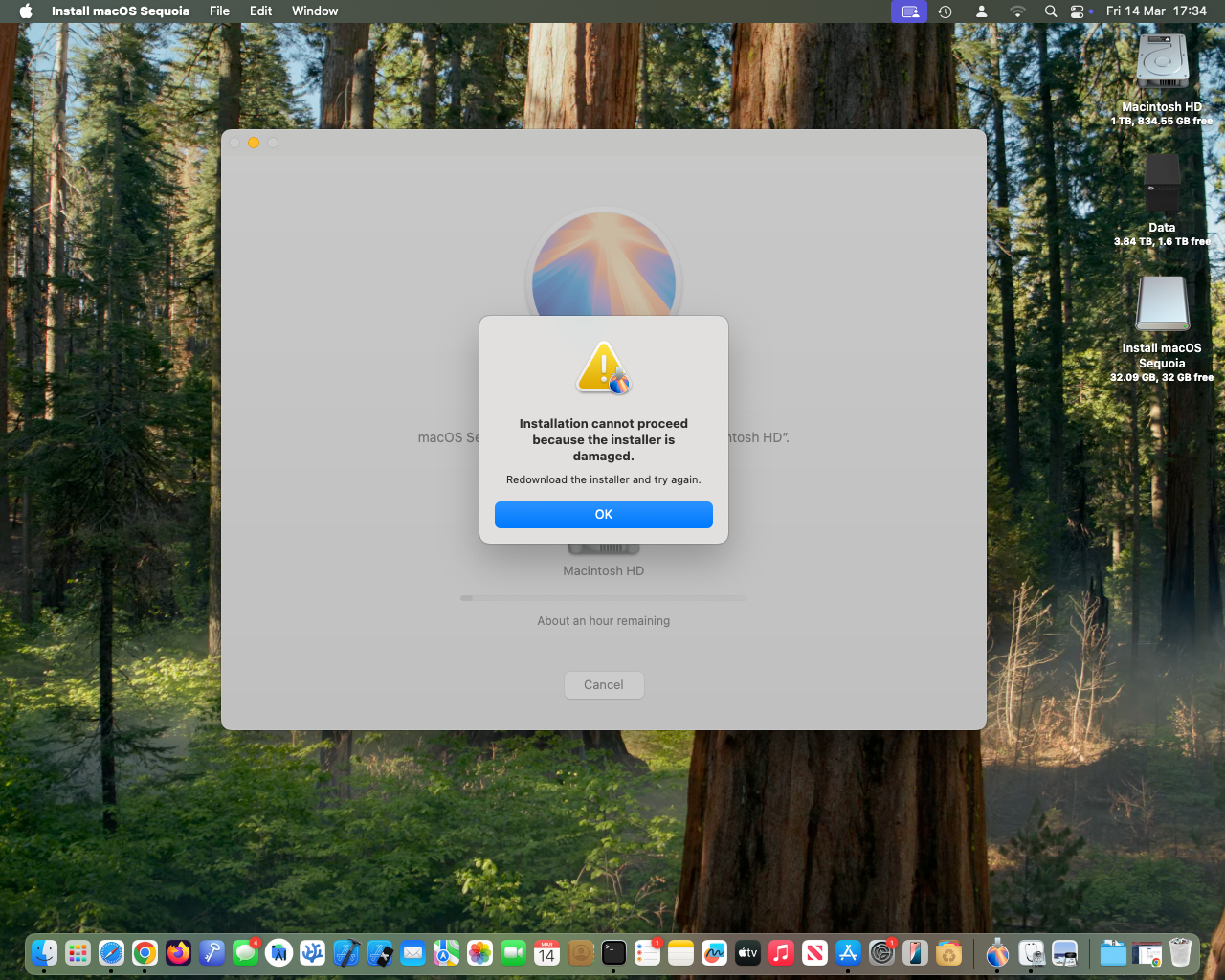
The downloaded installer reported itself as damaged. This is a known issue that can occur when an installer's certificate expires, but in this case the timing didn't fit that explanation. Re-downloading produced the same result. Not encouraging.
Disk First Aid
A reasonable hunch: maybe the disk itself was the problem. Disk Utility's First Aid ran cleanly and found nothing wrong.
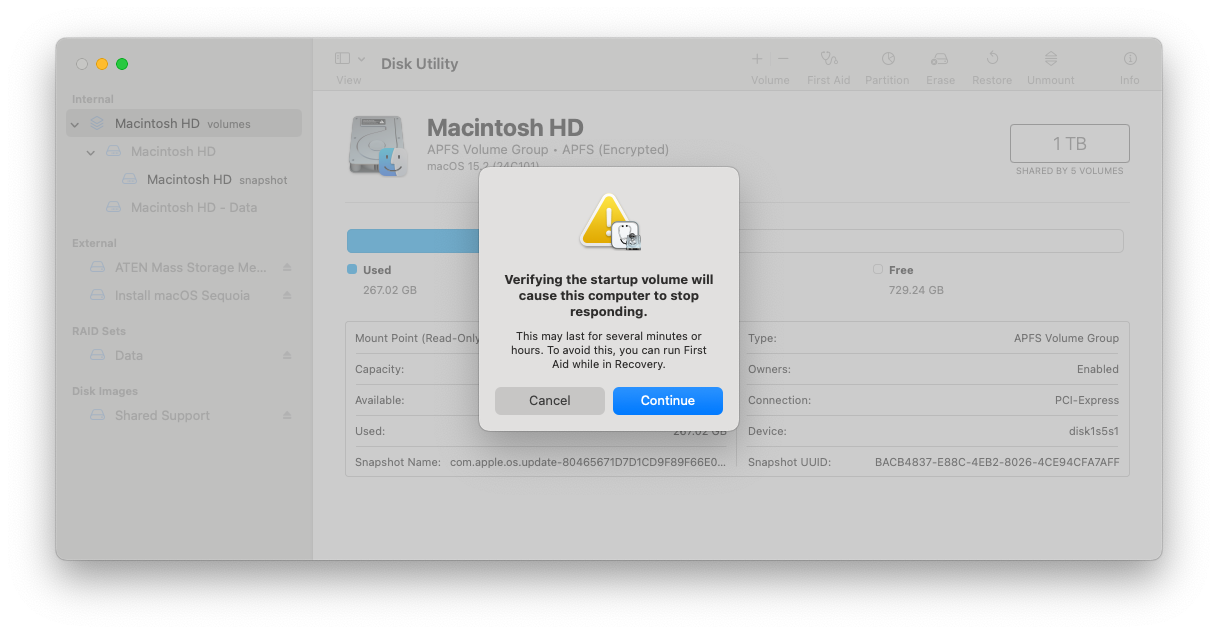
Clean bill of health. Not the problem then.
Creating a bootable installer — and why the Intel Mac couldn't do it
Error: The bless of the installer disk failed
Following Apple's own instructions for creating a bootable macOS installer from the command line produced this on the Intel Mac Mini:
% sudo /Applications/Install\ macOS\ Sequoia.app/Contents/Resources/createinstallmedia --volume /Volumes/Install\ macOS\ Sequoia
Password:
Ready to start.
To continue we need to erase the volume at /Volumes/Install macOS Sequoia.
If you wish to continue type (Y) then press return: Y
Erasing disk: 0%... 10%... 20%... 30%... 100%
Copying essential files...
Copying the macOS RecoveryOS...
Couldn't extract BaseSystem to path: /Volumes/Install macOS Sequoia/BaseSystem
The bless of the installer disk failed.
Reports of this exact error on Intel hardware are widespread. It appears to be a genuine compatibility issue between certain Intel Mac configurations and the Sequoia installer — not user error, not a corrupt download.
Using an Apple silicon Mac to create the boot disk
Running the identical command on an M1 Mac Studio worked immediately:
% sudo /Applications/Install\ macOS\ Sequoia.app/Contents/Resources/createinstallmedia --volume /Volumes/Install\ macOS\ Sequoia
Password:
Ready to start.
To continue we need to erase the volume at /Volumes/Install macOS Sequoia.
If you wish to continue type (Y) then press return: Y
Erasing disk: 0%... 10%... 20%... 30%... 100%
Copying essential files...
Copying the macOS RecoveryOS...
Making disk bootable...
Copying to disk: 0%... 10%... 20%... 30%... 40%... 50%... 60%... 70%... 80%... 90%... 100%
Install media now available at "/Volumes/Install macOS Sequoia"
If you're in this situation and you have access to any Apple silicon Mac — even briefly — this is your best route to creating a working Sequoia USB installer. The Intel Mac simply cannot do it reliably for this release.
Turn off Find My Mac before reinstalling
This matters if your Mac Mini has a T2 chip, which the 2018 model does. Activation Lock will block a clean install if Find My Mac is still enabled. Turn it off in System Settings under your Apple ID before attempting any reinstall from external media or Recovery. You can re-enable it afterwards.
macOS Sequoia USB installer — still failed
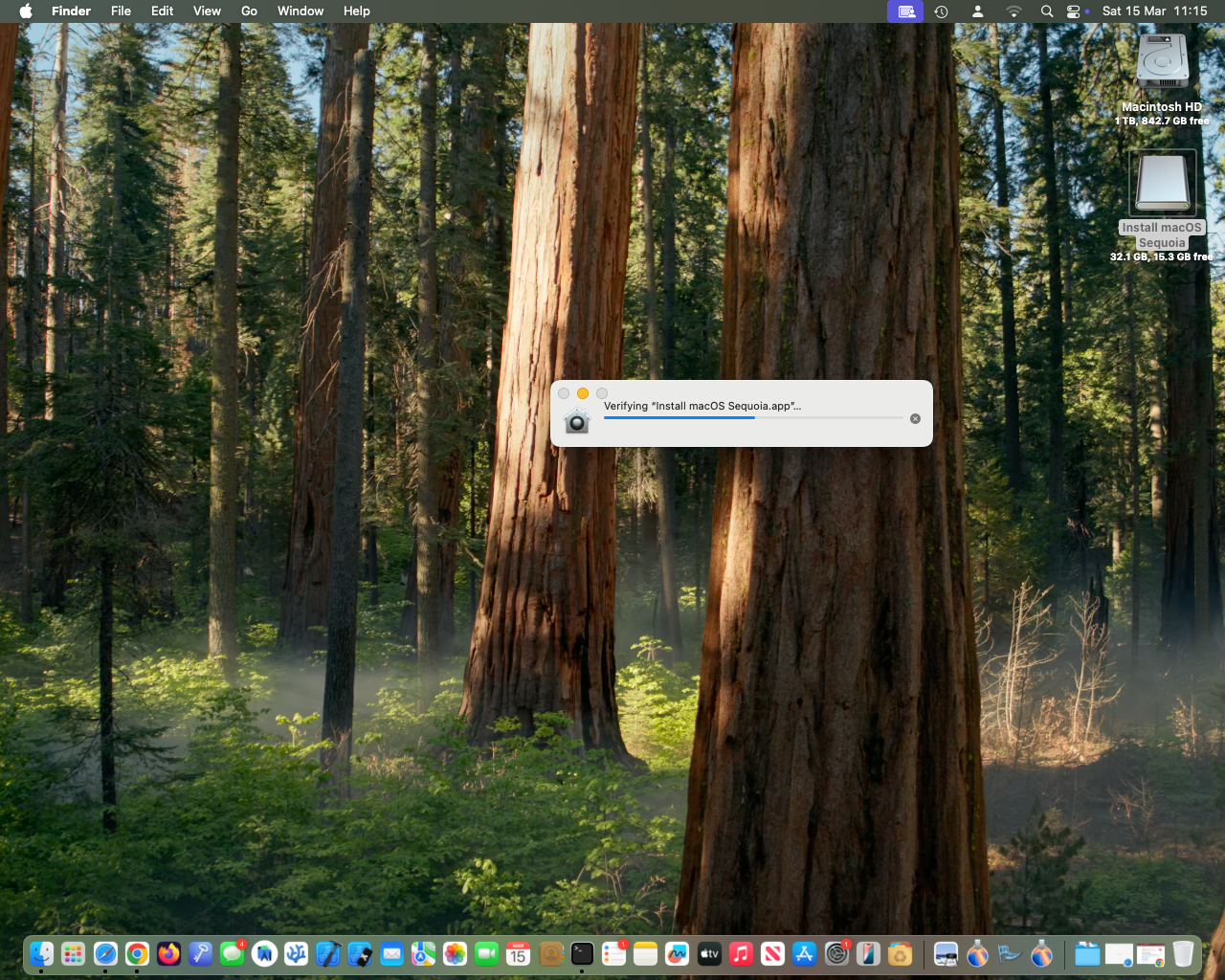
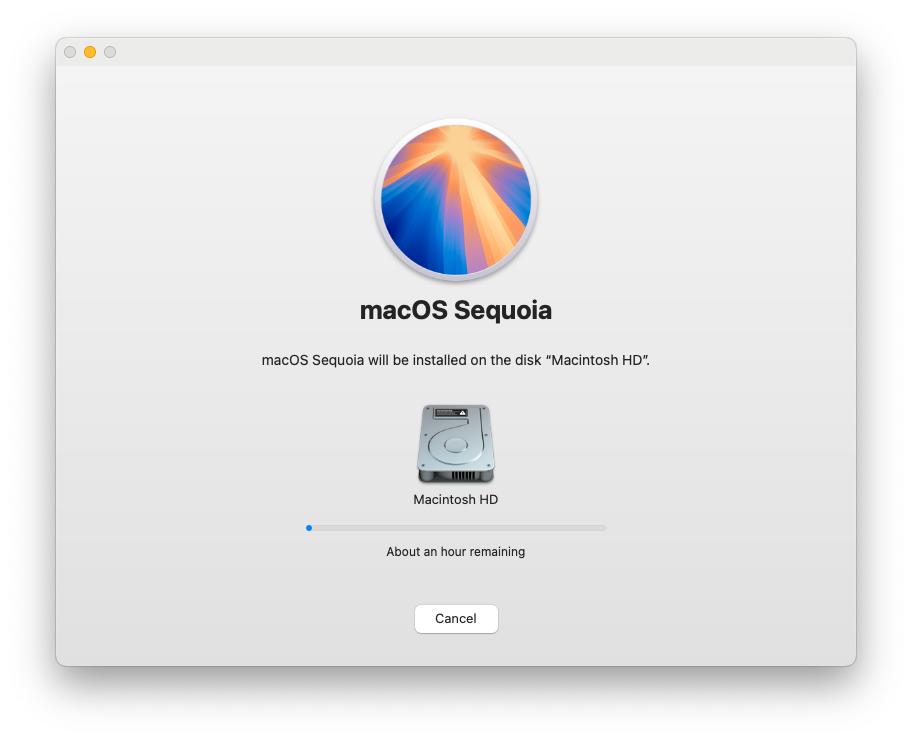
The USB stick created on the Mac Studio booted successfully on the Mini after a long wait, began installing, and then hit the same wall. A different error message this time, but the same outcome.
SilentKnight
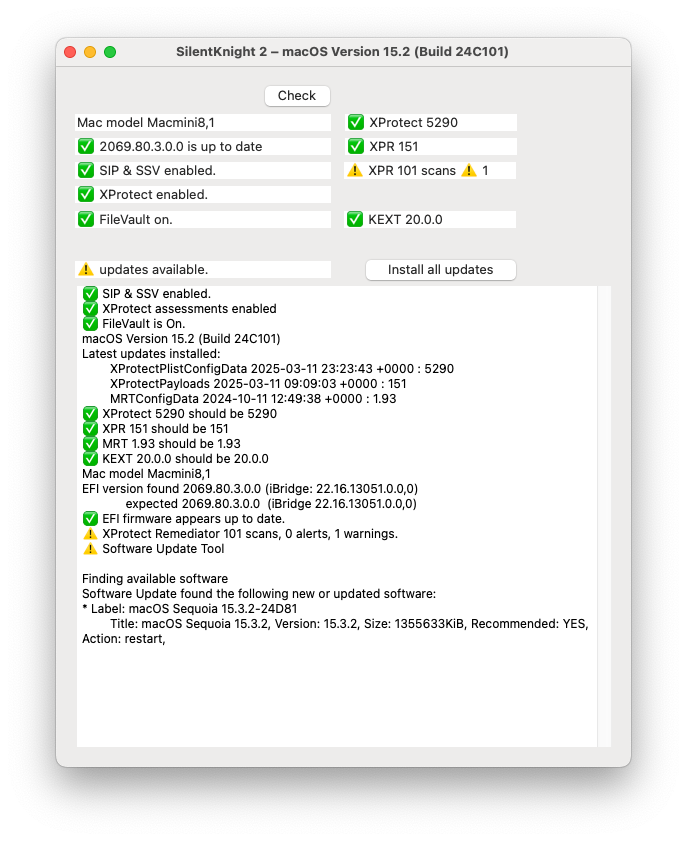
SilentKnight — Howard Oakley's excellent macOS security auditing tool, still actively maintained and well worth keeping in your toolkit — confirmed the update was available and flagged no underlying system issues beyond an XProtect Remediator note that could safely be set aside.
- Label: macOS Sequoia 15.3.2-24D81
- Title: macOS Sequoia 15.3.2, Version: 15.3.2, Size: 1355633KiB, Recommended: YES, Action: restart
Clicking 'Install all updates' from SilentKnight — not the recommended path for a full OS update, but worth a try — failed identically.
Internet Recovery — a different error, the same result
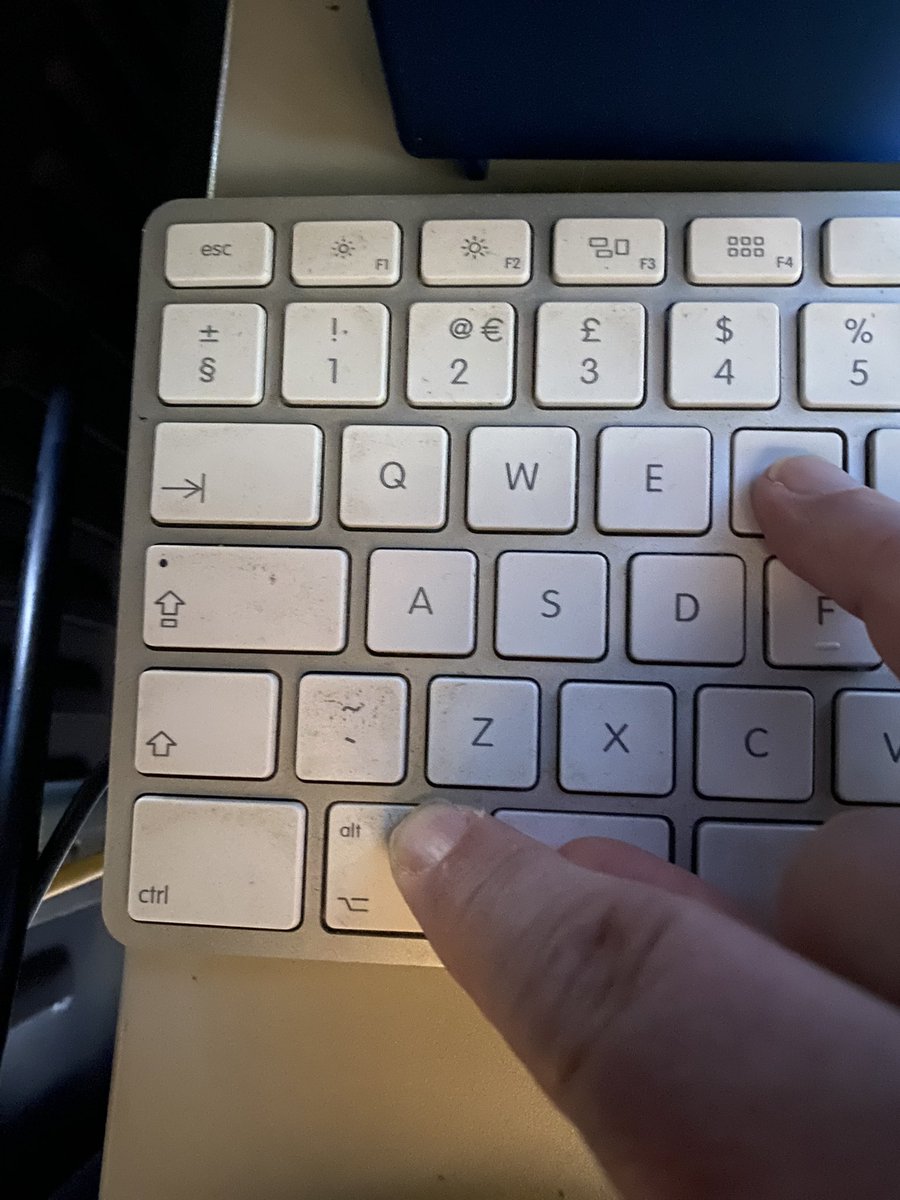
At this point I suspected a connectivity issue with Apple's update servers, so I tried Internet Recovery (⌘ + Option + R on boot).
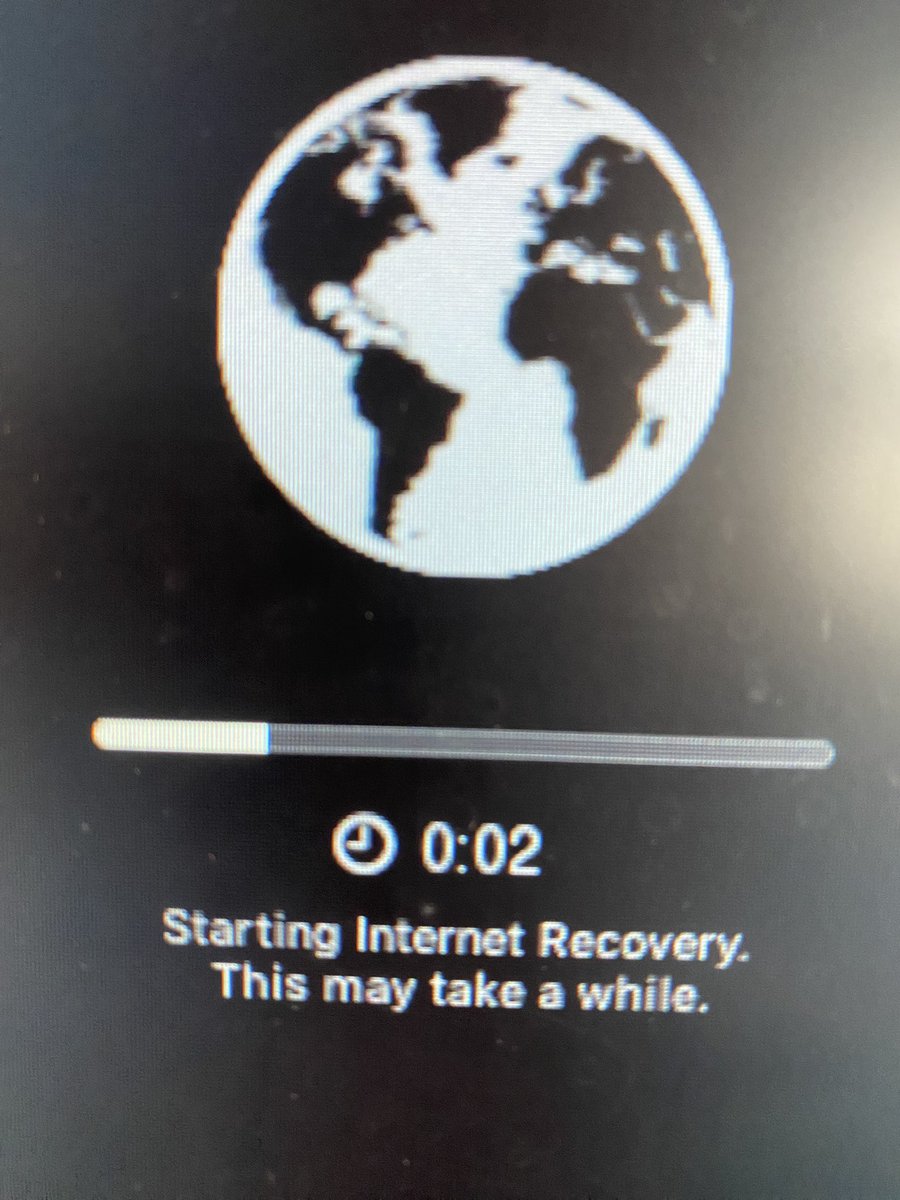

A vague, different error. Still failed. At this point I'd run out of reasonable options.
No fix — reverted to Sonoma and sold it
I created a macOS Sonoma USB installer using the same drive. It installed without complaint. That told me what I needed to know: this was a Sequoia-specific problem on this hardware, not a general fault with the machine. The Mac Mini was healthy — it just couldn't run Sequoia 15.3.2.
I wiped it back to factory condition and sold it. No regrets.
Cost of ownership — Mac Mini (2018)
I bought this Mac Mini for £720 in March 2023 from Computer Exchange and sold it back to them for £201 in March 2025 — a total cost of £519 over two years, or roughly £4.93 per week. For what it provided — a safety net while I transitioned to Apple silicon, plus a native x86 environment for legacy VMs — that's not bad value. But the insurance policy had expired, and it was time to stop paying the premium.
By 2026, second-hand prices for the 2018 Mac Mini have softened further as the market recognises it's approaching end of mainstream support. If you're thinking of selling yours, sooner is better than later.
What happened to my Intel VMs?
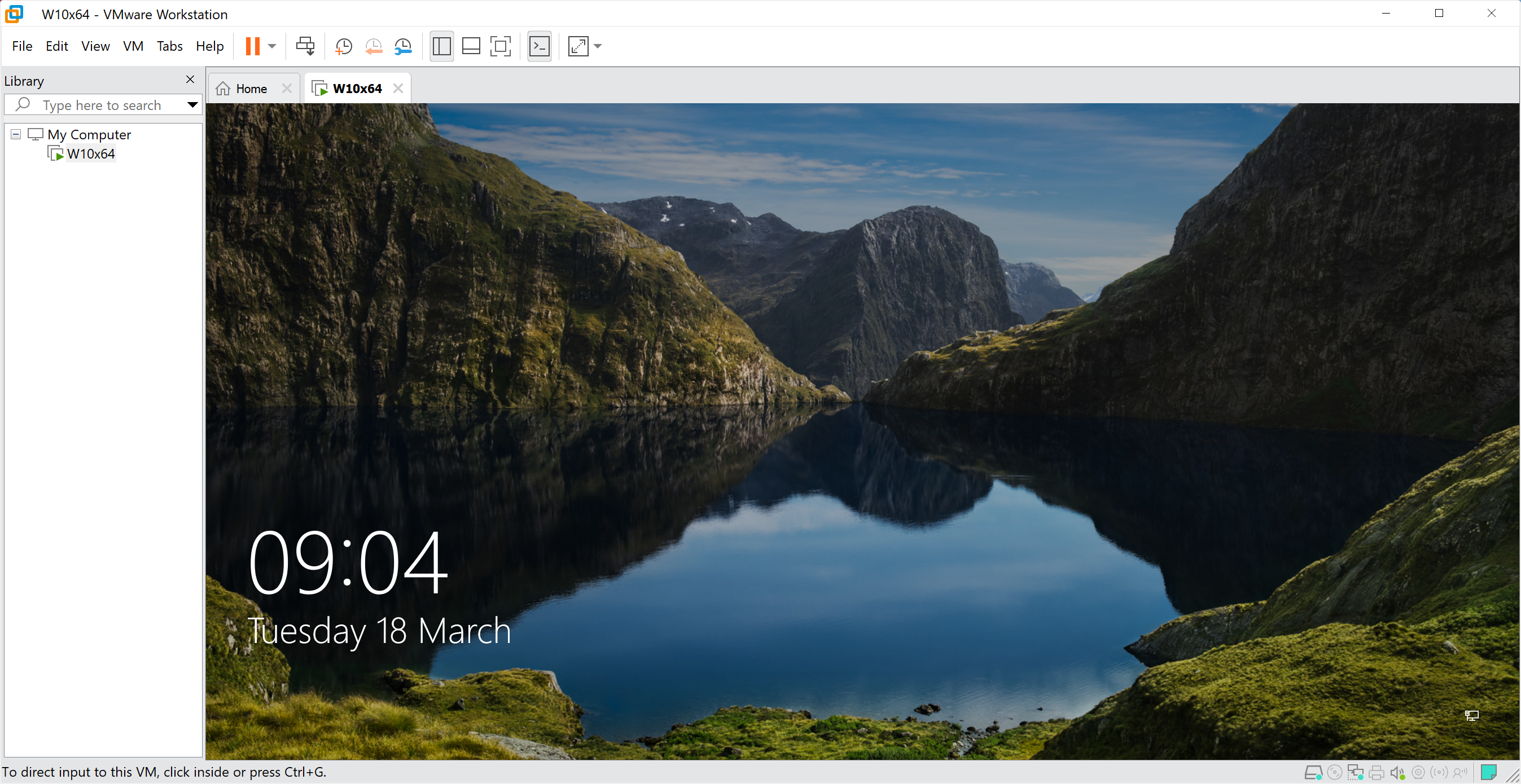
This was my biggest concern going in, and it turned out to be a non-issue. VMware made Fusion and Workstation free for all users — commercial, personal, and educational — in late 2024, and that policy remains in place.
VMware Fusion and VMware Workstation are now free for all users — commercial, educational, and personal users alike.
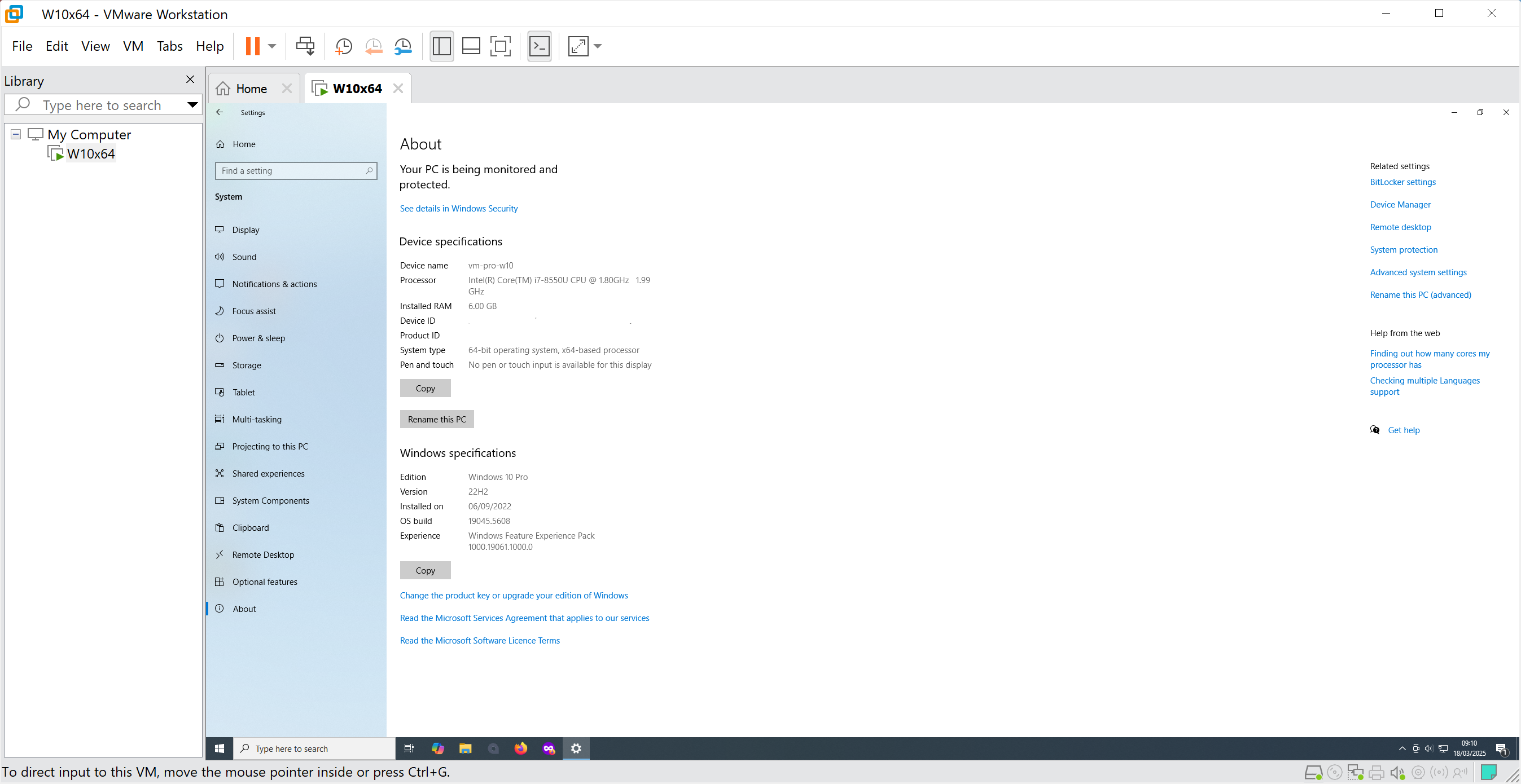
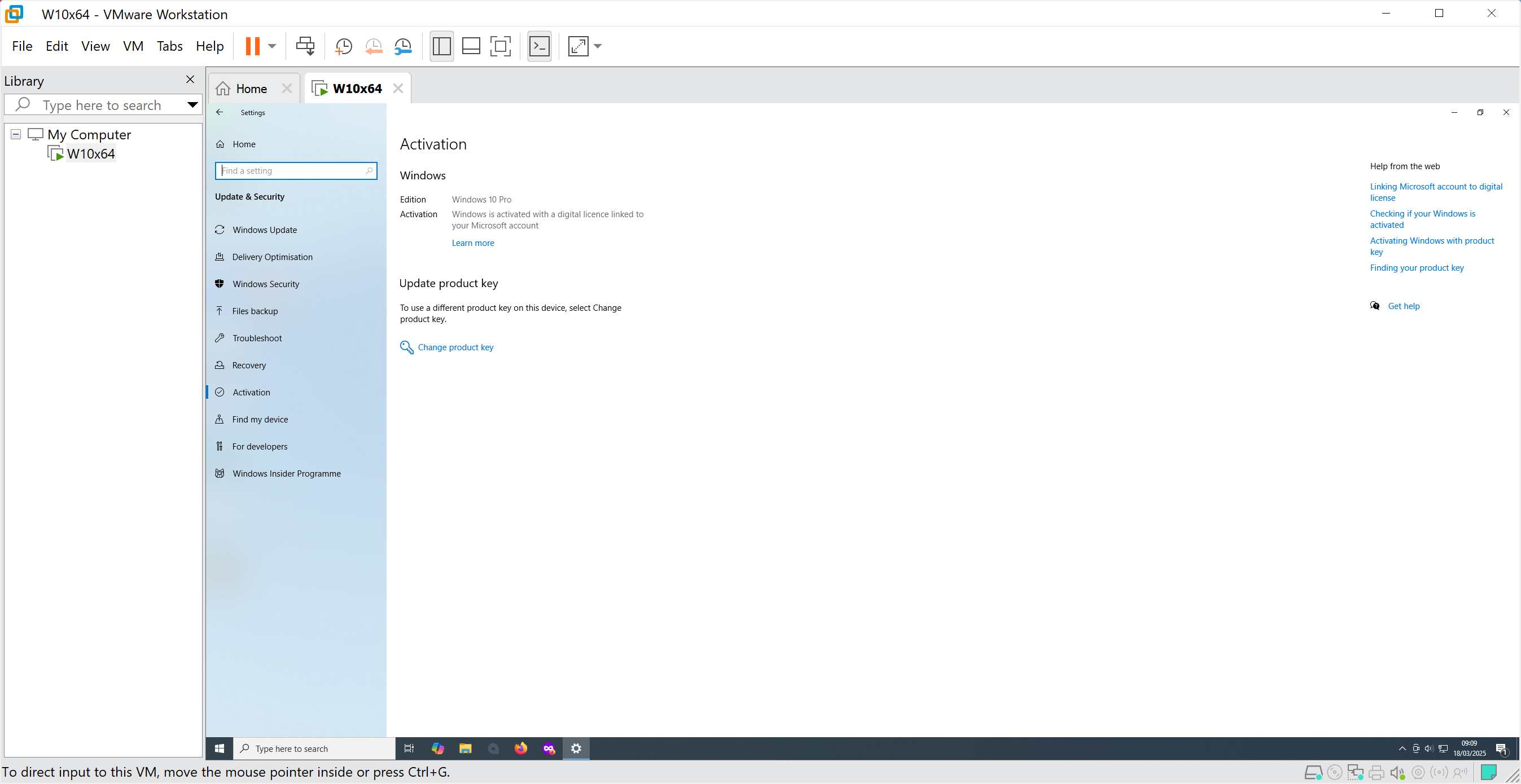
Moving a VM from a Mac to a Windows PC is straightforward: copy the VMware bundle across, open it in Workstation, and answer "I moved it" when prompted. Windows reactivation is the only wrinkle — you'll need your product key, which you can retrieve from the destination machine's UEFI firmware if it was a licensed OEM install. See Find your Windows product key for the method.
2026 update: where does this leave Intel Mac users?
By 2026, the Intel Mac story is essentially in its final chapter. Apple silicon has been the default for several years, the performance and efficiency advantages are no longer debatable, and the software ecosystem has fully pivoted. Features like Apple Intelligence — Apple's on-device AI framework — are Apple silicon-only, and that list will only grow longer.
The Mac Mini (2018) is likely to be dropped from macOS support with the next major release, or the one after. Apple typically provides around seven years of OS support for Mac hardware, and the 2018 Mini is approaching that window. When it drops off the list, it won't be a surprise — it'll be the conclusion of a story that's been telegraphed for some time.
If you're still running one and it's working for you, Sonoma remains a solid, stable platform with continued security updates for now. But if it starts refusing updates the way mine did, treat it as the sign it probably is. The Apple silicon transition is complete. The water's warm.
For what it's worth, the Xserve 3,1 mentioned at the start of this saga is still sitting in a rack somewhere, patiently waiting. Some things outlast their era through sheer stubbornness. The 2018 Mac Mini, it turns out, is not one of them.
- Details

direnv lets you load and unload environment variables depending on the current directory. This is incredibly helpful for per-project isolated development environments or in DevOps for loading secrets for deployment of software builds reliably.
TL:DR – This is a shell extension, for Unix-like operating systems with a supported shell such as bash, zsh, and is easy to install and widely supported. Highly recommended.
- Details

Time Machine on macOS Tahoe remains one of the smartest habits any Mac user can build in 2026. Apple's built-in backup tool has matured considerably, but it still rewards those who understand how it works — and still punishes those who ignore it.
TL;DR — Time Machine offers incremental backups, version history, and full system recovery without any third-party subscription. macOS Tahoe brings refinements to the backup engine, but some long-standing quirks persist. Knowing how to set it up correctly, troubleshoot failures, and complement it with additional tools will keep your data genuinely safe.
What Time Machine actually does — and why it still matters
Time Machine is Apple's native backup solution, built into every Mac. It creates hourly snapshots of your files for the past 24 hours, daily backups for the past month, and weekly backups for as long as your drive has space. When storage runs short, it quietly discards the oldest backups to make room for new ones. The result is a rolling archive of your digital life that you can dip into at any point.
That granular history is the feature most people underestimate until they need it. Accidentally overwrote a document you spent a week on? Deleted a folder you assumed was safe? Time Machine lets you step back through time, file by file, and retrieve exactly what you lost. It also plays a central role when you migrate to a new Mac — Migration Assistant draws directly from a Time Machine backup to restore your apps, settings, and files to a fresh machine with minimal friction.
In an era where cloud storage is ubiquitous, it is tempting to assume that iCloud Drive or a similar service covers you. It does not, not fully. Cloud sync is not the same as a backup: if you delete a file and the deletion syncs before you notice, or ransomware encrypts your drive and the encrypted versions propagate upward, a local Time Machine archive is the thing that saves you. The two approaches complement each other; neither replaces the other.
Preparing for your first Time Machine backup
The most important decision you will make is choosing the right external drive. Apple recommends a drive at least as large as the storage used on your Mac, but in practice you want significantly more headroom — ideally two to three times your current usage — so that Time Machine can maintain a meaningful history rather than constantly pruning old backups to survive.
For most users in 2026, a USB-C or Thunderbolt external SSD offers the best balance of speed and reliability. Spinning hard drives are cheaper per gigabyte and still work perfectly well for Time Machine, but SSDs handle the frequent small writes of incremental backups more gracefully and are less vulnerable to the physical shocks that travel-prone drives endure. Prices for large-capacity portable SSDs have fallen considerably, making the upgrade easier to justify than it was even two years ago.
Formatting matters. Time Machine on macOS Tahoe supports both APFS and HFS+ (Mac OS Extended), but APFS is the right choice for any SSD. It handles snapshots more efficiently and aligns with how macOS itself manages storage. Open Disk Utility, erase the drive as APFS with a GUID Partition Map, and you are ready. Time Machine will also offer to format a freshly connected drive for you during setup — that shortcut is fine for most users.
Before you connect anything, spend a few minutes deciding what to exclude. System caches, virtual machine disk images, and large media libraries you already back up elsewhere are all good candidates for the exclusion list. Excluding them reduces backup duration, extends the life of your drive, and keeps the backup set focused on data you actually care about recovering.
Setting up Time Machine on macOS Tahoe


Open System Settings and search for "Time Machine" — it sits in the sidebar but the search shortcut is faster. Connect your formatted drive, click the plus button to add a backup destination, and select it. That is genuinely all that is required for a working setup. Time Machine will begin its first backup within the minute.
macOS Tahoe retains the backup frequency options introduced in recent releases: hourly (the default), daily, and weekly. Hourly is the right choice for most people. If you are on a laptop and frequently away from your backup drive, Time Machine will continue creating local snapshots to your internal drive in the meantime, then consolidate them to the external drive next time it is connected. Those local snapshots are transparent — you do not need to manage them manually.
Keep an eye on the Time Machine icon in the Menu Bar. It shows the progress of active backups and the timestamp of the last successful one. If that timestamp is more than 24 hours old and your drive has been connected, something needs attention. Catching that early is far better than discovering a months-long gap in your backup history at the worst possible moment.
macOS Tahoe has also improved how Time Machine handles network-attached storage. If you back up to a NAS device — a Synology or QNAP unit on your home network, for instance — the connection is more stable than in earlier releases, with fewer spurious "backup disk not available" alerts during periods of light network activity. For households with multiple Macs, a NAS-based Time Machine destination remains one of the most practical setups available.
Working through common Time Machine problems
Time Machine is reliable, but it is not infallible. The most common complaint is the dreaded "Backup Not Completed" notification, often accompanied by an error suggesting the backup disk could not be reached or that the backup itself is corrupted. Before assuming the worst, work through a short checklist.
First, check whether Spotlight is indexing your backup volume. If it is, exclude the Time Machine disk from Spotlight in System Settings under Siri & Spotlight. Spotlight indexing a live backup volume creates conflicts that can abort the backup process mid-run.
Second, consider whether local snapshots have accumulated to the point of causing issues. You can inspect and delete local snapshots from the Terminal using tmutil listlocalsnapshots / followed by tmutil deletelocalsnapshots [date] for any snapshot you want to remove. This is an edge case, but it comes up often enough to be worth knowing.
Third — and this is the fix that works more often than it should — remove the backup destination from Time Machine's settings and re-add it. This refreshes the permissions and connection metadata that Time Machine stores internally, and it resolves a surprising number of persistent errors without any deeper intervention.
If none of that helps, the most reliable solution is a new backup drive. Drives fail gradually and silently. A drive that passes a quick SMART check can still produce errors under the sustained write load of a Time Machine backup. Replacing the drive and starting a fresh backup set is not an admission of defeat — it is good housekeeping. Retiring your backup drive roughly once a year and keeping the old one as an archive is a habit worth building. When you genuinely need a backup, you want it to be on a drive you trust.
Alternatives and complements to Time Machine
Time Machine covers the vast majority of backup scenarios, but it works best as part of a broader strategy rather than a single point of reliance. The classic rule — three copies of your data, on two different media, with one offsite — is as relevant as ever.
For a second local backup, Carbon Copy Cloner remains the most capable third-party option on the Mac. It has adapted well to Apple Silicon and the security architecture of modern macOS, and its scheduled backup tasks and verification tools go beyond what Time Machine offers. One important caveat: creating a fully bootable clone of macOS is no longer straightforward due to the sealed system volume and security policies introduced in recent macOS releases. Carbon Copy Cloner handles this gracefully, but the resulting backup is best thought of as a data clone rather than a traditional bootable drive in the old sense. For most users that distinction does not matter — what you need in a crisis is your files and applications, and a CCC backup delivers both.
For offsite backup, cloud-based services that perform true versioned backups — rather than simple sync — provide the offsite leg of the three-two-one strategy without requiring you to physically move drives. These services run quietly in the background and restore individual files or entire systems through a web interface or dedicated app. Combined with Time Machine for fast local recovery and a periodic CCC clone for belt-and-braces assurance, you end up with a genuinely robust setup that can handle almost any failure scenario.
Keeping your backups healthy over time
Setting up Time Machine is the easy part. Maintaining it is where most people quietly fall behind. A backup you stopped checking six months ago may have been silently failing for five of those months — and you will only find out when you need it.
Build a monthly habit of opening Time Machine, confirming the last successful backup date, and spot-checking that you can browse and restore a recent file. It takes two minutes and eliminates the anxiety of uncertainty. While you are there, check the available space on your backup drive. When a Time Machine volume fills completely and begins pruning old backups aggressively, your historical window shrinks faster than you might expect.
Monitor the health of your backup drive using a SMART monitoring utility. Several good options exist in the Mac App Store and as standalone downloads. A drive showing reallocated sectors or rising error counts should be replaced promptly — not at your convenience, but now, before it fails during the one backup you genuinely need to restore from.
Data protection is not a task you complete once. It is an ongoing practice, and the effort involved is genuinely small compared to the alternative. Time Machine on macOS Tahoe is more capable and more stable than it has ever been. Use it, watch it, and back it up with at least one additional layer. The peace of mind is worth every bit of the modest effort required.
- Details

Installing Node.js on Ubuntu can be a convoluted process, particularly when it comes to managing multiple versions. Node Version Manager (NVM) provides a solution that allows developers to deal with versioning effectively. This guide offers a detailed, step-by-step walkthrough on installing Node.js via NVM on Ubuntu 22.04 LTS, ensuring that you maintain the latest Long Term Support (LTS) version of this essential runtime environment vital for backend services and real-time applications.
Node.js is an open-source JavaScript runtime that executes JavaScript code outside a web browser, predominantly used for building scalable network applications. However, various projects might require different versions. NVM addresses this issue seamlessly, allowing developers to switch between Node.js versions as required. Understanding the newer commands and installation steps is imperative in ensuring compatibility and maintaining best practices in development environments. Those looking to dive deeper into NVM can refer to its GitHub repository.
TL:DR – The installation of Node.js on Ubuntu via NVM includes prerequisites, step-by-step installation guidance, how to manage various Node.js versions effectively, and additional insights into best practices for development environments. Using NVM is highly recommended for developers who regularly update or switch node versions to maintain optimised functionality across projects. The version of Node installed by Ubuntu's package manager is woefully outdated so don't assume that will be ok.
- Details
Read more: Why You Should Install Node.js LTS on Ubuntu via NVM