

Working with APIs in FlutterFlow remains one of the most rewarding — and demanding — challenges in low-code mobile development. In 2026, FlutterFlow has matured considerably, with improved API tooling, better debugging workflows, and a more capable visual builder. But the fundamentals still require genuine understanding.
Persevere and you have a maintainable, cross-platform mobile application backed by exportable Flutter source code. This article walks through a real-world example: pulling Joomla CMS articles through the Joomla API and displaying them in a FlutterFlow-built app — a pattern that remains highly relevant as Joomla continues to evolve its headless capabilities.
TL:DR – With patience and the right tooling, you can build powerful apps using Joomla 5 as a headless backend for FlutterFlow, connected through the Joomla REST API.
Contents
- What's changed in 2026
- The end result — Joomla Articles in a Flutter app
- Joomla API in a Flutter app
- Adding the Joomla API to your FlutterFlow project
- Joomla 5 API authentication
- Define an API Group
- Defining the Joomla Articles API call
- Testing the Joomla Articles API
- Successful testing of the Joomla Articles API
- Making JSON response data useful in your FlutterFlow app
- Using JSONPath to extract content from API results
- Using FlutterFlow's suggested JSONPath expressions
- Using Custom Data Types to structure the API response
- Using quicktype.io to determine your data types
- Creating Custom Data Types in FlutterFlow
- Displaying Joomla articles in your FlutterFlow app
- Joomla Articles in a ListView
- Creating the backend query
- Publishing to the App Store and Google Play
- Closing thoughts
- See also
What's changed in 2026
Since this workflow was first documented, both FlutterFlow and Joomla have moved on significantly. Here's what's worth knowing before you dive in:
- FlutterFlow's API tooling is more capable. The platform now offers improved response mapping, better support for nested JSON structures, and a more refined Data Types editor. The overall workflow is smoother, though the underlying concepts remain the same.
- Joomla 6 is the current stable release. The core API structure for articles is consistent with earlier versions, but Joomla 5 introduced improved API authentication options including token-based access and refined permission scoping. If you're building a public-facing read-only app, public API access is straightforward; authenticated endpoints require an API token generated from the Joomla backend.
- Flutter itself is at a mature version. DevTools has improved substantially, making network inspection and debugging on real devices even more useful than before.
- FlutterFlow now supports limited API testing within the builder on some plan tiers, though testing on a real device remains the most reliable approach for complex API integrations and is still strongly recommended.
- AI-assisted JSON mapping tools have improved. Tools like quicktype.io remain useful, but AI coding assistants can now help you reason through complex nested JSON structures and suggest appropriate FlutterFlow Data Type configurations.
The end result — Joomla Articles in a Flutter app

The end result is a performant, visually polished app. Because it is built in FlutterFlow, it is straightforward to maintain, update, and extend — and you retain the option to export the full Flutter source code if you ever need to move beyond the visual builder.
Testing on a real device remains the most reliable approach for API-heavy FlutterFlow projects. Connect an Android or iOS device via USB, download the generated code, and run it directly. The full Flutter DevTools suite then becomes available, including the network tab where you can inspect API calls in detail — headers, response bodies, timing, and status codes.
In the example below, the app is running on a physical Android device, making API calls to a Joomla 5 site over WiFi. The Title, Image, Image Caption, Summary, Author, and Date Modified all come from separate elements of the Joomla API response. A ListView with dynamic children repeats these for each article. A custom Dart function in FlutterFlow converts the raw date string from the Joomla API into a human-readable format for display on each card.
Joomla API in a Flutter app


Adding the Joomla API to your FlutterFlow project
The Joomla Core APIs documentation covers the full Articles endpoint in detail. What follows focuses specifically on matching FlutterFlow's API configuration to what the Joomla API requires. The Joomla Articles API follows the JSON:API specification, which means its response structure is more deeply nested than many simpler REST APIs — something to bear in mind as you plan your Data Types.
Joomla 5 API authentication
Before configuring FlutterFlow, decide whether your app needs authenticated or public API access. For publicly available articles, Joomla 5 can be configured to allow unauthenticated GET requests. For restricted content, generate an API token from the Joomla backend under Users → Your User Profile → Joomla API Token and pass it as a Bearer token in your request headers. This is cleaner and more secure than the older username/password approaches sometimes used in earlier Joomla versions.
Define an API Group
- Open the API section in the FlutterFlow builder (availability depends on your current FlutterFlow plan).
- Create an API Group and give it a clear, descriptive name — for example,
JoomlaAPI. - Set the API Base URL that all calls in this group will share.
- Add the required headers. For Joomla this means
Content-Type: application/jsonandAccept: application/vnd.api+json. If using authentication, addAuthorization: Bearer YOUR_TOKENhere as well, ideally using a FlutterFlow environment variable so the token is not hardcoded. - In Advanced settings, configure proxy behaviour to suit your testing approach. Testing on a real device bypasses the need for proxy configuration entirely.

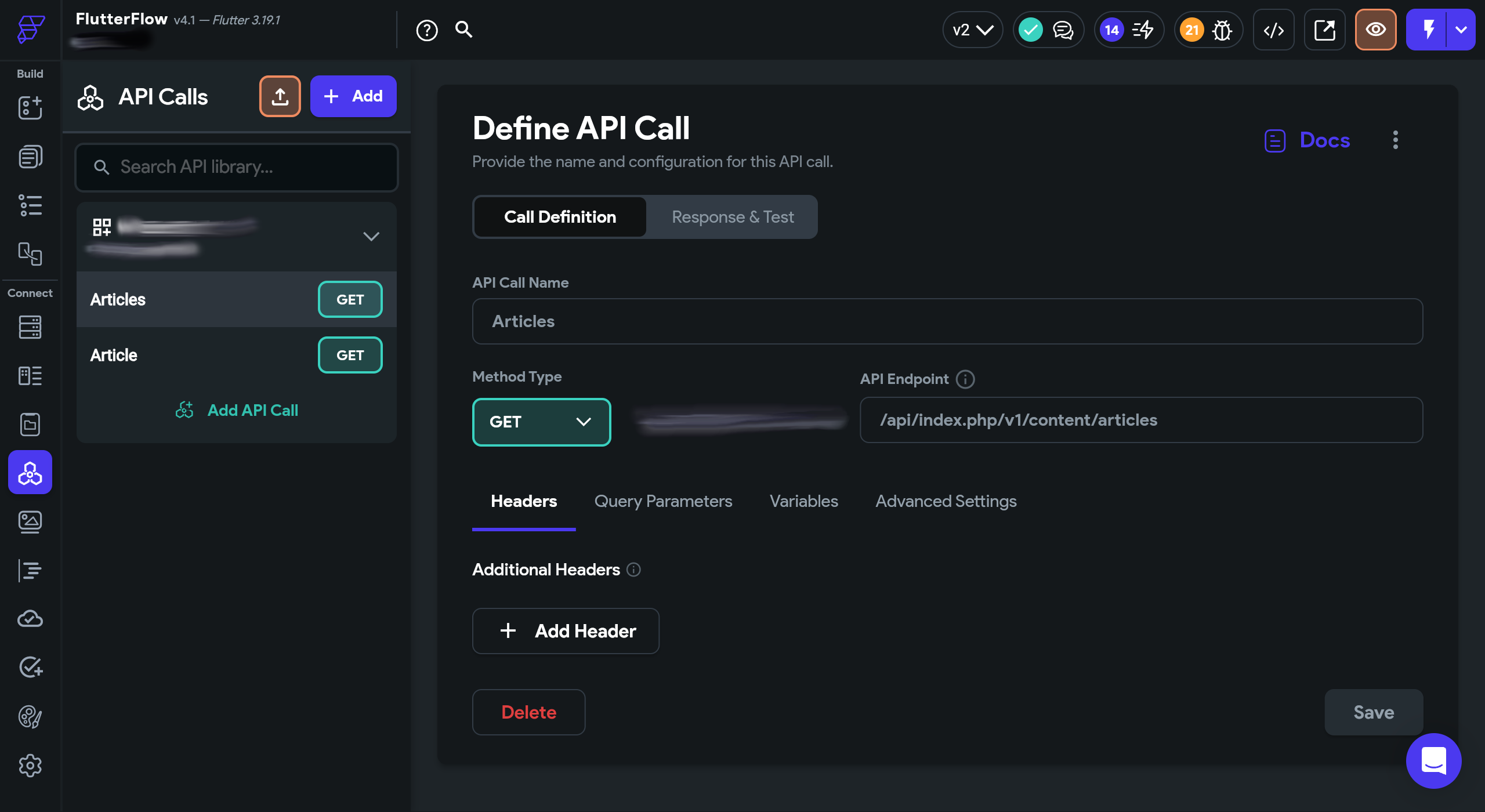
Defining the Joomla Articles API call
Naming matters here. Clear, consistent names make it far easier to navigate your project as it grows, and to diagnose problems when something doesn't behave as expected.
- Add an API Call within the group and name it
Articles— matching the endpoint makes it easy to reason about later. - Set the Method Type to
GET. The base URL is inherited from the group. - Set the endpoint path to
/api/index.php/v1/content/articles. - If you want to control pagination or filtering, Joomla 5's API supports query parameters such as
page[limit]andfilter[category_id]— these can be added as FlutterFlow query parameters and made dynamic if needed. - Save the configuration.
Testing the Joomla Articles API
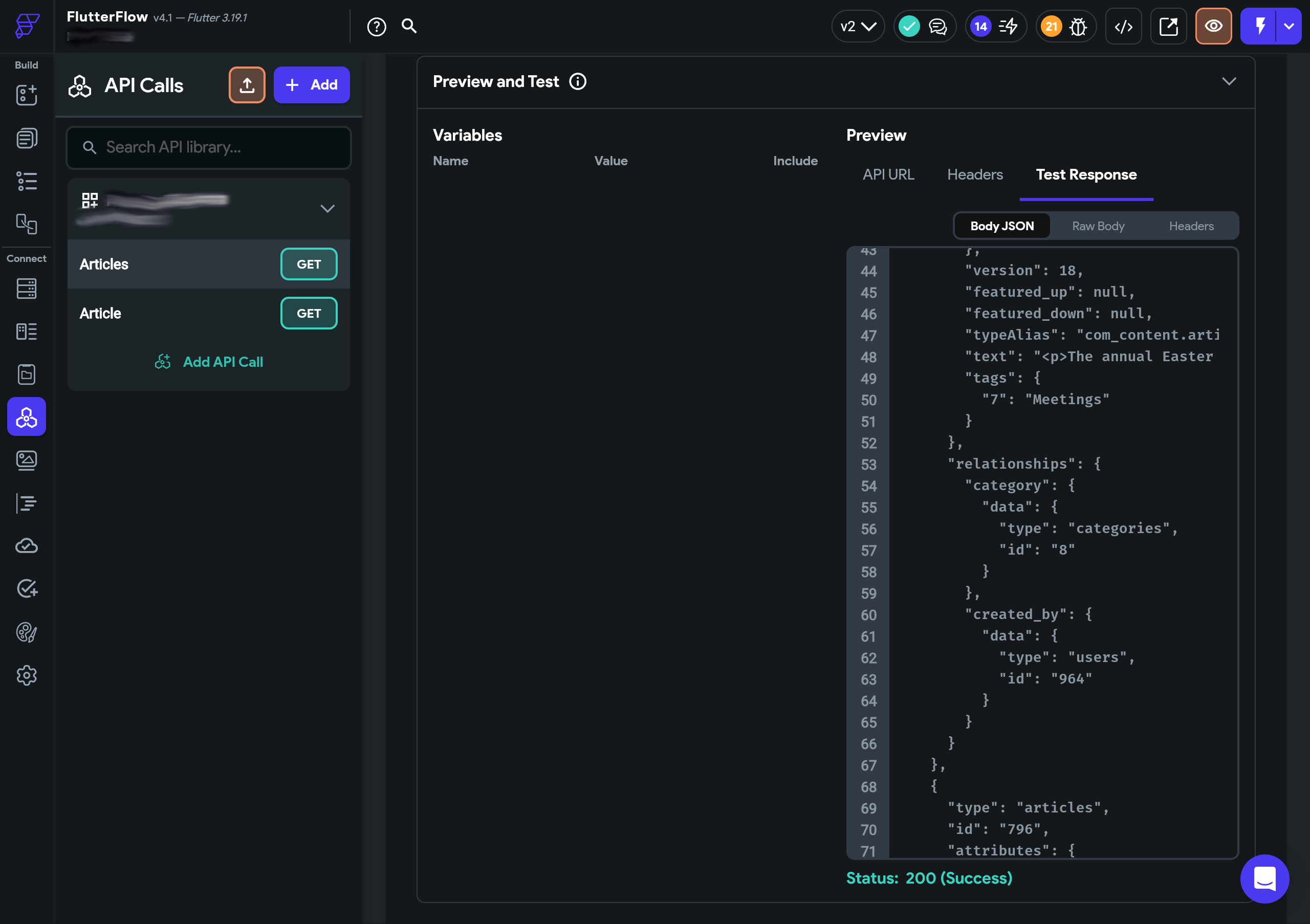
- Select Response & Test.
- Press Test API Call.

Successful testing of the Joomla Articles API
A Status: 200 (Success) response with a populated JSON body confirms that your headers and endpoint are correctly configured. At this point you've done the foundational work — but there's still a meaningful amount to do before that data appears in your app's UI.
Making JSON response data useful in your FlutterFlow app
There are two main approaches to working with API response data in FlutterFlow, and you can mix them freely:
- JSONPath expressions — powerful path-based queries into the JSON structure, useful for extracting individual values quickly.
- Custom Data Types — a structured mapping of the API response that gives FlutterFlow a consistent schema to work with, and is generally more robust for complex or nested responses like the Joomla Articles API.
For straightforward APIs, JSONPath alone may be sufficient. For the Joomla Articles API, with its JSON:API-compliant nested structure, Custom Data Types are the more maintainable choice.
Using JSONPath to extract content from API results
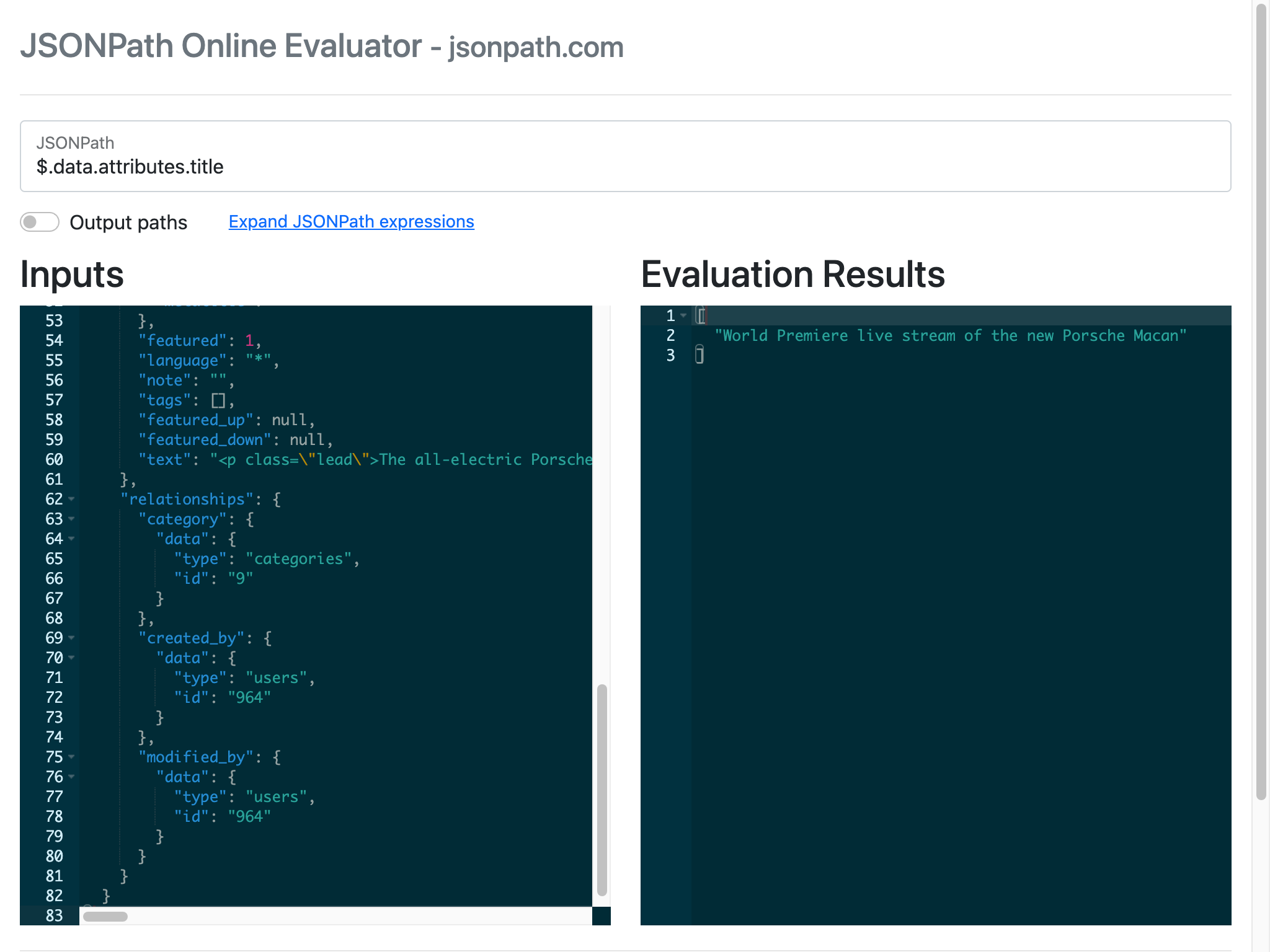
JSONPath is a query syntax for addressing elements within a JSON document. To retrieve the title of a single Joomla article, the expression is $.data.attributes.title. For a list of article IDs across all returned articles, it becomes $.data[:].attributes.id — the [:] notation selects all array items.
JSONPath expressions can become difficult to read quickly, especially with deeply nested structures. The JSONPath Online Evaluator at jsonpath.com is an excellent way to experiment: paste your API response JSON and test expressions interactively before committing them to FlutterFlow.
Using FlutterFlow's suggested JSONPath expressions
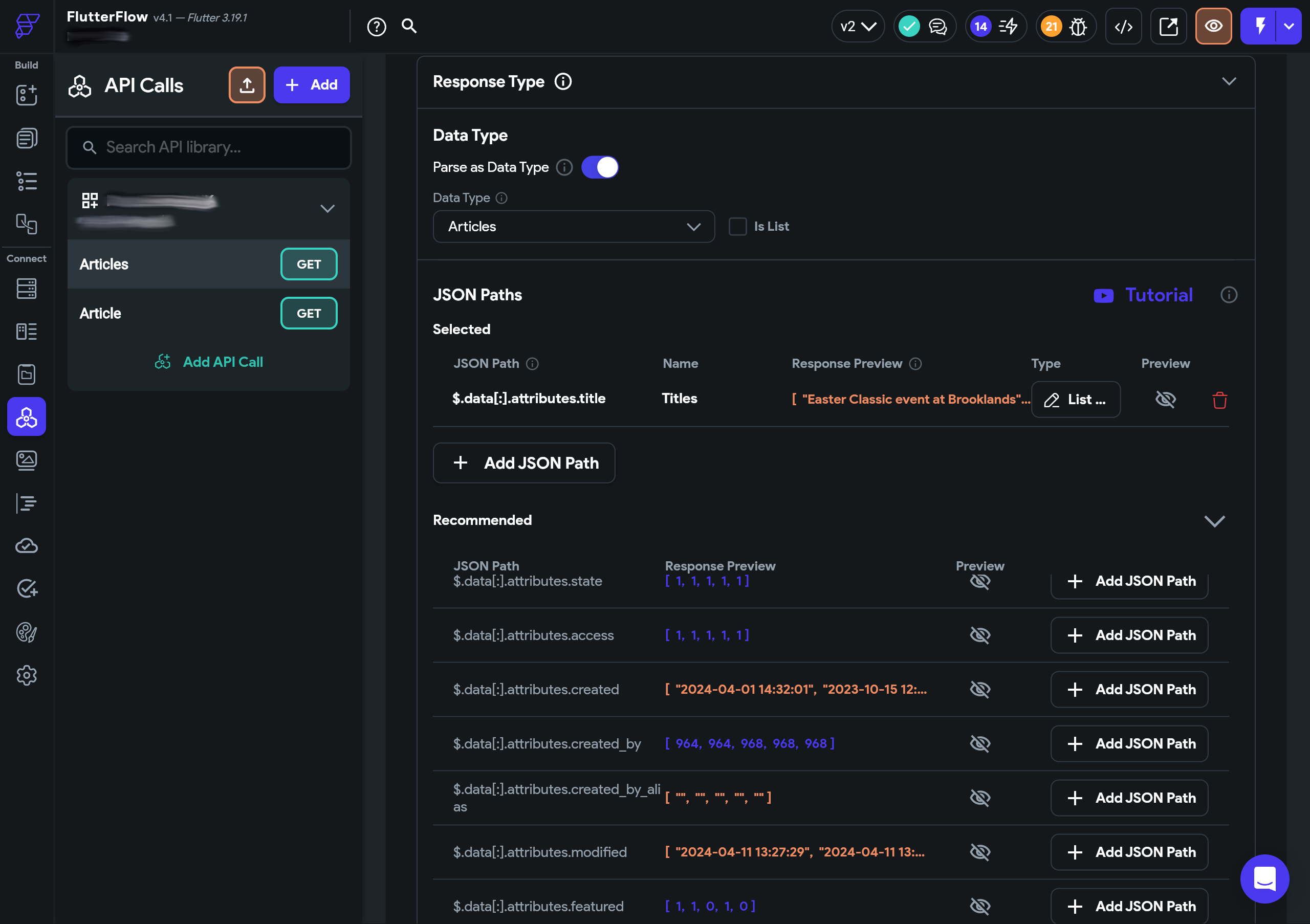
After a successful API test, FlutterFlow analyses the response and suggests a set of JSONPath expressions you can name and save for use throughout your project. This is a genuinely useful feature for getting oriented with a new API response structure — treat the suggestions as a starting point and refine from there.
Using Custom Data Types to structure the API response
Custom Data Types define a schema that FlutterFlow uses to understand the shape of your data. Think of them as lightweight model classes — they tell the builder what fields exist, what type each field is, and how they relate to one another. For the Joomla Articles API, which nests attributes inside data inside the root response, you'll need nested Data Types to represent this accurately.
Getting the nesting right is critical. Mistakes here produce subtle data-type errors that are genuinely hard to trace back to their source. Take the time to map the structure carefully before building it in FlutterFlow.
Using quicktype.io to determine your data types
quicktype.io converts raw JSON into typed code in your target language. Paste your Joomla API response into the left column, select Dart as the output language, and it generates class definitions that closely mirror the structure you need to recreate in FlutterFlow's Data Types editor.
- The generated classes reveal the nesting structure at a glance.
- Use the Dart output as a reference for field names and types — but verify each one, as quicktype.io's type inference is not always correct for every case.
- Pay particular attention to fields that quicktype.io maps as
DateTime— Joomla date strings are better handled asStringin FlutterFlow, with conversion handled by a custom Dart function. - Similarly, image path fields should use FlutterFlow's Image Path type rather than plain
String.
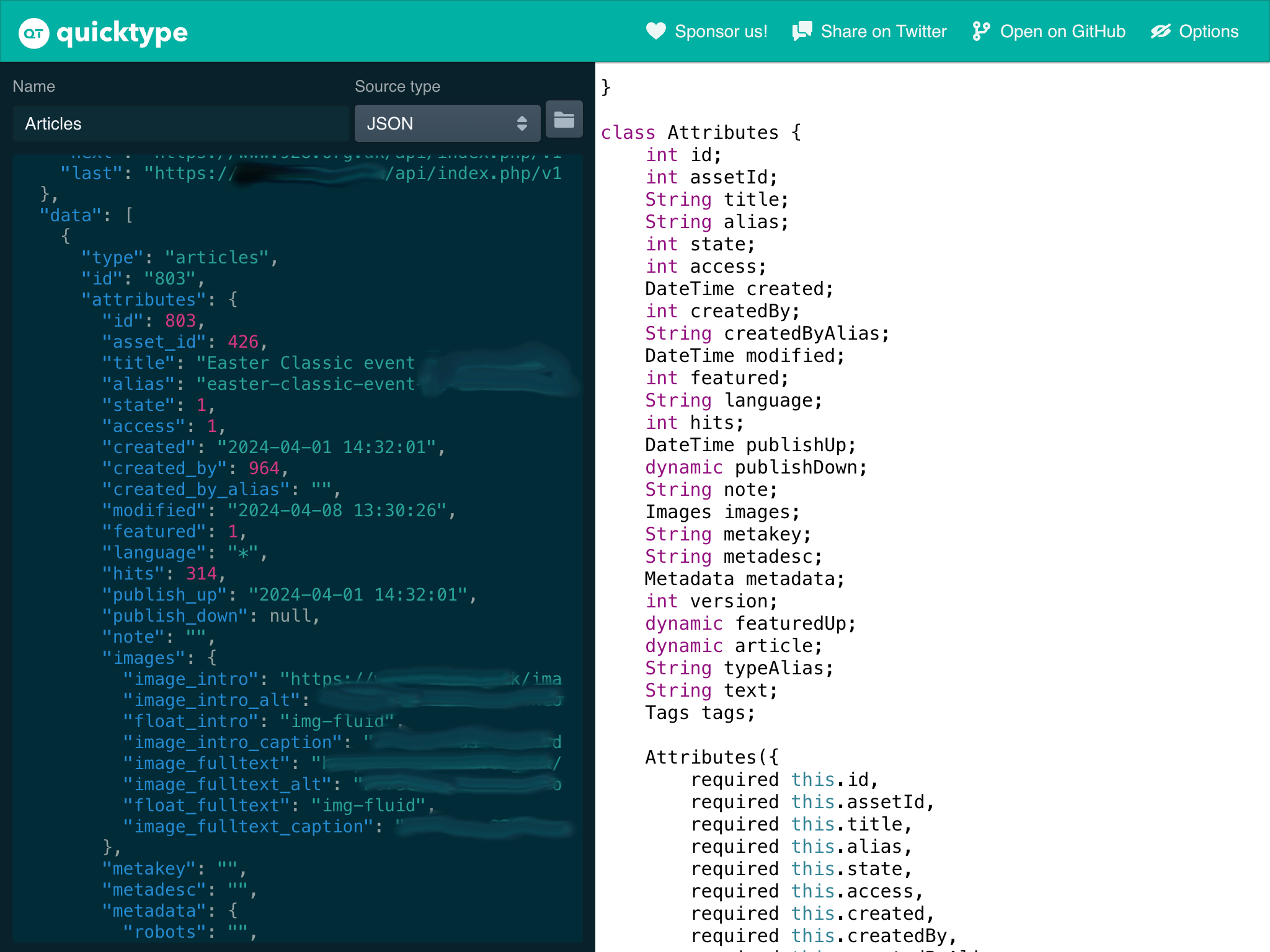
In 2026, AI coding assistants can supplement this workflow effectively. If a nested structure is ambiguous, describing it to an AI assistant and asking for a FlutterFlow Data Type mapping suggestion is a reasonable shortcut — though always verify the output against the actual API response.
Creating Custom Data Types in FlutterFlow
Build your Data Types from the deepest nesting level upward, so that each type is available to reference when you build the one that contains it. For the Joomla Articles API, that means starting with Images.
The Images class from quicktype.io looks like this — the field names on the left are what we're mapping:
class Images {
    String imageIntro;
    String imageIntroAlt;
    String floatIntro;
    String imageIntroCaption;
    String imageFulltext;
    String imageFulltextAlt;
    String floatFulltext;
    String imageFulltextCaption;
...
}
To create the Images Data Type in FlutterFlow:
- Navigate to Data Types and add a new type called
Images. - Add each field using the original API field names (not the Dart class names).
- Set image fields to the Image Path type in FlutterFlow, even though quicktype.io shows them as
String.
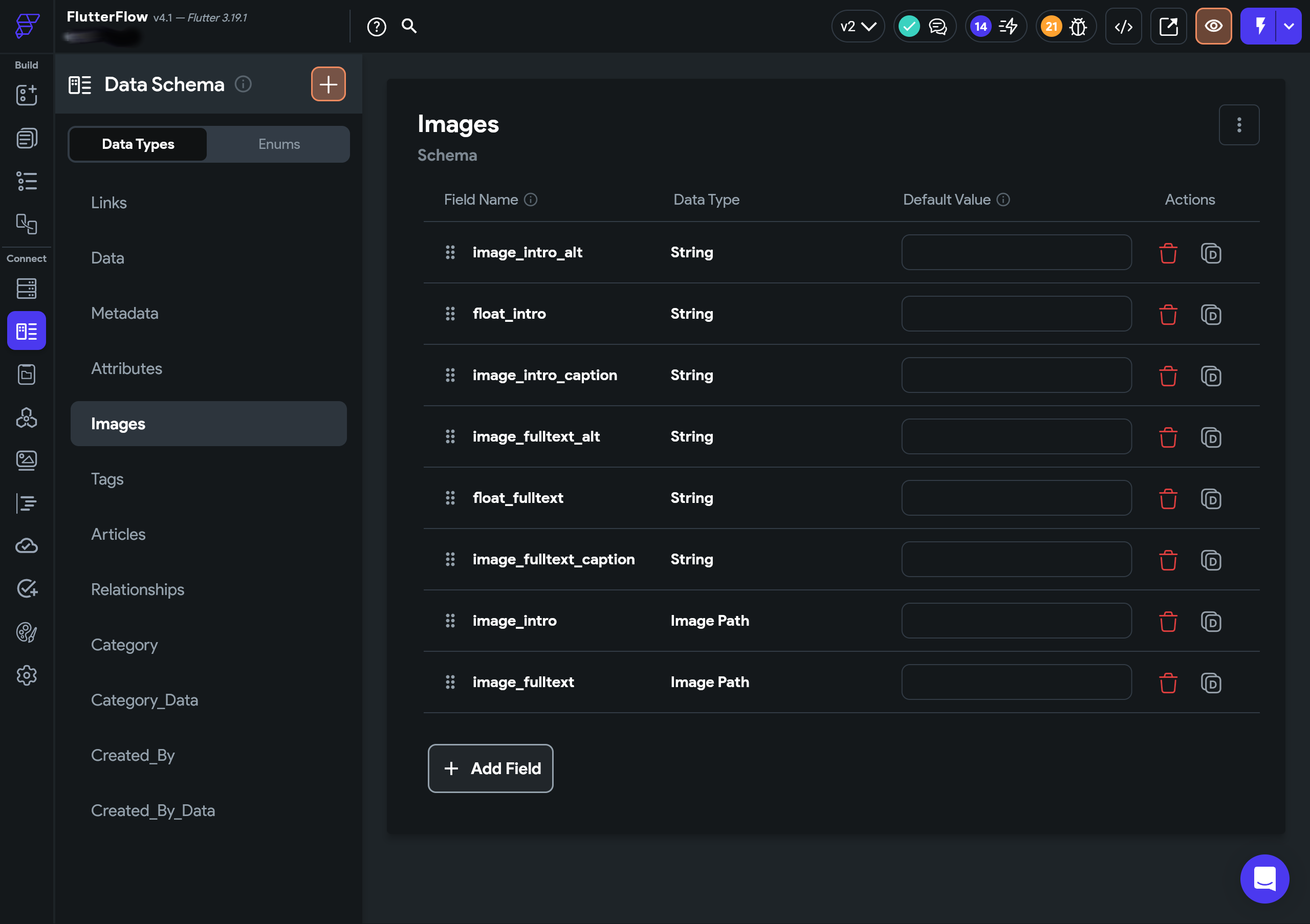
Images mapped from the Joomla Articles API responseNext, create the Attributes Data Type, which references Images:
- Add a new Data Type called
Attributes. - Add each field using the original API field names.
- For the
imagesfield, set the type to theImagesData Type you just created. - Set date fields to String — not DateTime — for compatibility with Joomla's date format strings.
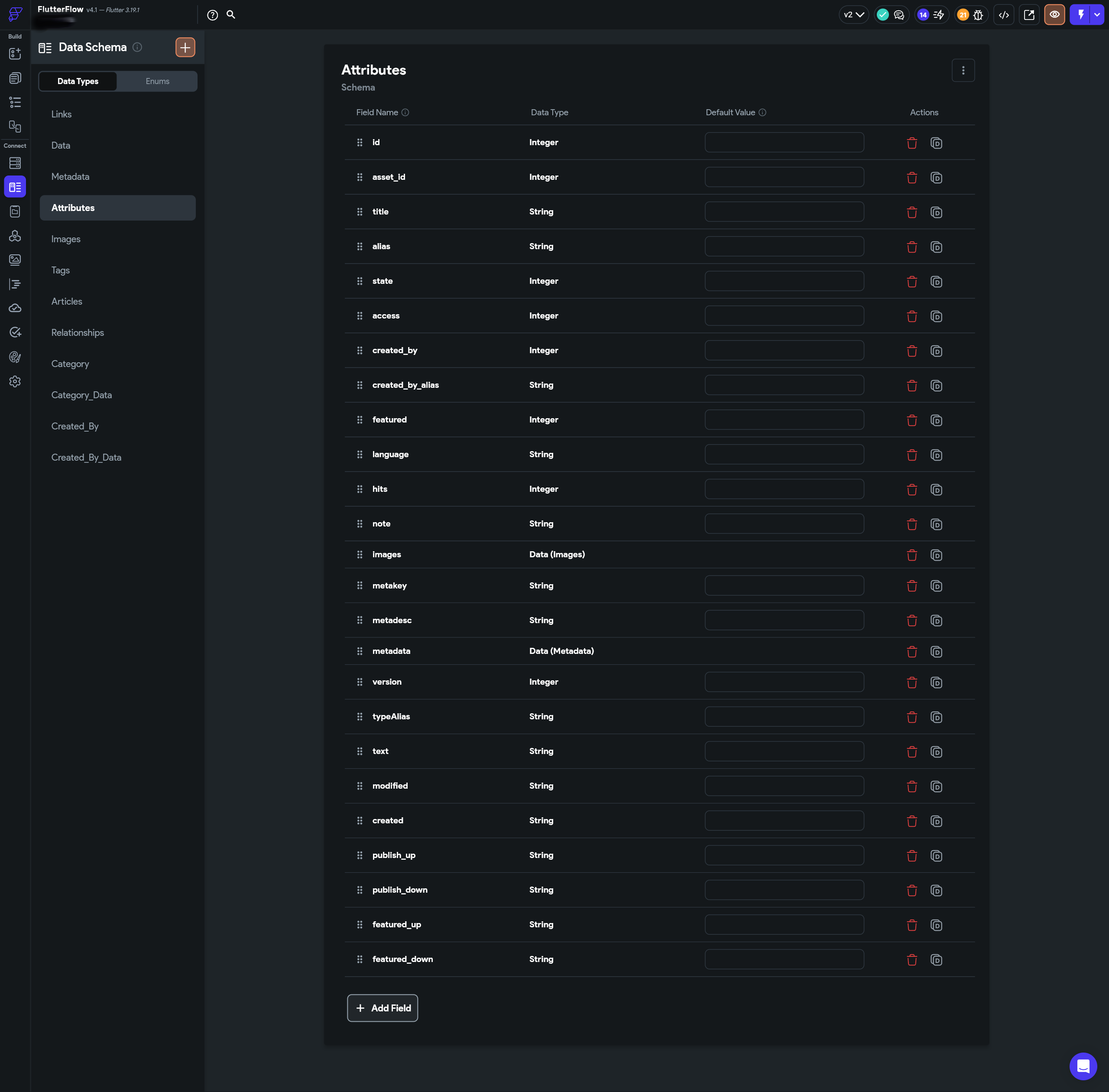
Attributes, with Images nested inside itFinally, create the Data Data Type, which references Attributes:
- Add a new Data Type called
Data. - Add each field using the original API field names.
- For the
attributesfield, set the type to theAttributesData Type. - You now have a three-level nested Data Type structure that accurately represents the Joomla Articles API response.
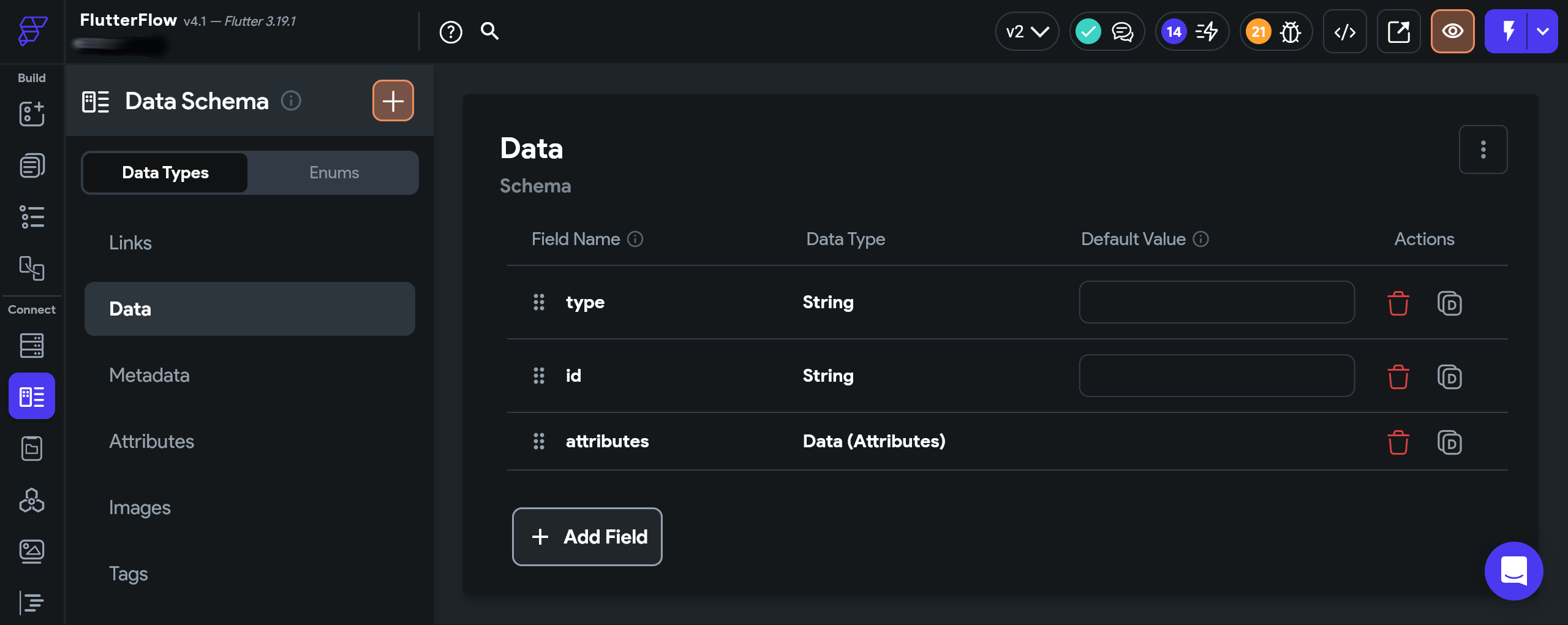
Data, with Attributes and Images nested within itWith all Data Types in place, return to your app screens to wire up the API data to your UI.
Displaying Joomla articles in your FlutterFlow app
The Data Types work pays off here. With a well-defined schema, FlutterFlow's visual builder can guide you through connecting each piece of API data to the correct widget — with type safety and autocomplete rather than freeform string paths.
Joomla Articles in a ListView
On the articles page, add a ListView widget. The ListView handles the repeating structure — one card per article — and is where the backend query is attached. The icons visible to the right of the ListView in the builder indicate that it has a backend query set and dynamic children enabled. Both are required for this pattern to work.

Creating the backend query
Select the ListView and set its backend query to use the Articles API call from the API Group configured earlier.
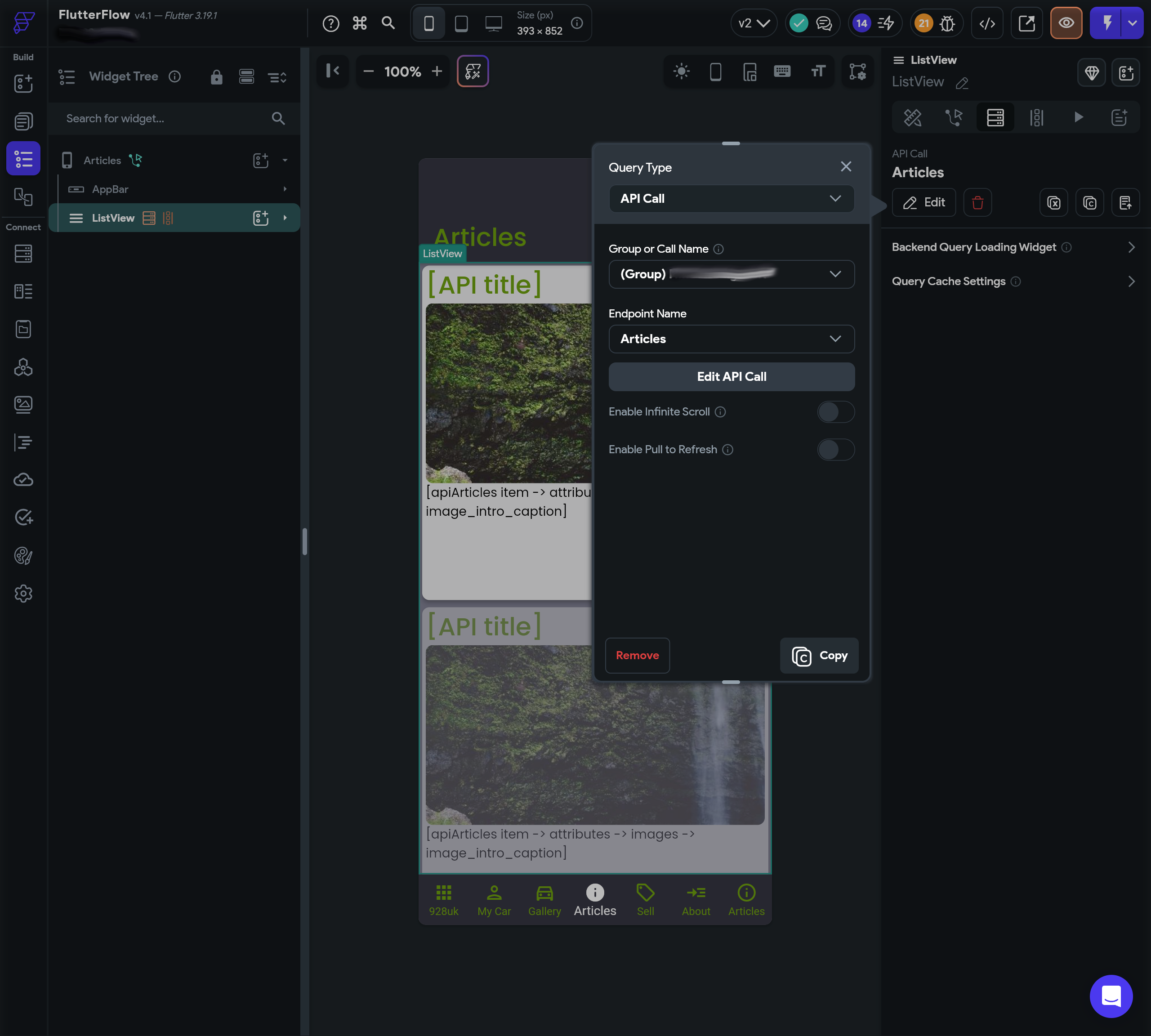
Articles API callThen configure the ListView to generate dynamic children from a variable — set it to the data field of the Articles response, typed as a list of your Data Data Type. Each child in the ListView then has access to the full structured article data, including nested attributes and images, through FlutterFlow's variable picker rather than raw JSONPath strings.
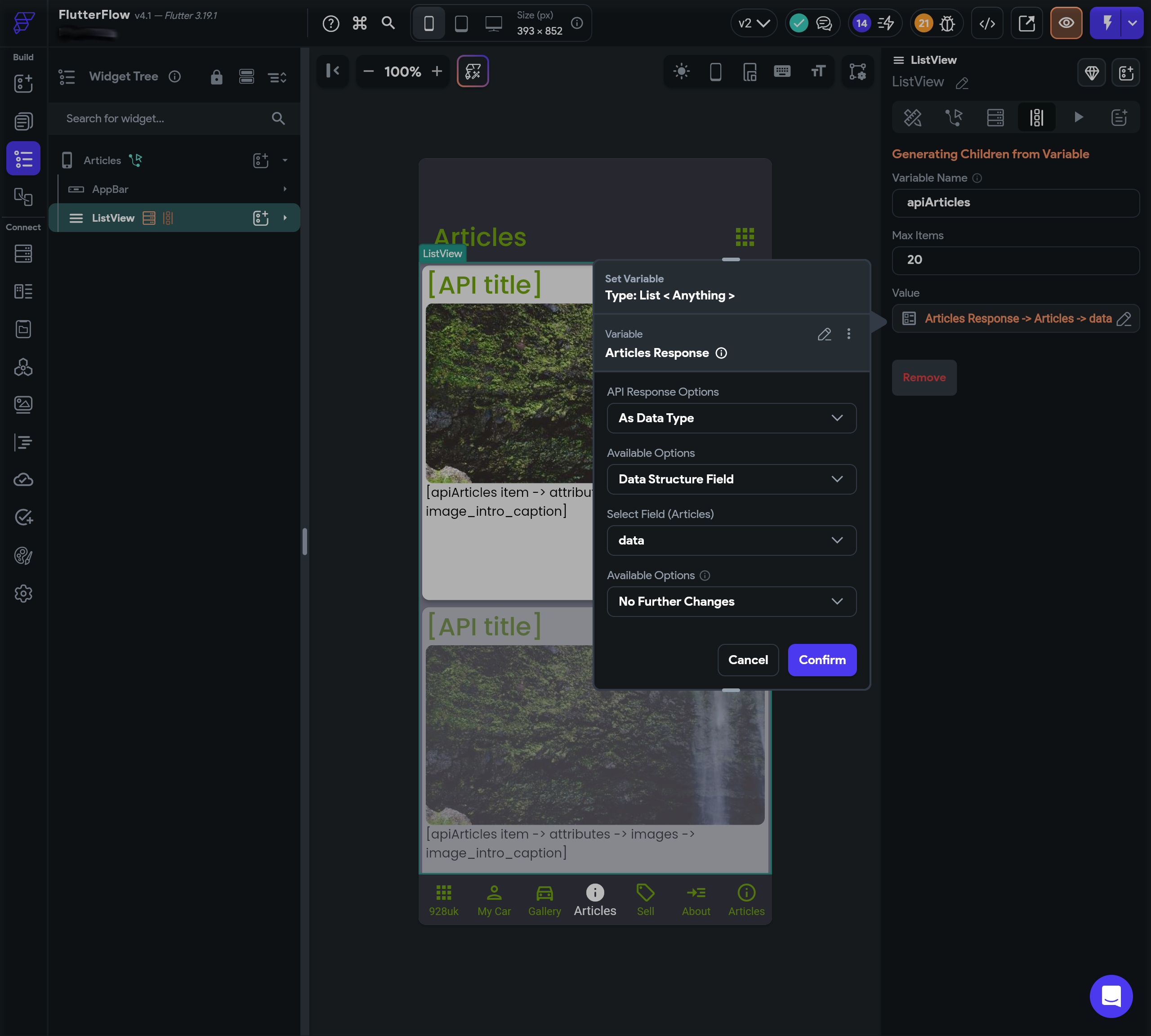
data field of the Articles API responsePublishing to the App Store and Google Play
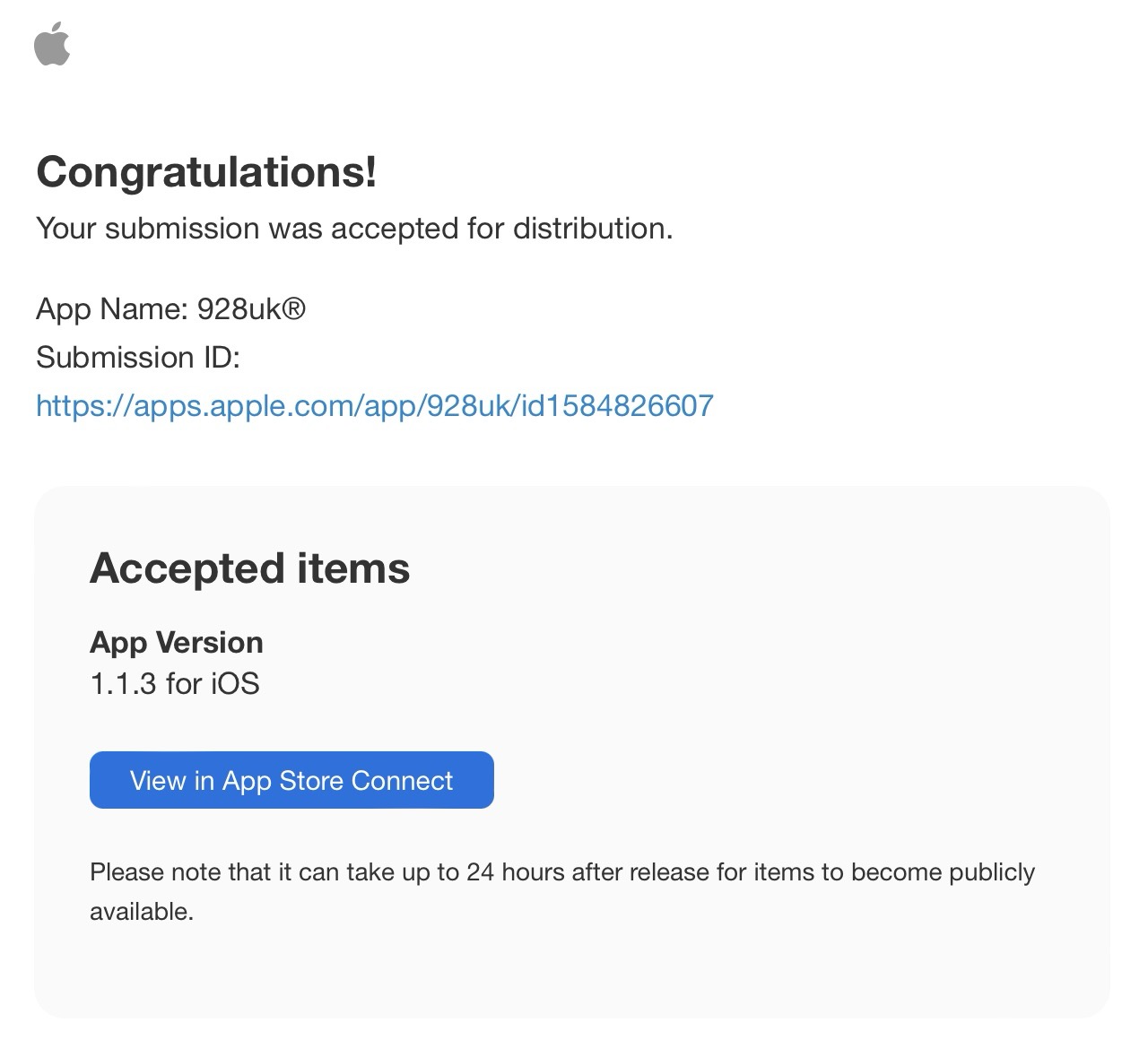
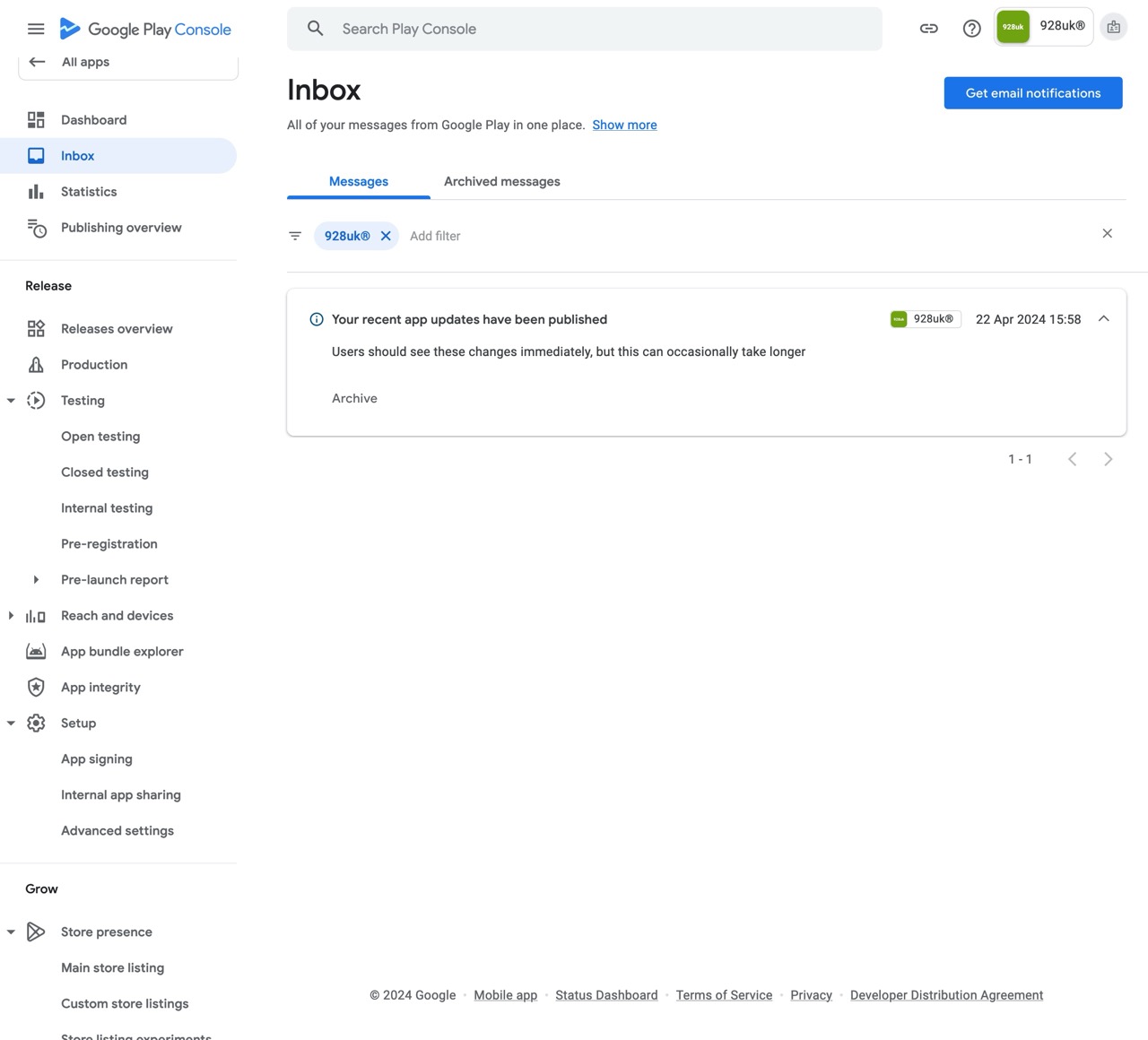
FlutterFlow's build and deployment pipeline has improved considerably. Both Apple App Store and Google Play Store submissions can be initiated directly from the FlutterFlow dashboard, and the generated Flutter code meets current store requirements. The app described in this article passed both App Store and Google Play review shortly after submission.
Closing thoughts
The Joomla API and FlutterFlow combination is more capable in 2026 than it has ever been. Joomla 5's refined API layer, FlutterFlow's improved Data Types editor, and better tooling around JSON mapping all reduce the friction compared to earlier iterations of this workflow. The complexity is real — the Joomla Articles API's JSON:API structure demands careful, deliberate mapping — but the reward is a genuinely maintainable cross-platform app with a well-understood, open-source CMS as its backend.
Use quicktype.io to understand your structure, build your Data Types from the inside out, test on real devices, and use Flutter DevTools to inspect what's actually happening on the wire. That combination will get you further, faster, than any amount of guesswork in the visual builder.
See also
- quicktype.io — Convert JSON into typesafe code in any language
- jsonpath.com — JSONPath Online Evaluator
- jsonapi.org — JSON:API specification — pay particular attention to MIME Types
- Joomla Core APIs documentation — Articles endpoint reference
- FlutterFlow documentation — API calls, Data Types, and custom functions
