The Hidden Storage Hog Living Inside Your Mac
If you have been using Xcode for any meaningful stretch of time, there is a good chance your Mac is quietly running out of room — and you may have no idea why. Xcode simulators are one of the most persistent and underappreciated causes of ballooning disk usage on a developer's machine, accumulating gigabytes of data in the background without ever surfacing a single warning or prompt.
The problem compounds itself in two distinct ways. First, simulator runtimes themselves take up significant space — each iOS, watchOS, or other platform simulator you have ever downloaded leaves behind a substantial footprint. Second, Device Support files pile on top of that. These are files Xcode writes to ~/Library/Developer/Xcode/iOS DeviceSupport and equivalent directories for every device and OS version combination you connect or target. Neither category cleans itself up reliably, and neither is especially visible in day-to-day use.
To put a real number on it: I freed up 150GB of disk space after running cleanup commands on a machine with. 1TB SSD. That is not years of neglect — that is less than a year of ordinary Xcode use silently consuming the equivalent of thousands of photos or hours of video.
How to find where the space has gone
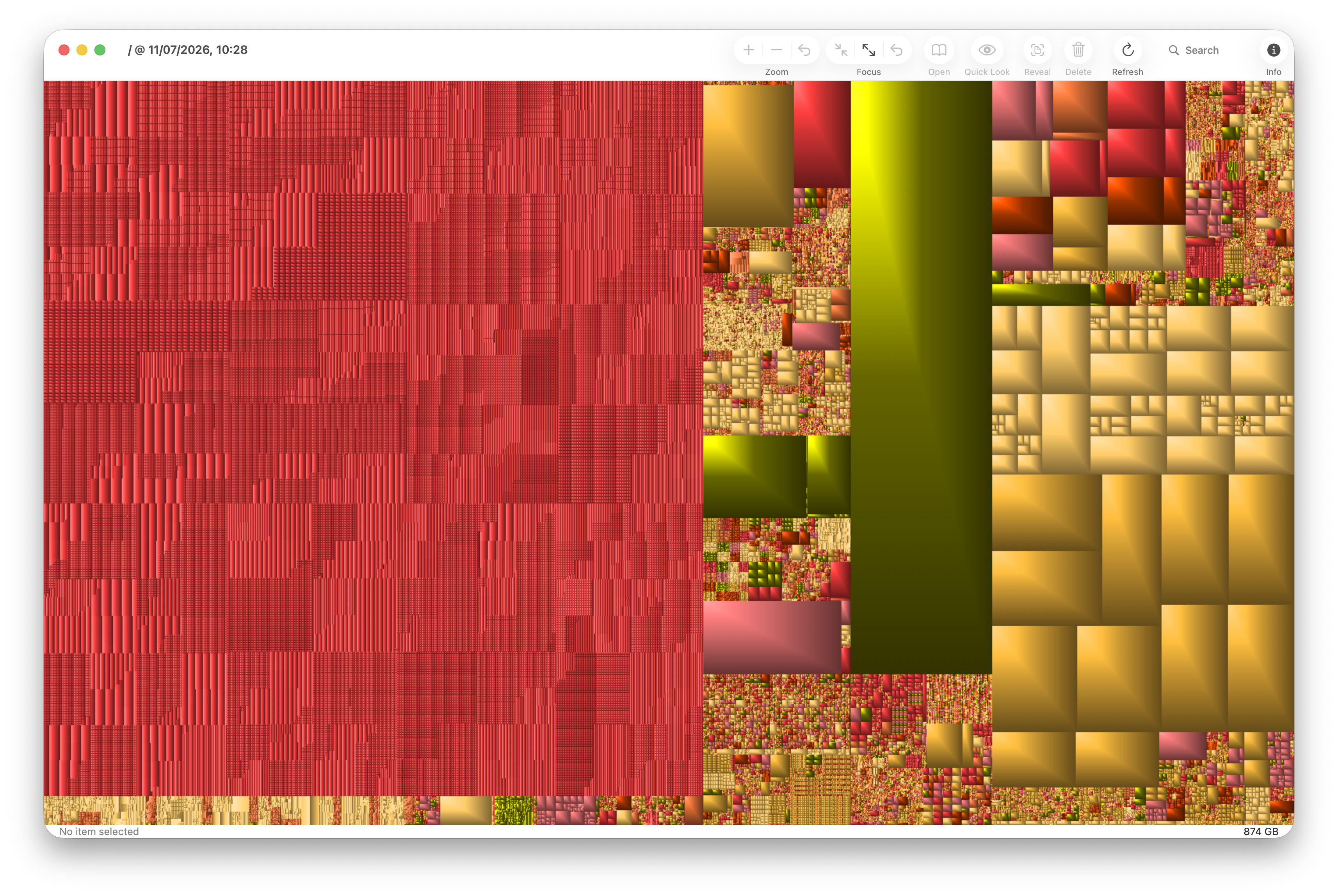
I used a tool called Grand Perspective - its free and open source and gives you a visualisation of your drive so you can identify space hogging files. Guess what! Many of mine were Simulators I am never going to use or need.
Where the Space Actually Goes
- Simulator runtime data stored per platform and OS version
- iOS, watchOS, and other Device Support folders that grow with every connected device
- Unavailable simulators — runtimes for devices Xcode no longer lists — that linger on disk long after they are useful
The irony is that Xcode provides an official interface for managing simulators under Window → Devices and Simulators, giving the impression that cleanup is simple and handled. In practice, that interface only scratches the surface of what is actually sitting on your drive.
Why the Obvious Delete Button Isn't Enough
Xcode does provide an official path for managing simulators. handling to Window → Devices and Simulators allows for deletion and Components opens a dedicated panel where installed simulators are listed and, in theory, can be removed with a straightforward action. For many developers encountering a bloated simulator library for the first time, this feels like the natural place to start, and that instinct is not wrong, exactly. The problem is that it is rarely sufficient.
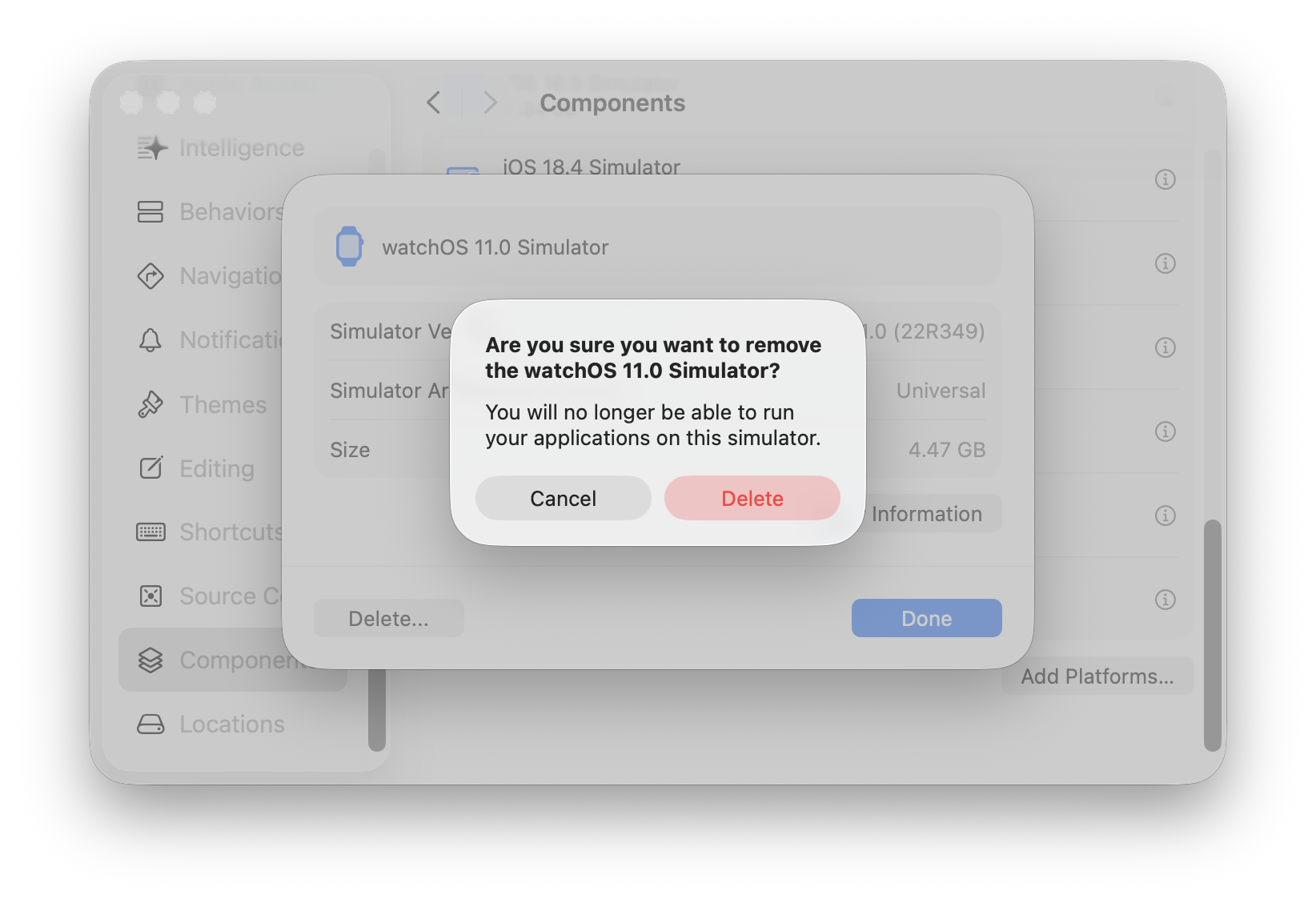
In practice, the built-in UI route falls short in several frustrating ways. Simulators can appear to delete successfully, only to reappear after Xcode is restarted or a new project is opened. Even when a simulator entry disappears from the list, the underlying data it occupied on disk does not always go with it. Orphaned simulator files quietly continue consuming storage, hidden deep inside ~/Library/Developer, completely invisible to anyone relying solely on the graphical interface.
The disconnect between what the UI suggests and what actually happens on the file system is what makes this problem so disorienting. There is no error message, no warning that the deletion was incomplete, and no obvious next step presented to the user. The workflow is, in a word, non-intuitive.
As a result, developers routinely abandon the official interface and turn to community forums — Stack Overflow and Ask Different among the most frequented — searching for terminal commands and manual file-deletion strategies that Xcode itself never surfaces . The fact that so many experienced developers find themselves in this position speaks to a genuine gap between the simplicity the UI implies and the complexity the underlying system demands.
The Command-Line Workarounds Developers Actually Use
When Xcode's graphical interface refuses to cooperate, experienced developers turn to the terminal — and for good reason. The command line bypasses the GUI layer entirely, communicating directly with the simulator runtime in ways that Xcode's own windows simply cannot replicate reliably.
Purging Unreachable Simulators with xcrun simctl
The single most effective command in a developer's cleanup arsenal is xcrun simctl delete unavailable. Typed directly into Terminal, this instruction targets every simulator that Xcode itself has flagged as unreachable — devices that no longer appear properly in the Devices and Simulators window yet continue to consume disk space in the background. Because the command operates at the simctl layer rather than through the GUI, it can reach and remove entries that the interface either cannot see or quietly refuses to act on.
Manually Clearing DeviceSupport Directories
Simulator runtimes are only part of the problem. A significant portion of reclaimed space comes from targeting the Device Support directories that Xcode accumulates over years of use. Developers can open these locations directly in Finder by running the following commands in Terminal:
open ~/Library/Developer/Xcode/iOS\ DeviceSupportopen ~/Library/Developer/Xcode/watchOS\ DeviceSupport
From there, folders tied to iOS and watchOS versions that no longer need to be supported can be deleted manually. One developer reported freeing 15 GB of disk space using this combined approach on a machine that had been in use for roughly eight months.
Why the Terminal Succeeds Where the GUI Fails
The GUI presents a curated, sometimes incomplete view of simulator state. When a simulator becomes unavailable — typically after a major Xcode or macOS upgrade — the interface may render it undeletable, greyed out, or simply invisible. Terminal commands sidestep this presentation layer entirely, acting on the underlying data structures directly. That directness is precisely why developers reach for the command line first whenever a simulator stubbornly refuses to disappear through normal means.
Xcode's Partial Automation and What You Still Have to Do Yourself
Apple has made meaningful strides toward automating the cleanup of Xcode's accumulated disk clutter, but the system's built-in help only goes so far — and understanding exactly where it stops is essential for developers who need storage space back in a hurry.
What Xcode 12 Introduced
Starting with Xcode 12, Apple added automatic tracking of Device Support files — the per-device, per-OS-version bundles that Xcode downloads whenever you connect a real device for testing. Xcode monitors when each of these files was last used and marks any that have sat idle for 180 days or more as eligible for deletion by the system. In practice, this means long-forgotten support files for old iOS versions you no longer test against can eventually be cleaned up without you lifting a finger.
Who Actually Controls the Timing
The catch is that eligibility for deletion is not the same as actual deletion. Once Xcode flags old Device Support files, it hands responsibility for the cleanup over to macOS entirely. The operating system decides when to act, weighing a combination of factors including available disk space, whether the machine is connected to power, and current system activity. There is no guarantee of a prompt cleanup, and on a machine that rarely runs low on disk space, the process could be delayed indefinitely.
Where Manual Intervention Is Still Necessary
This hands-off approach has a clear practical limitation: if you need space right now, automation will not save you. Developers who suddenly find themselves short on disk space before a build or App Store submission still need to step in manually and delete Device Support files themselves. The same applies to unavailable simulators, which can be removed via the Terminal command xcrun simctl delete unavailable, or through the Device Support directories at ~/Library/Developer/Xcode/iOS DeviceSupport and ~/Library/Developer/Xcode/watchOS DeviceSupport.
Xcode's automation is a welcome improvement, but it functions more as a long-term ceiling on disk usage than an on-demand cleanup tool. For immediate relief, manual deletion remains the only reliable option.
The last resort - disable System Integrity Protection (SIP) and delete carefully
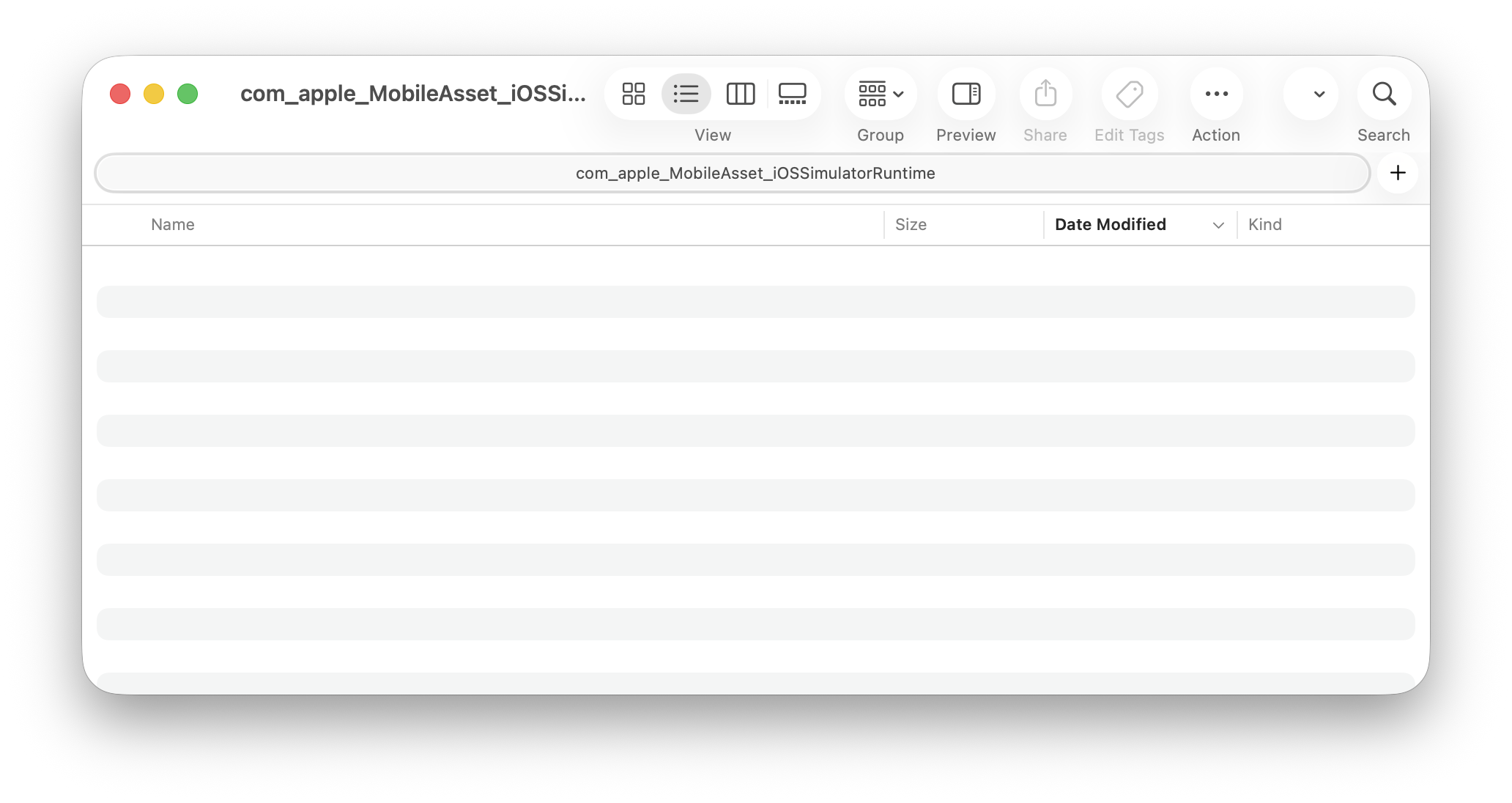
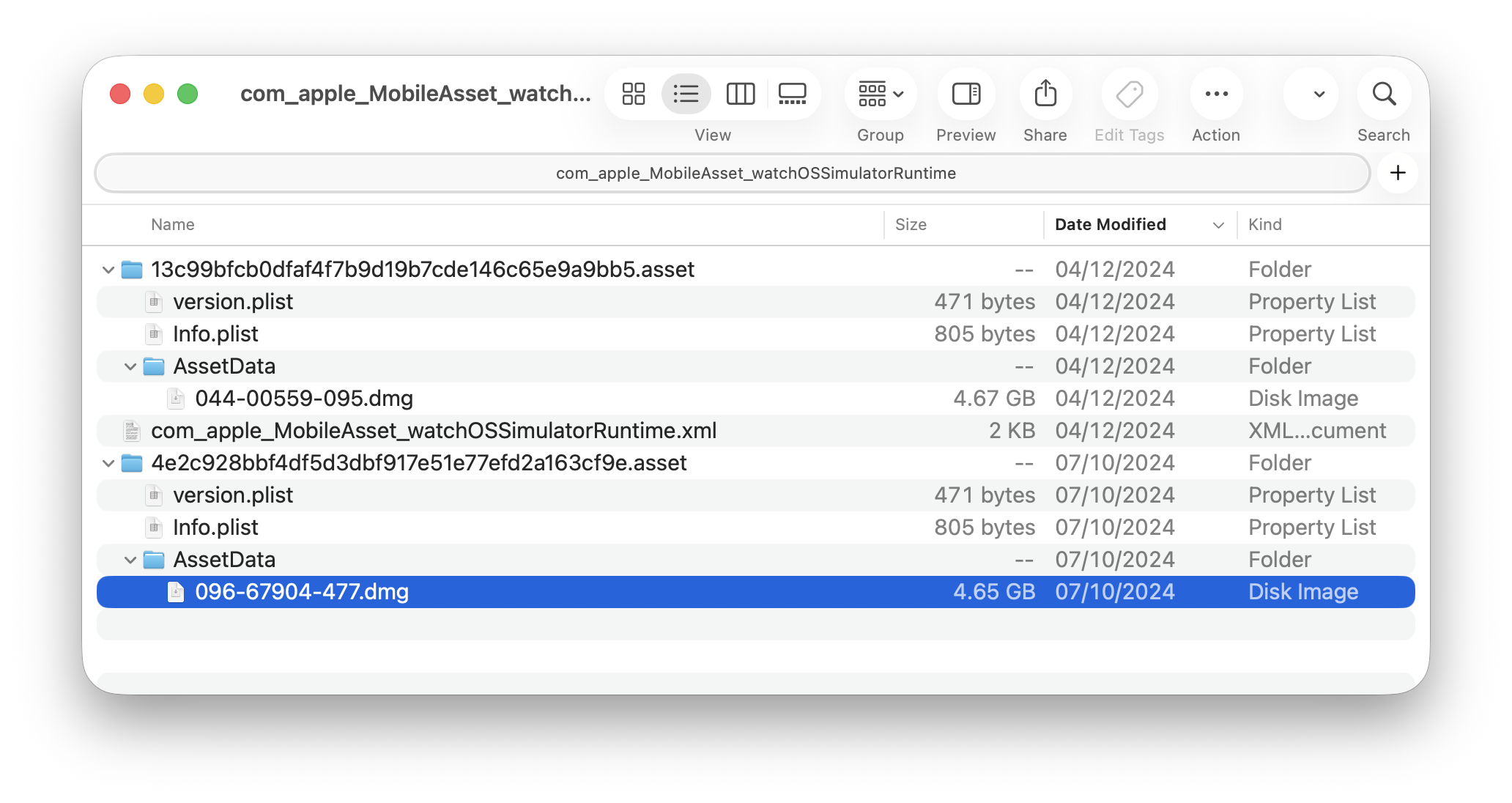
I found I had a bunch of orphaned simulators in /System/Library/AssetsV2/com_apple_MobileAsset_iOSSimulatorRuntimewhich are impossible to delete.
Steps to disable SIP and delete files
This is the only way to get rid of them on a Mac computer with Apple Silicon.
- Shut down.
- Start up into recovery.
- In Terminal in recovery, type
csrutil disableto turn off System Integrity Protection (SIP). - Restart.
- In Terminal, cd to
/System/Library/AssetsV2/com_apple_MobileAsset_iOSSimulatorRuntimeand carefully delete usingsudo rm -rf *.assetany orphaned simulators. - Shut down.
- Start up into recovery again
- In the Terminal type
csrutil enableto turn on SIP. - Restart.
Success!