
Multizone | All our technotes
If we've published it, you can find it here.

Does anybody know of a hardware compatibility list for the MIPS, Alpha, and/or PowerPC versions of Windows NT?
— Thom Holwerda (@thomholwerda) June 22, 2022
A tweet about the hardware compatibility list for the MIPS, Alpha, and/or PowerPC versions of Windows NT caught my eye in my timeline
I had a lot of affection for the non-Intel releases of Windows NT 3.x back in the day. I seem to recall that Windows NT 3.1 was slow as slow can be compared to OS/2 back then on equivalent computers but NT 3.51 was fast! I went to the launch of Alpha AXP at Digital Equipment Co. with the catchy tagline "Imagine being the one without Alpha AXP" and they excitedly sent a couple of Alpha AXP desktop computers with Windows NT for Digital Alpha AXP on them for evaluation. Nothing we made ran on them at Lotus. Just like today, an 'Error in exe' or some such message was returned if an invalid binary was launched. Unlike today fat binaries were not a thing despite some early hints that perhaps they would be for NT. Anyway the Alpha AXP desktops were beautifully built computers as you'd expect from Digital, and they were fast for the time with what were big specifications. Importantly they never made it to the company books as they were on evaluation from Digital. This meant they were fair game to take home since they were also incapable of being used for anything much! Wheeling them out of Lotus Park reception one evening the CEO helped us load them into our cars, thanking us for working late as usual. We were grateful! In reality they weren't that useful for anything — apart from for learning Windows NT of course!
All those memories came back to me as I was reading the tweet and thinking, "I know I've read that hardware list somewhere, but where was it? This was when support was via ftp, and CompuServe.
TL:DR — I found it, it was distributed on the MSDN Platform archive CD at the time in HLP file format which has long been obsolete. You can however coax Windows 7 into loading it up if you have an old Windows XP CD kicking around. Details of how to do that below.
It came with NT 3.5.1 distributed with MSDN platform archive CD at least back in the 90s. I knew I had read it somewhere years ago. Its in .HLP format at this path WINNT351_WKS/FREE/SUPPORT/HCLMAY95.HLP if you have that CD. It is hard to open on modern Windows computers :) pic.twitter.com/Rm5EgNKLrG
— Angus Fox 🏴 June 22, 2022
- Details
Read more: Microsoft Windows NT, Hardware Compatibility List

I wanted to mark the blog in a way which copyrights my work unless separately attributed, allows anyone to use it or make derivitaves of it but not commercially, under the same terms, with attribution to me, through my company, such as it is. Guess what, the Creative Commons CC BY-NC-SA 4.0, also known as the Attribution-NonCommercial-ShareAlike 4.0 International License is just the job!
Why 


 CC BY-NC-SA 4.0 ?
This license is the latest revision from Creative Commons fixing some issues with previous licences lately pointed out by Cory Doctorow. It requires that reusers give credit to the creator. It allows reusers to distribute, remix, adapt, and build upon the material in any medium or format, for noncommercial purposes only. If others modify or adapt the material, they must license the modified material under identical terms.
TL:DR — I chose Attribution-NonCommercial-ShareAlike 4.0 International License for all content on this site unless separately attributed, because it is the latest recommended licence which meets my needs. YMMV.
- Details
Read more: Creative Commons Attribution-NonCommercial-ShareAlike 4.0

Google services can generate revenue for you
Google can generate revenue for you through some of its services, such as Google Ads, AdSense and YouTube. Make sure you get all that you are entitled to and comply with your tax obligations. Tax is not something you should put off. It is easy to set up tax information for Google's services. If you don't do it, then Google may withhold up to 30% of your payouts or hold payouts completely until you complete the tax information and it is is approved. Google has a responsibility under the US Internal Revenue Code to withhold and report taxes, and so do you both to the US authorities and those of your country of residence.
TL:DR — I documented the process I went through to register my Google services for tax through my company, so as to make sure I am in compliance to the best of my abilities, with tax regulations in the United States and the United Kingdom. This applies to a small business set up as a Limited company at Companies House for England and Wales. YMMV. This is not advice. You should always get professional advice on tax!
- Details

Log of errors with App Store Connect
I have become increasingly irritated by App Store Connect - the website Apple make all developers. So I make no apology for logging all the issues and errors I have to see if its just me or whether the effectiveness of millions of developers is at the arbitrary mercy of Apple less than stellar web development team.
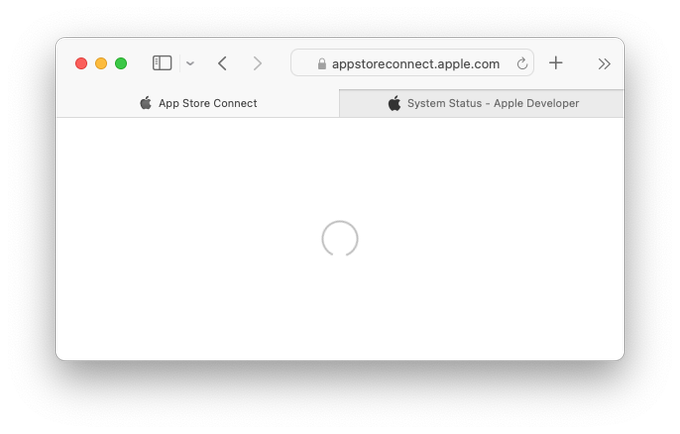
Infinite Loop progress indicator
In my experience clients don't understand why Apple make developers use #AppStoreConnect. It's just an 'app' they say. Why should we pay to manage it through review? In Apple's defence heres an infinitely looping progress indicator, anyone want to help me explain that to my clients awaiting publication.
System Status "All Green"
It’s all green at Apple so how can AppStoreConnect be down for developer uploads? Wait, surely it’s not just a static page - I mean the green available indicator is actually connected to something isn’t it?

An error has occurred
If it knows an error has occurred why can it not do something about it. It is after all 2022 and you are supposed to be the best technology company in the world. Every single time I use App Store Connect I have to reload pages in the 'new submission process' and that is along with having to sign in again multiple times daily too. It has been like this for months!

An unexpected error was encountered when submitting for review
Today my app skipped the new submission process altogether and just popped this error message. On refresh it says its 'waiting for review'. Who knows if it really is.

- Details

Apple worldwide developer conference 2022 - iOS 16 revealed
Apple previewed the latest advancements in iOS 16, iPadOS 16, macOS 13, tvOS 16, and watchOS 9 in the keynote at WWDC22. They explained how apps can deliver information in new ways, make it easier for people to share content, offer more intelligent features and improve productivity.
There are major innovations in sharing, communication, and personalisation. Work-life balance is made more discrete through focus. Payments are revolutionised with Apple Pay Later. And there are dozens of other major features including improvements in Photos, Mail and Messages. Fitness is now a system app for everyone not just Apple Watch owners. New Safety features for people who might feel at risk from domestic violence have been added.
TL:DR – All of this information was made public on June 6 2022.
- Details

Generally theres a single corporate strategy, even where scenario planning has taken place typically these are themed towards a final strategy.
TL:DR – The comparison between corporate and robust strategies is illuminating because it shows where they may differ and be in confilct.
- Details

I can't quite believe it, but I just built and installed Lotus 1-2-3 for Unix on my Ubuntu 22.04 LTS linux desktop and it works flawlessly and it is FAST!
Lotus 1-2-3 for Unix was released in 1990. I joined Lotus then to work on 'Non-DOS' products initially Lotus 1-2-3 for Mac, and other ports for Unix and Sun Workstations and then cc:Mail and Lotus Notes across Windows, OS/2, MacOS and Unix. I found an original note about the release online. I looked in my attic and found a boxed copy of 1-2-3 for Sun on a DC600 Tape! I also found a VHS of the original sales training for 1-2-3 for Unix. I wonder if I still have the demo files or presentations somewhere.
"Lotus Development Corp is following up its plans for an IBM mainframe version of 1-2-3 with one for Unix: the new version will be developed alongside 1-2-3 Release 3.0 and will be optimised for use on a variety of workstations under System V, as well as supporting the forthcoming IEEE Posix Portable Operating System, and will comply with standards set forth by the X/Open consortium of Unix system vendors; Lotus says that it will also offer multi-tasking and multi-user capabilities for easy sharing of files and consolidating large spreadsheets and will support three-dimensional and linked worksheets; robust external data access; and the extended applications facility".
Lotus 1-2-3 for Unix, running on Ubuntu 22.04 LTS,
This screen is showing off 'perspective mode' an innovation at the time! Lotus 1-2-3 had a patented and vigorously defended 'look and feel'. To get to this menu you type /wwp for worksheet, window, perspective. It is quite a revelation that I and probably most other power users can remember all these commands after all this time. You'll need a multi sheet spreadsheet though. Fortunately the installation contains the sample files. Use /fr and then arrow keys and enter key to find your install folder and sample files. This is ../root/lotus/123.v10/smpfiles/consale.wk3.

- Details
