

Running macOS 26.0 Tahoe as a virtual machine on your Mac is easier than ever thanks to advances in virtualization support for Apple silicon. Running in a virtual machine allows you to check out the new version on your Apple's M-series based Mac computer safe in the knowledge that you aren't risking your production environment with beta software.
Tools such as VMware Fusion provide robust virtual machine hosting but cannot support macOS on Mac computers with Apple Silicon so we've chosen to use Viable, free software which takes advantade of the lightweight virtualisation framework provided by Apple.
Virtualization on Mac computers with Apple silicon has matured rapidly, removing many of the bottlenecks once associated with emulating non-native architectures. Booting macOS 26.0 Tahoe inside a VM is made possible by a system enabler from Apple providing reliable driver support, access to core system utilities, and a polished experience with minimal resource overhead.
This setup is ideal for testing applications, or simply exploring the latest features available to users of macOS 26.0 Tahoe.
TL:DR – It is easy to set up macOS 26.0 Tahoe on a Mac running macOS Sequoia 15.5, and once installed you have a perfectly usable, fast, beta macOS virtual machine at your disposal for testing without compromising your Mac.
Contents
- Installing macOS 26 Tahoe beta 2 in a virtual machine
- Viable
- Create and run macOS virtual machines on Apple silicon Macs
- macOS 26 Tahoe
- macOS 26 Tahoe Beta 2 and Device Support for macOS 26 Tahoe beta 2
- macOS 26 Tahoe Beta 2 installation screenshots
- macOS Tahoe installation slide carousel
- Differences in Settings
- No need for VMware Fusion on Apple silicon?
Installing macOS 26 Tahoe beta 2 in a virtual machine
Installation is straightforward.
For a virtual machine you need to do a little more.
Viable
Create and run macOS virtual machines on Apple silicon Macs
Viable is free software which uses macOS lightweight virtualisation to run a virtual machine created from an IPSW image. You can find it at The Eclectic Light Company blog, where it is easy to get distracted by a whole lot of useful free software tools.
ViablemacOS 26 Tahoe
macOS 26 Tahoe Beta 2 and Device Support for macOS 26 Tahoe beta 2
Beta 2 was released on June 23, 2025 and is build 25A5295e You'll also need to install Device Support for macOS 26 beta and can find both downloads on Apple's developer website.
Apple Developer websiteDownload Viable, and install it, download macOS 26 Tahoe beta 2 and the Device support for macOS 26 Tahoe beta 2 from Apples devloper website.
Run Viable, and press 'Install' choose the IPSW of macOS 26 Tahoe Beta 2 you previously downloaded and set the details of the virtual machine you wish to create. The author recommends a minimum of 100 GB and WiFi networking rather than NAT at present. Press Start VM to run your new virtual machine.
Viable is actively developed so pay attention to the authors website and do note the Apple imposed limitations!
macOS 26 Tahoe Beta 2 installation screenshots
macOS Tahoe installation slide carousel

Installing macOS 26 Tahoe Beta 2 in a virtual machine on a Macbook Pro with Apple silicon
This is a slide show of all the screens captured during installation.

Installing Device support for macOS 26 Tahoe Beta 2
This is necessary to enable support for macOS 26 Beta 2 in a virtual machine.

Installing macOS 26 Tahoe Beta 2 in Viable
Set Virtual Disk to 100GB, Display to 1400 x 875, Network to WiFi. It says "Starting installation"

Successful Install of macOS 26 Tahoe Beta 2 in Viable
Wait until it says 'Installation succeeded'. Now you can press Start VM, where you will give the virtualisation file a name and it will run.

Boot!
The macOS Boot sceen is a very difficult screen to capture outside of a VM.
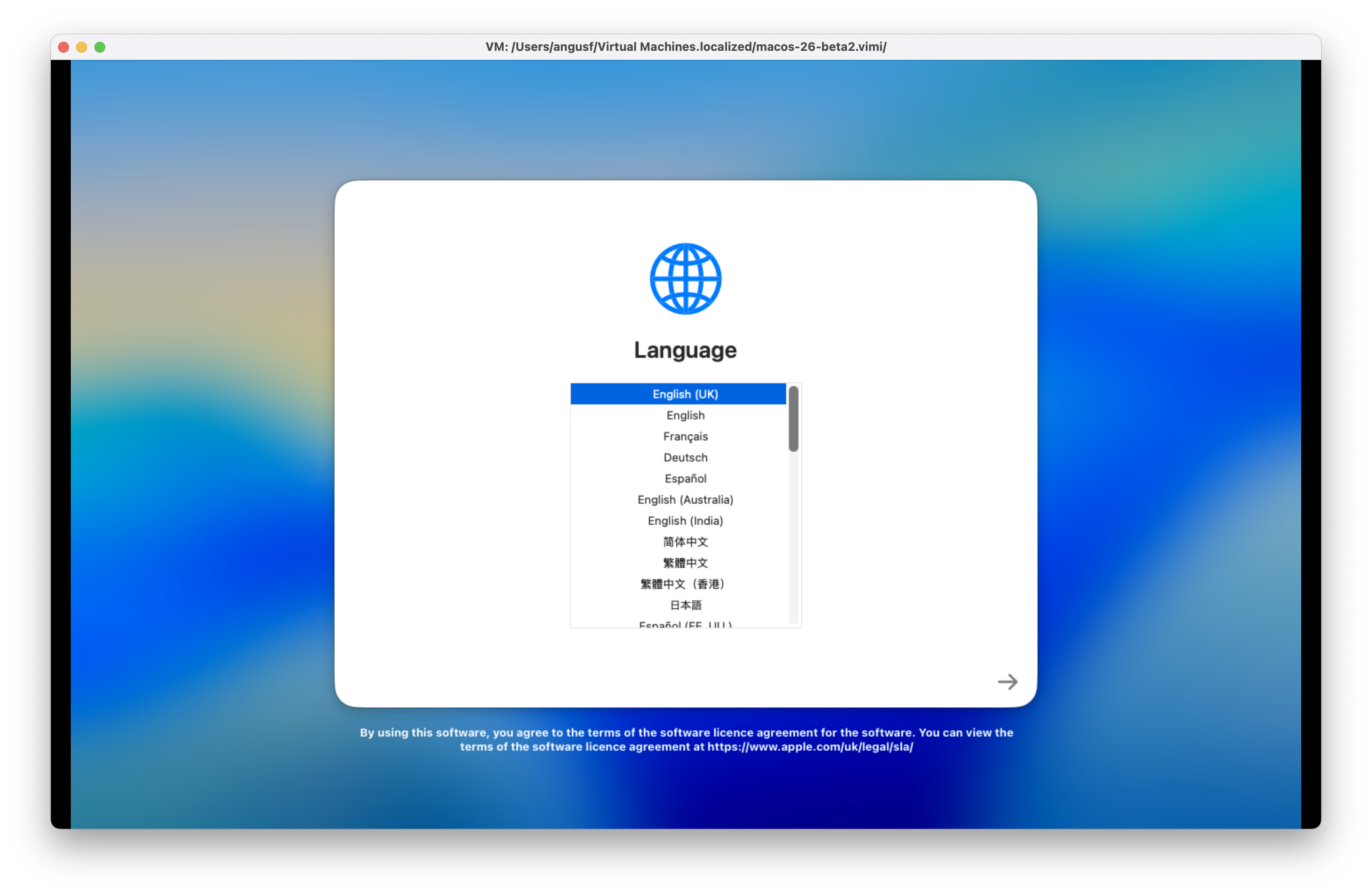
Language in macOS 26 Tahoe Beta 2
English (UK).
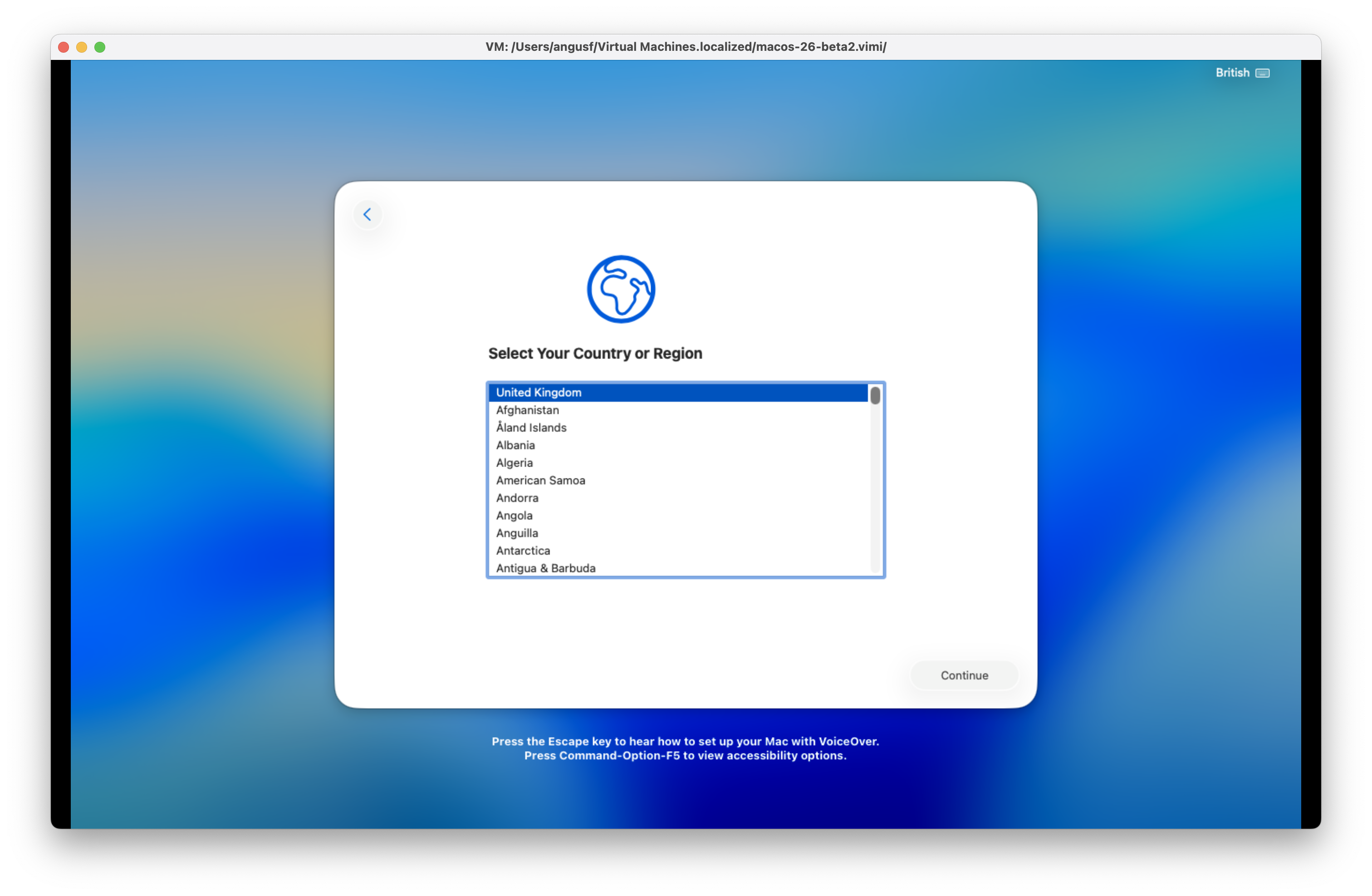
Country or region in macOS 26 Tahoe Beta 2
Select your country or region - United Kingdom.

Transfer your data to macOS 26 Tahoe Beta 2
Set up as new as this machine is for testing.

Written and spoken languages macOS 26 Tahoe Beta 2
Preferred Languages: English (UK), Input Sources: British, Dictation: English (United Kingdom).

Accessibility in macOS 26 Tahoe Beta 2
Accessibility features for Vision, Motor, Hearing and Cognitive needs.
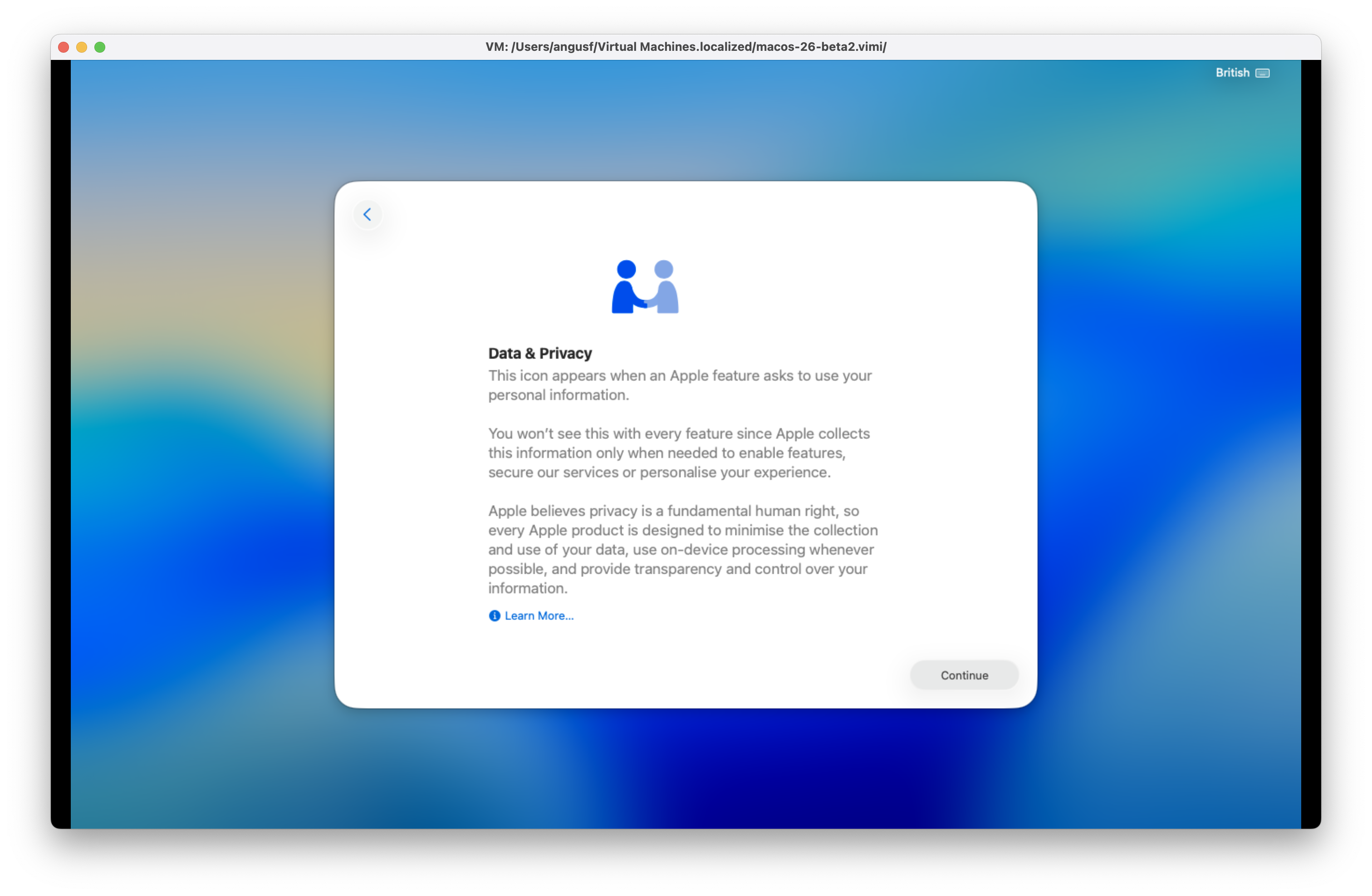
Data and privacy in macOS 26 Tahoe Beta 2
An explanation of Apple policies and features with regard to personal information.

Create a Mac account in macOS 26 Tahoe Beta 2
Set up an account for your computer and optionally associate it with your Apple Account.

Created a Mac account in macOS 26 Tahoe Beta 2
Good old John Valentine from the cc:Mail demo post office if you're that old!.
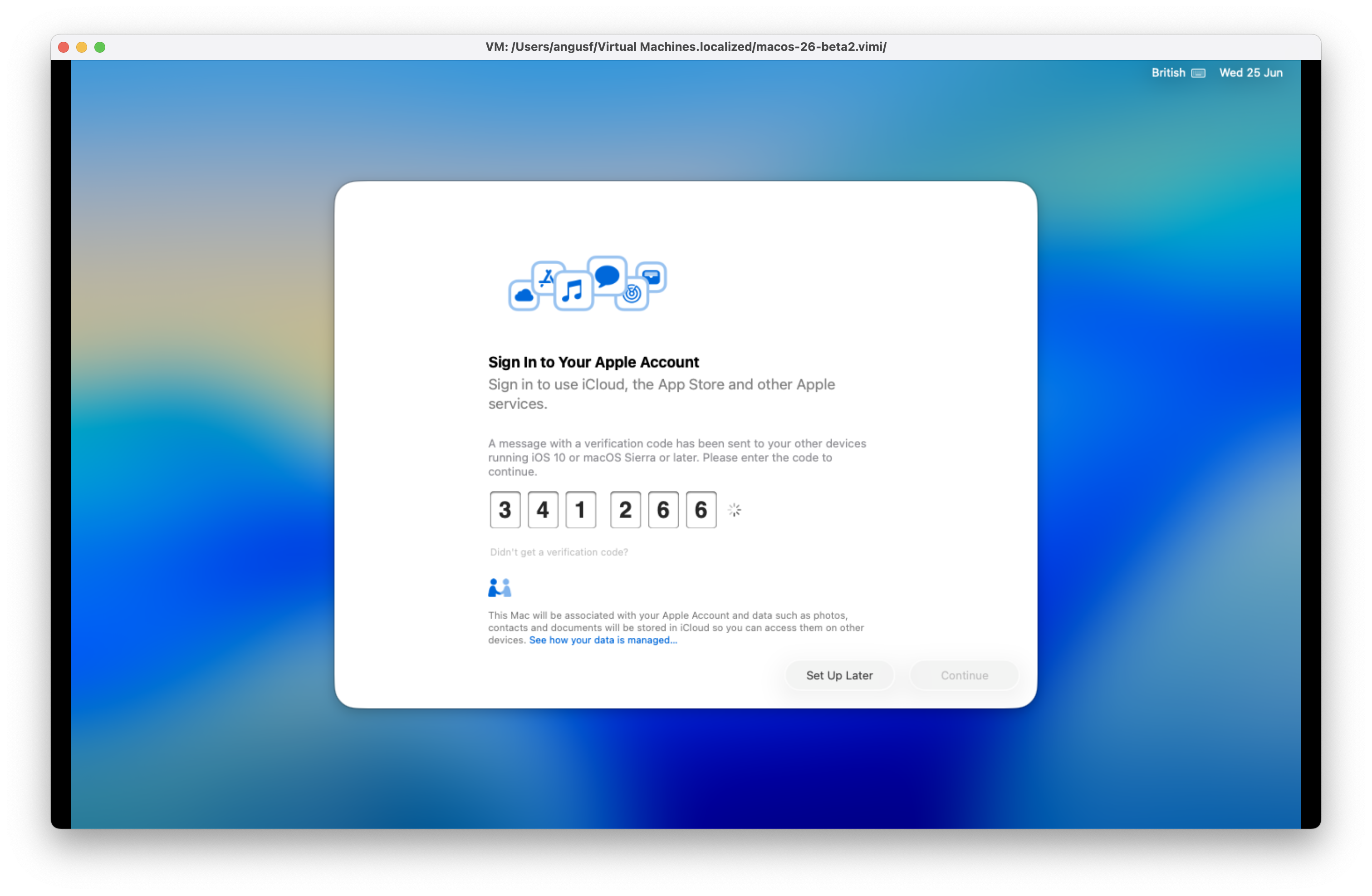
Sign in to your Apple account on macOS 26 Tahoe Beta 2
Sign in using a verification code.

Terms and conditions for macOS 26 Tahoe Beta 2
iCloud and Apple Media terms and conditions are mandatory.
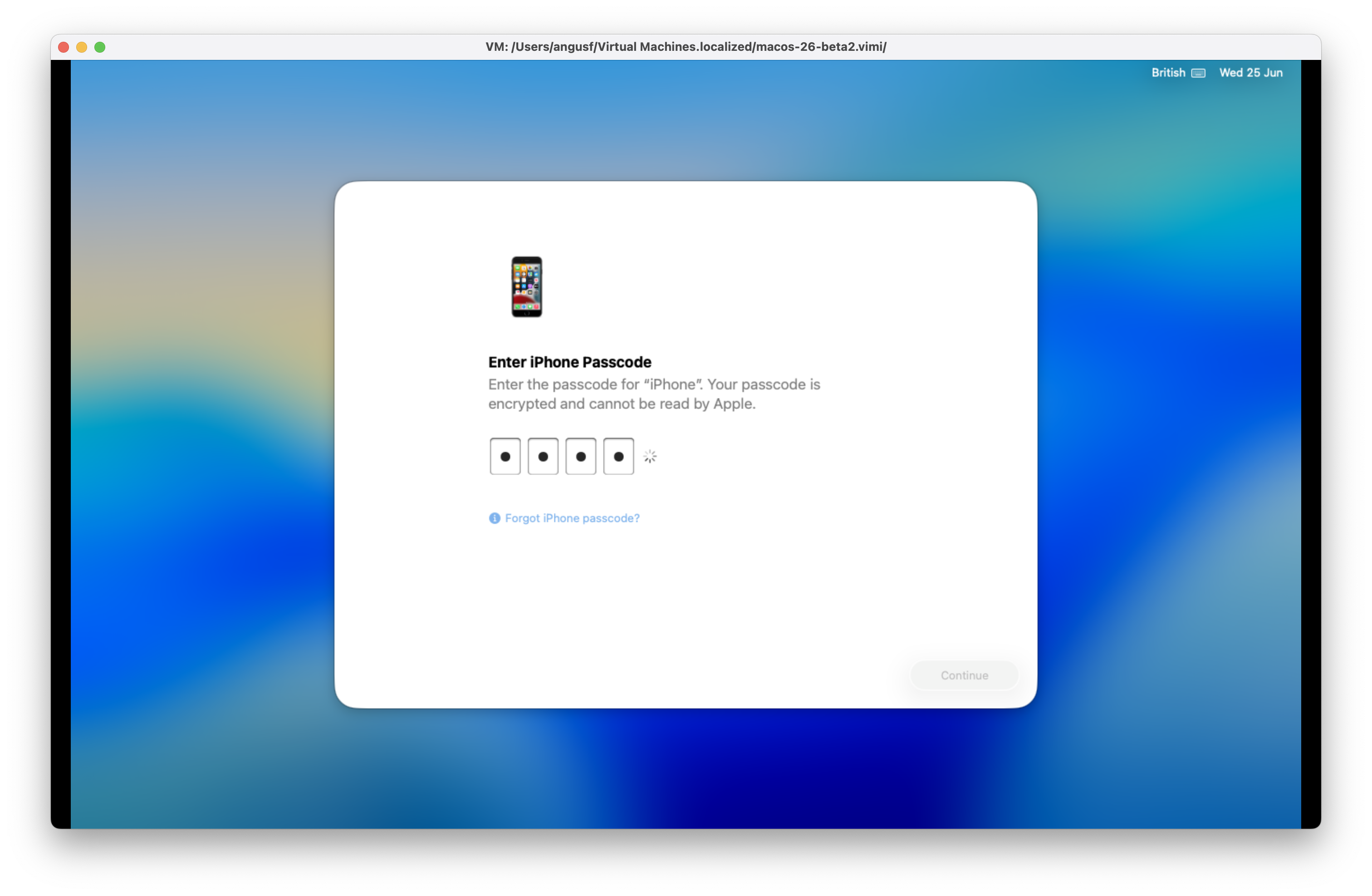
macOS 26 Tahoe Beta 2 - Enter iphone passcode
This is to ensure end-to-end encryption is enabled in iCloud.

macOS 26 Tahoe Beta 2 - Cant remember iphone passcode
If you can't remember it you can enter the passcode later.
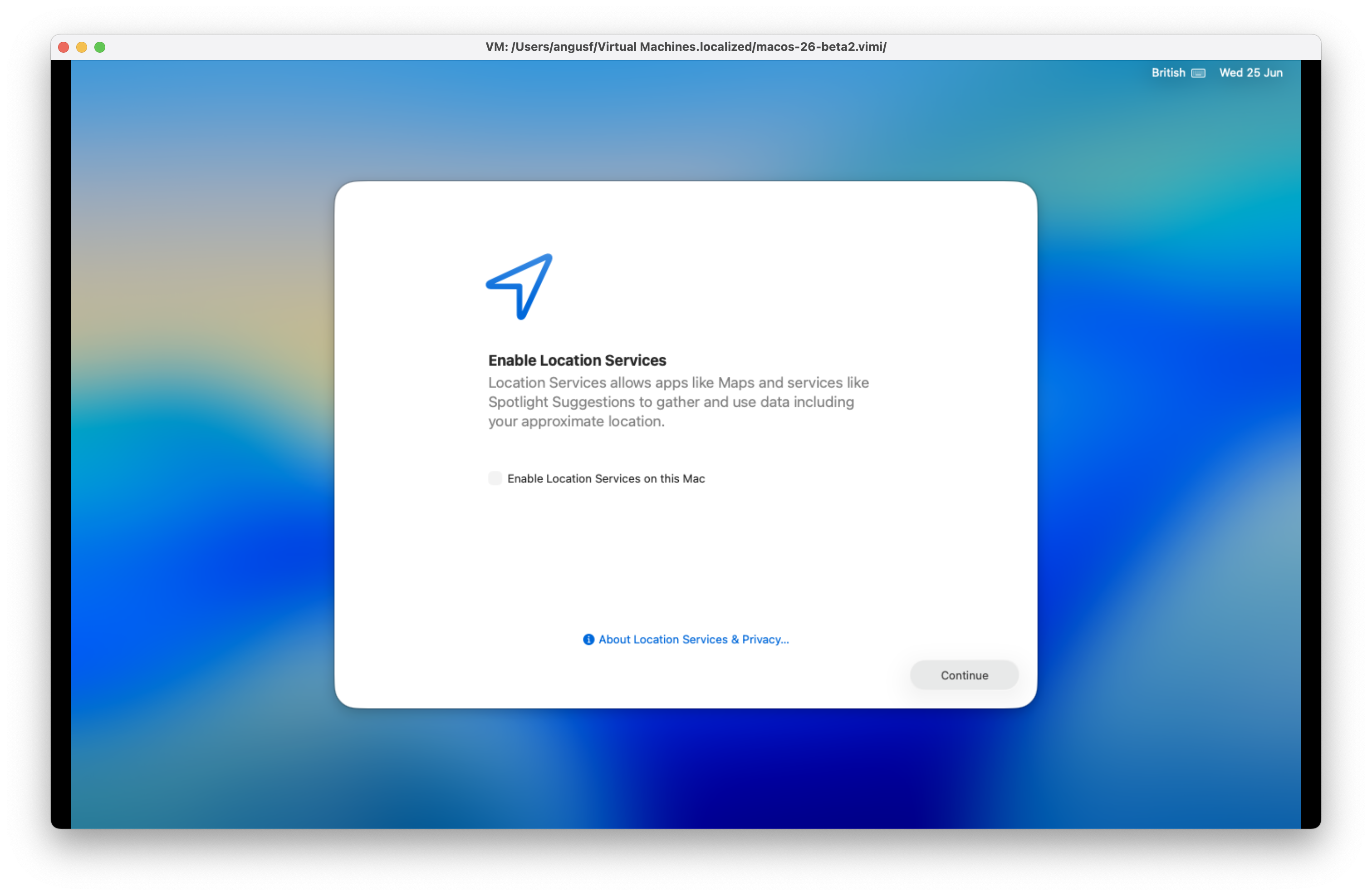
macOS 26 Tahoe Beta 2 - Enable location services
Don't think these are needed on a test machine.
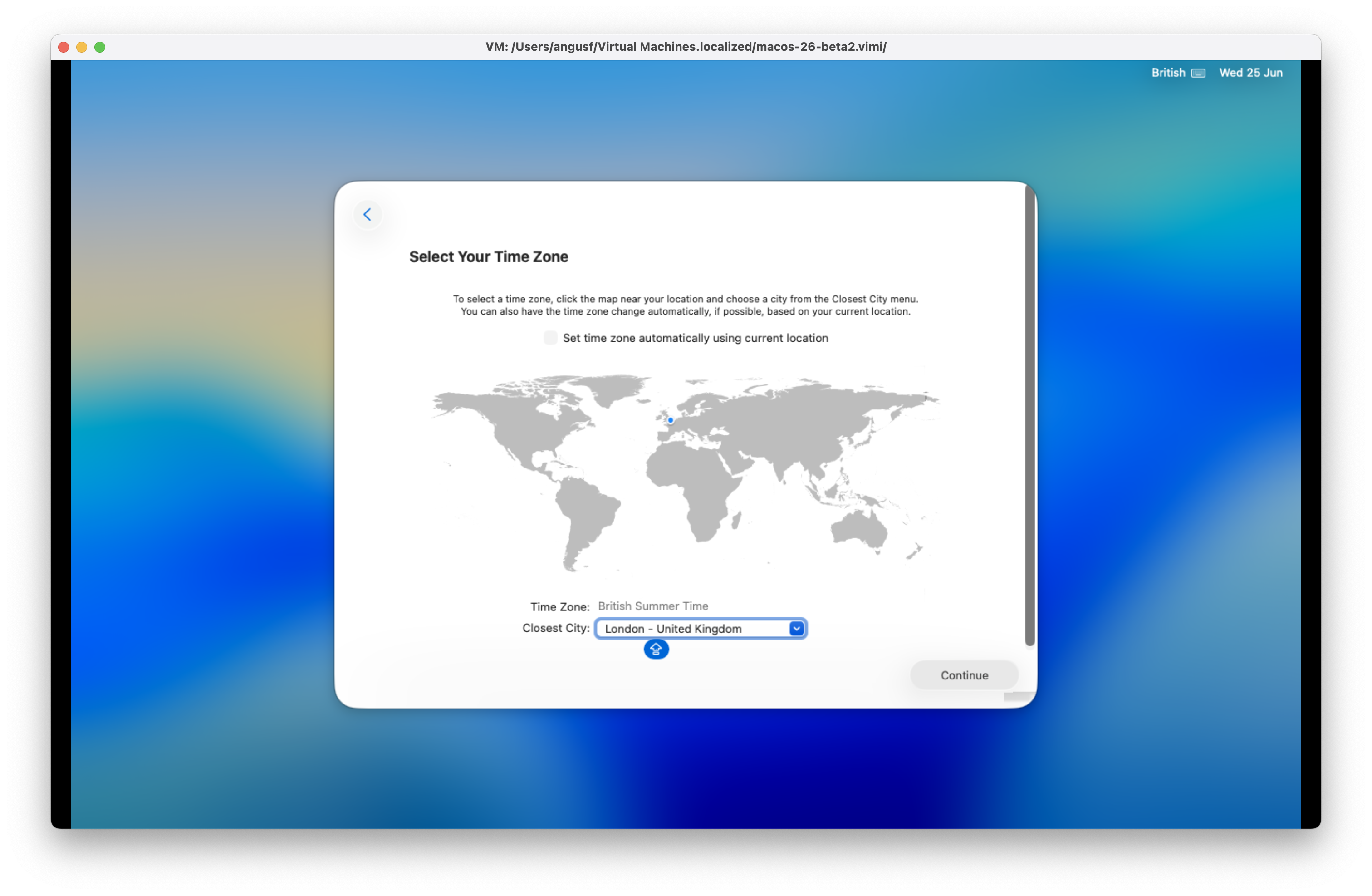
macOS 26 Tahoe Beta 2 - Time Zone
London - United Kingdom.
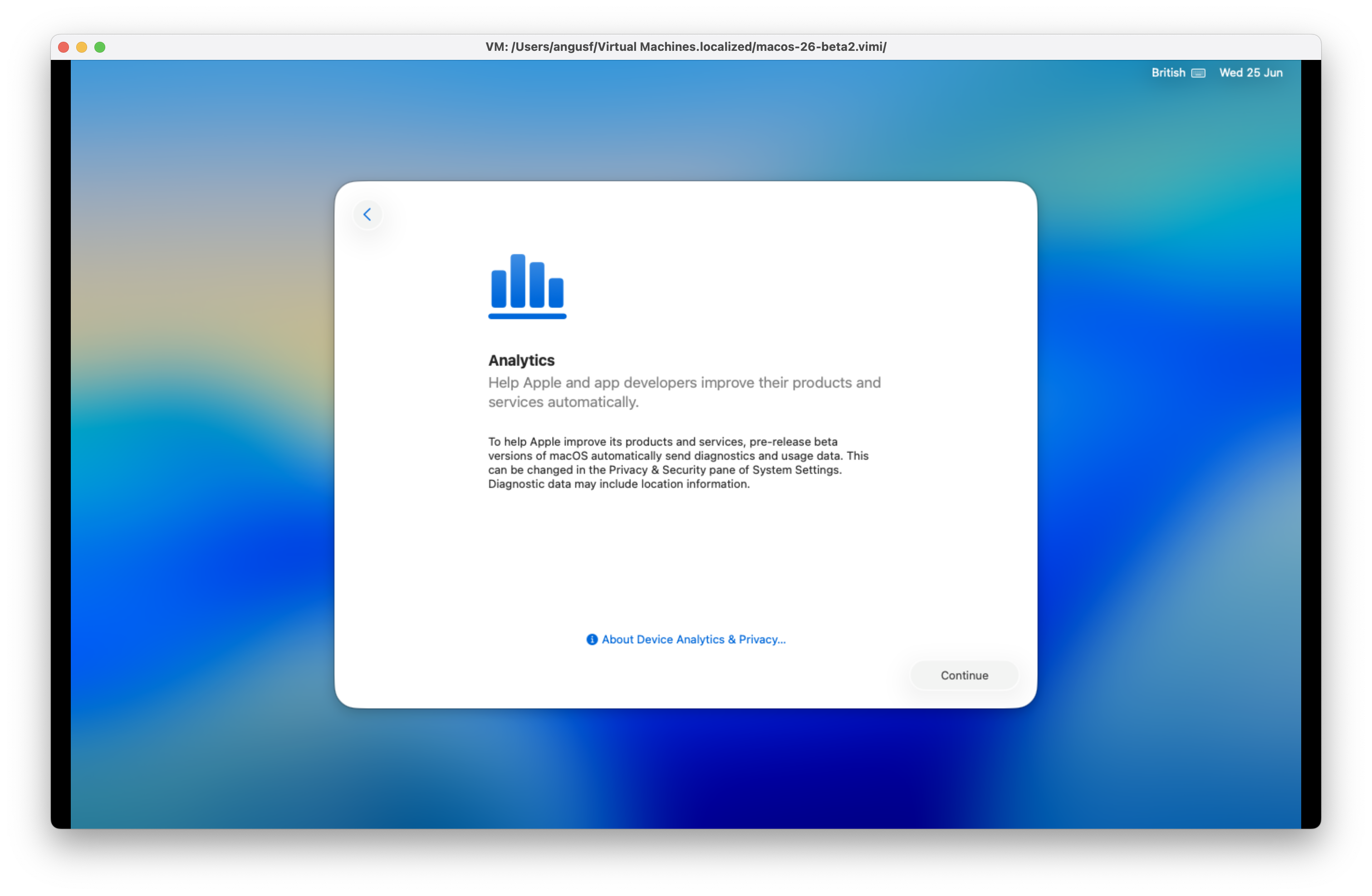
macOS 26 Tahoe Beta 2 - Analytics
Analytics are mandatory and automatic in the beta.
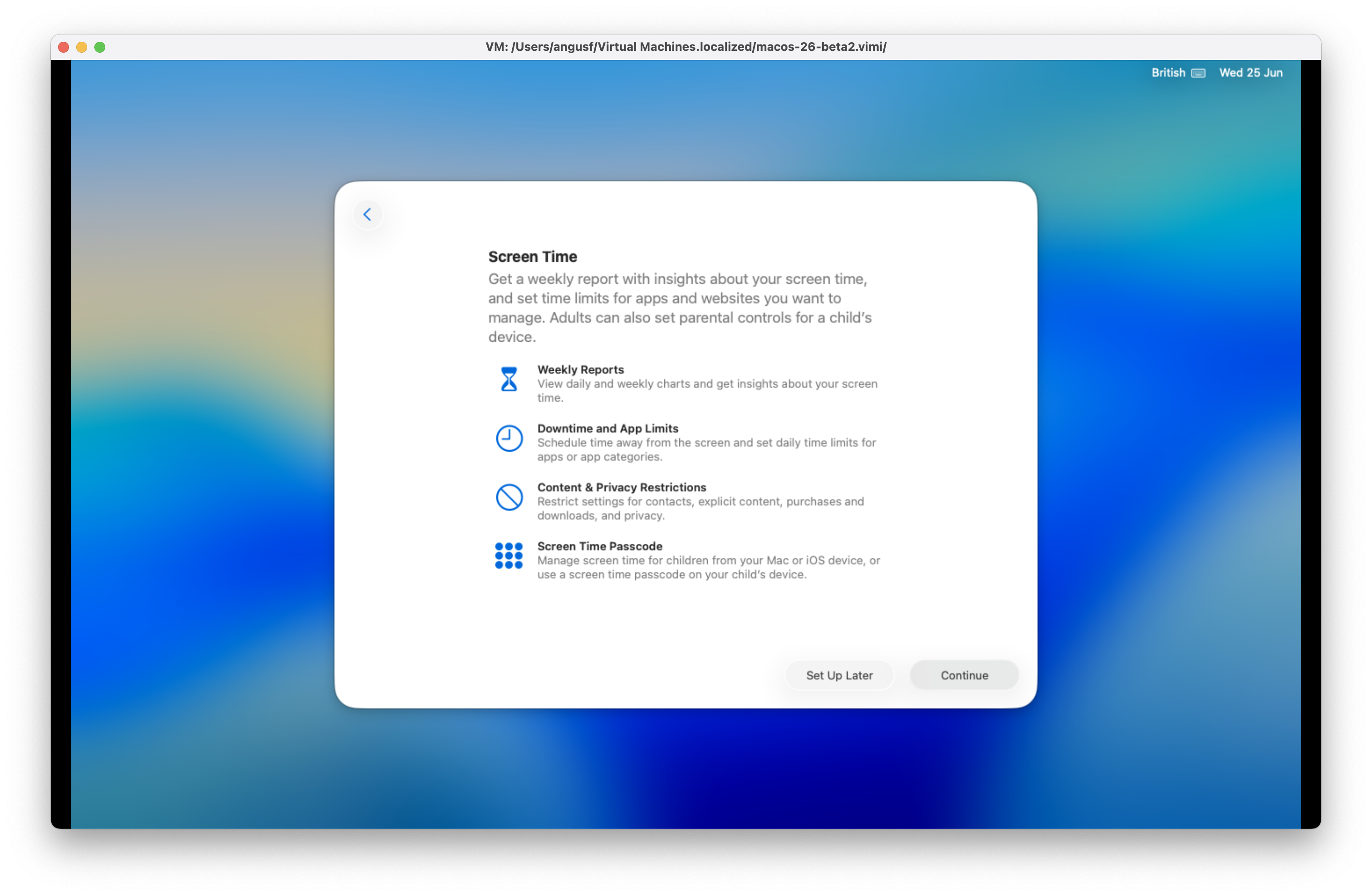
macOS 26 Tahoe Beta 2 - Screen Time
Screen Time settings not really needed on a test machine.

macOS 26 Tahoe Beta 2 - Siri
Not enabled.

macOS 26 Tahoe Beta 2 - Filevault
Not enabled.

macOS 26 Tahoe Beta 2 - Appearance
Auto.
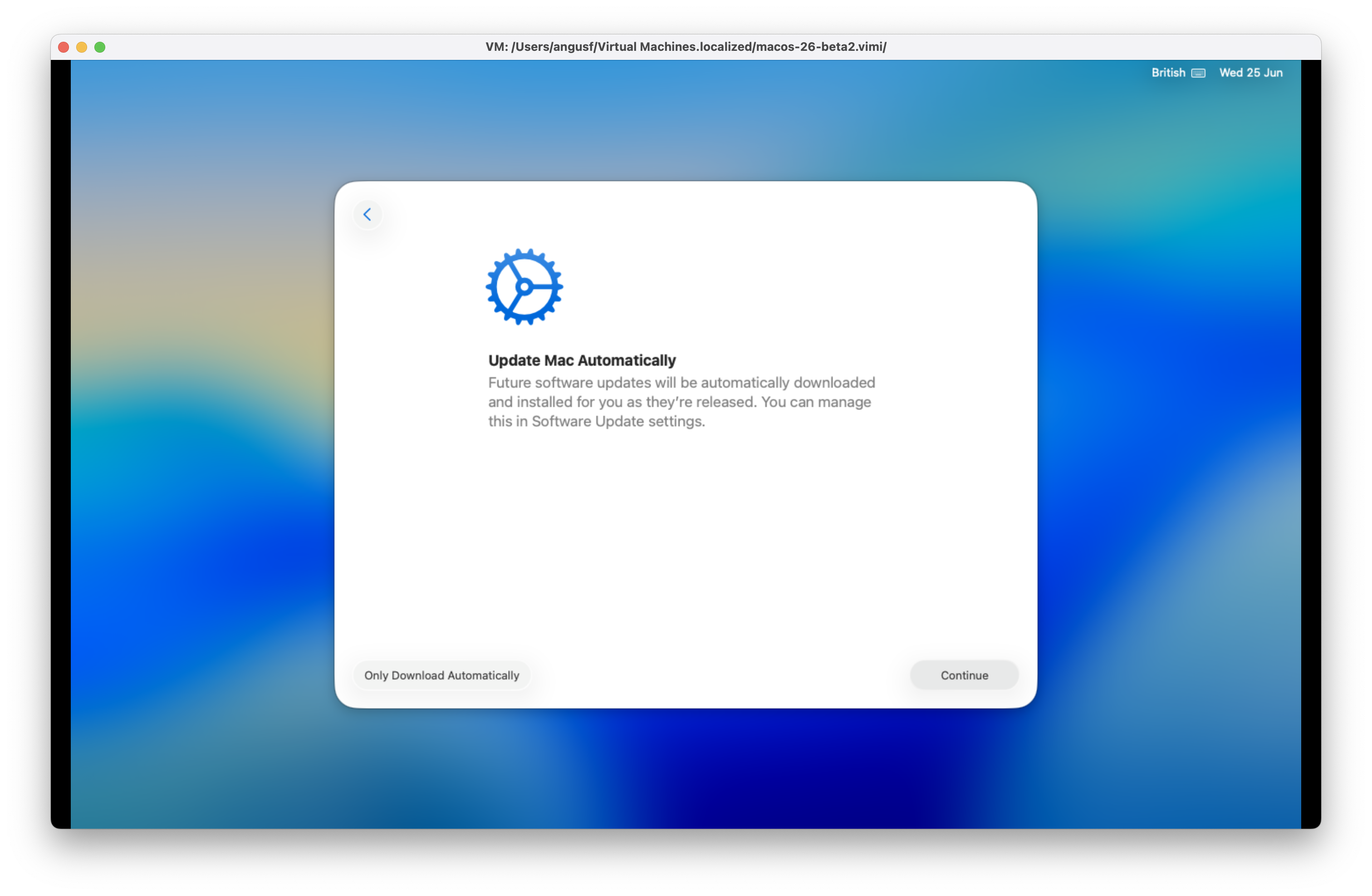
macOS 26 Tahoe Beta 2 - Update Mac automatically
OK.
macOS 26 Tahoe Beta 2 - Welcome
Welcome.
macOS 26 Tahoe Beta 2 - Continue
Continue!
Differences in Settings
You can see some differences in Settings
- General > About > Chip knows thia is an Apple M1 Max (Virtual)
- It has a generated serial number this is not the serial number of the host
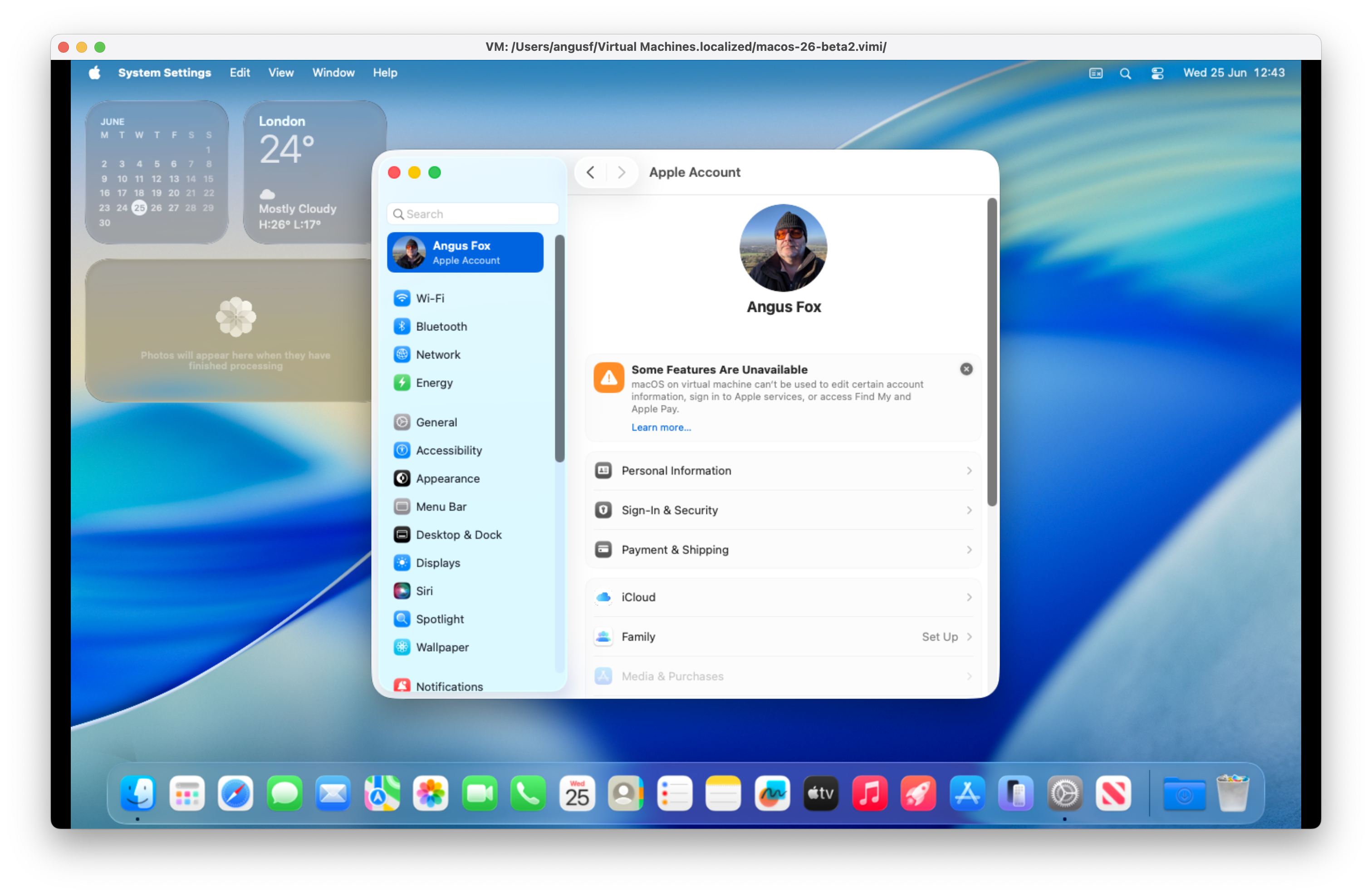
- Apple Account knows that some features are unavailable in a virtual machine and offers the opportunity to learn more

No need for VMware Fusion on Apple silicon?
Yes and no. I have a Windows 11 Arm VM which runs well on VMware Fusion so I don't think I am about to give up on it yet, but VMware Fusion cannot run macOS virtual machines, Viable can, Viable has a family member called Liviable which can run ARM based Linux operating systems too, and both are small, trouble free and easy to manage. See Ubuntu 25.04 Plucky Puffin Arm in a VM on your Apple Mac for details. No Intel virtual machines can run on Apple silicon so these should be kept on an Intel Mac or perhaps, if they are not macOS, copied to a Windows or Linux VMware equipped computer.
