

In 2026, many developers are still wary of proprietary licenses and telemetry, which is why VSCodium remains a popular choice among open-source enthusiasts who prefer a more transparent coding environment.
While the source code for Visual Studio Code (VSCode) is open-source, the pre-packaged version provided by Microsoft includes telemetry and tracking, prompting many to seek alternatives. Fortunately, you can clone and build the source code under the OSI-approved MIT license. However, for most, the hassle of compiling is unnecessary — enter VSCodium, a community-driven, freely-licensed binary distribution of VSCode that eliminates the telemetry concerns.
Open-source licenses comply with the Open Source Definition, allowing software to be freely used, modified, and shared. For a license to be approved by the Open Source Initiative (OSI), it must pass their rigorous review process.
TL;DR – Compiling the open-source version is a distraction for many. Thankfully, VSCodium simplifies the process, providing a hassle-free alternative that is fully compliant with open-source principles.
Contents
Telemetry and Tracking
Despite its efforts to minimize tracking, some telemetry may still be present in VSCodium. Additionally, each extension you install could introduce new tracking vectors. The project's documentation provides guidance on identifying and disabling unwanted telemetry features.
The VSCodium project replaces Microsoft's update services with its own, ensuring that extension updates come from the Open VSX registry rather than the vendor's marketplace.
Proprietary Tools and Extensions
Some proprietary extensions are restricted to Microsoft's version of VSCode, but many open-source alternatives exist. Most extensions, including those for Flutter, are compatible with VSCodium, making it a versatile choice for developers.
Open VSX Registry
The Open VSX Registry serves as a community-driven, fully open platform for publishing VSCode extensions, built on Eclipse Open VSX. This ensures a vendor-neutral, open-source environment that promotes trust and collaborative governance.
Flutter and VSCodium
Installing Flutter Support in VSCodium
Follow the Set up an editor instructions for Visual Studio Code, as they apply directly to VSCodium.
- Start VSCodium.
- Navigate to Command Palette from the View menu.
- Type "install" and select Extensions: Install Extensions from the dropdown.
- Search for "flutter" in the extensions field, select Flutter, and click Install — this will also install the required Dart plugin.
- Open the Command Palette again and select Flutter: Run Flutter Doctor.
- Check the output pane for any issues related to Flutter and resolve them as needed.
- Restart VSCodium and ensure a running simulator or connected device appears in the status bar.
Editing, Running, and Debugging Your Code
The Flutter extension enhances your coding experience with features like syntax highlighting, code completion, and type declaration navigation. The Problems menu item provides a line-by-line analysis of any issues found in your code.
For debugging, you can utilize Flutter DevTools alongside VSCodium's built-in debugging capabilities. Flutter's stateful hot reload is supported, allowing for rapid iteration during development. For more details, check out Using hot reload.
Below are screenshots showcasing VSCodium building and running a Flutter application on macOS, connected to an Android device.
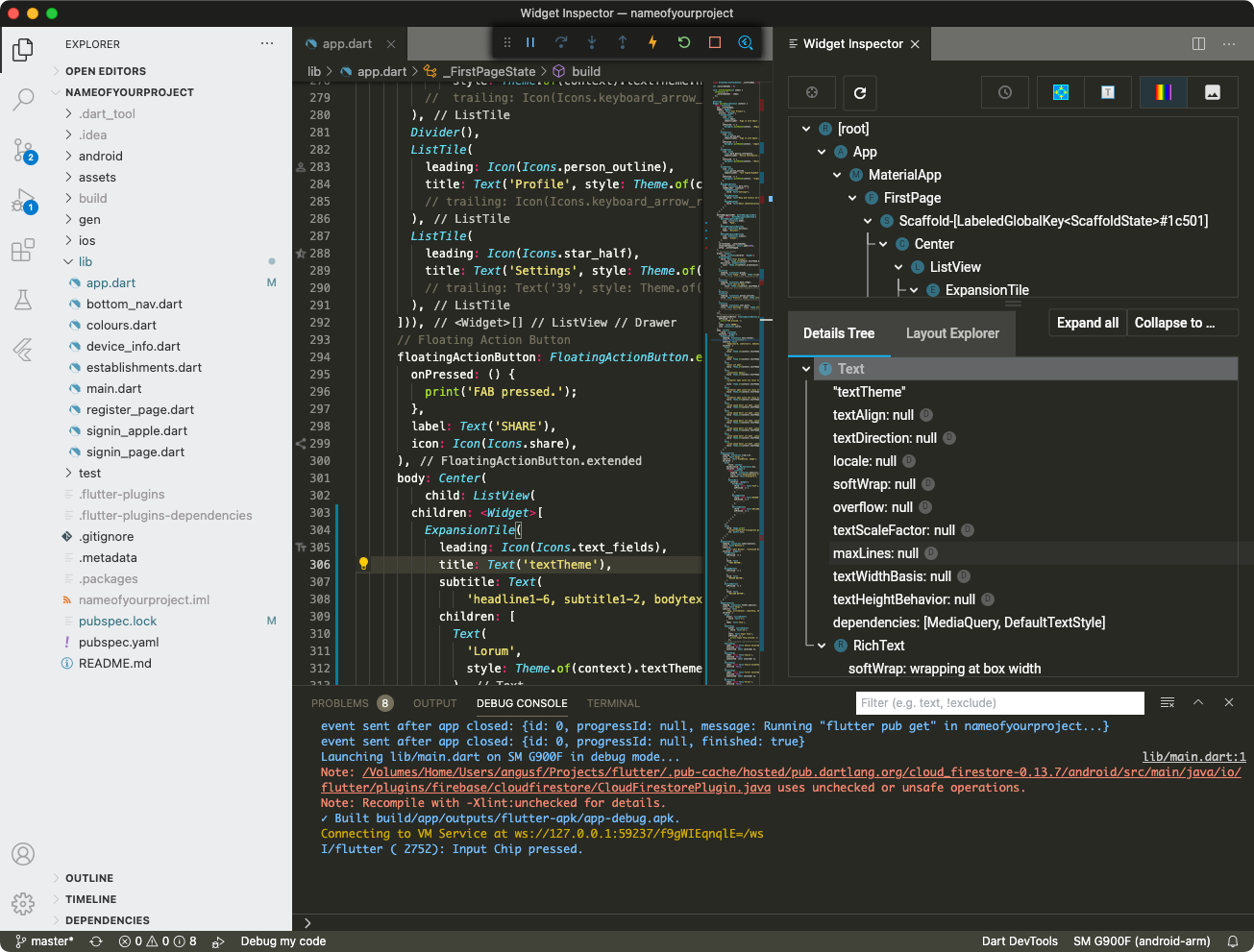 A Flutter project with the Flutter DevTools open
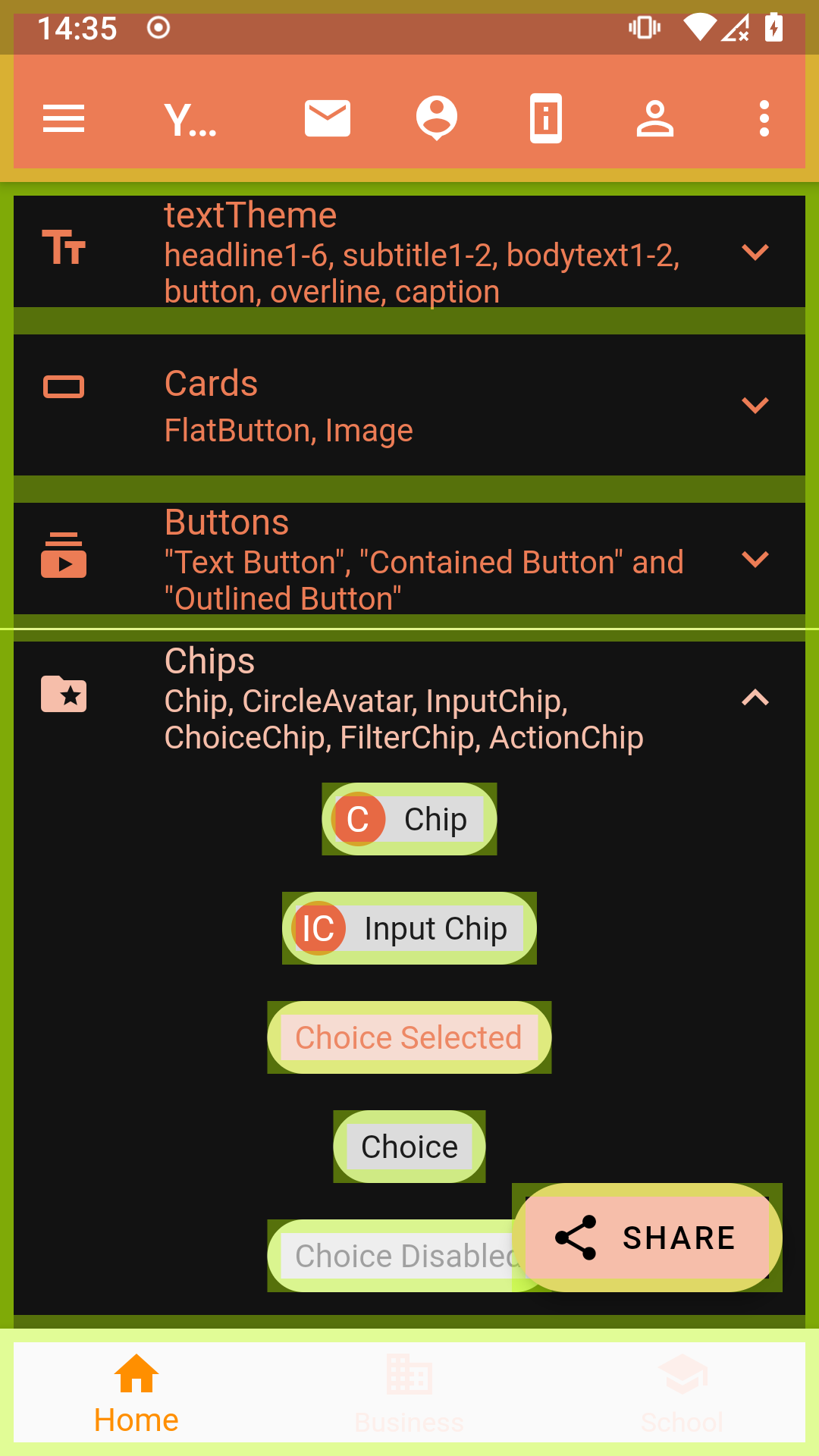 Flutter-based Android app with visible baselines
What's Changed in 2026
In 2026, VSCodium continues to evolve as a robust alternative to Microsoft's proprietary offerings. The project has made strides in improving installation methods across platforms, including support for Windows Package Manager (WinGet) and Snap for Linux. Users on Parrot OS, Debian, Ubuntu, and Arch Linux can easily install VSCodium, with Parrot OS even pre-installing it from their official repositories. This enhances accessibility and encourages wider adoption among developers who prioritize open-source solutions. For macOS the simplest installation is via Homebrew using brew install --cask vscodium.
